
Docs Overview
Vincent Depassier · September 24, 2026
Docs is the workspace's document editor: quotes, proposals, contracts, handbooks and internal pages, written in a rich editor, filed in folders, versioned on every save, and — when you choose — published at a public link or sent out for signature.
Three things decide whether Docs will work the way you expect. Read them before you write anything long.
Nothing saves on its own. There is no autosave and no "you have unsaved changes" warning. Your work is stored when you press Save or Ctrl+S, and not before. Opening another document, or closing the tab, discards whatever you had not saved.
Deleting is permanent. There is no recycle bin. A deleted document takes its version history with it. If you might want it back, move it to an archive folder instead.
Publishing means public. A published document is readable by anyone who has its link, without signing in. There is no "published to my team only" — that is what permissions are for.
What you can make
Kind | What it is for |
Document | Anything you write once: a proposal, a handbook, a meeting record |
Template | A document with variables that fill in from your tables, used to generate documents — one quote per client, one contract per deal |
Folder | Organisation, and a place to set access rules that the documents inside inherit |
A template is not a separate kind of file. It is a document with a flag on it, and you can turn a document into a template (or back) from its menu with Convert to Template / Convert to Document.
The Explorer
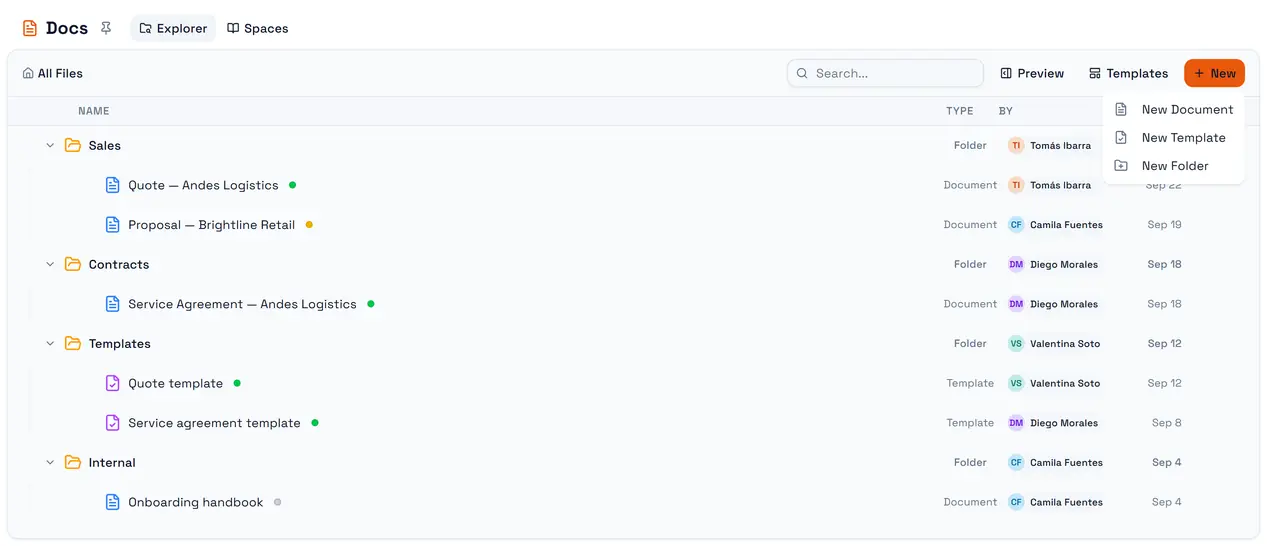
Open Docs from the workspace navigation. The Explorer lists everything you are allowed to see, as a tree of folders and a list with Name, Type, By and Modified.
New creates a New Document, a New Template or a New Folder.
Templates filters the list down to templates.
Search matches document and folder names only. It does not search inside documents.
Drag a document or folder onto a folder to move it. Holding it over a closed folder for a moment opens that folder.
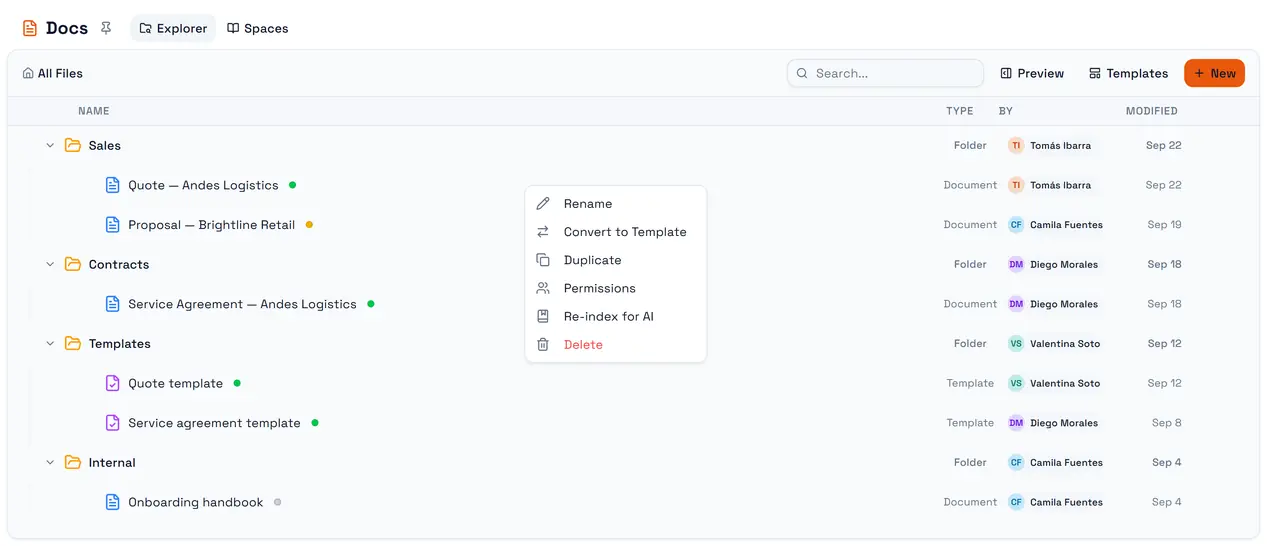
Each row has a menu — right-click it or use the row's menu button:
Item | What it does |
Rename | Changes the title. The public link does not change with it |
Convert to Template / Document | Toggles the template flag. Documents only |
Duplicate | Copies the document or the whole folder, including who has access |
New Doc Inside / New Folder Inside | Creates the item inside this folder. Folders only |
Permissions | Opens the access dialog for this document or folder |
Index for AI | Makes the document searchable by the workspace's AI agents. Documents only |
Delete | Removes it, with no recycle bin |
An item you are not allowed to act on shows that menu entry disabled rather than hiding it.
What Docs is not
It is not a collaborative editor. Two people editing the same document at once do not see each other's changes, and whoever saves last wins.
It has no comments. You may see a Comment permission in the access dialog; there is no commenting feature behind it yet.
It is not a file store. Word files and PDFs you upload belong in Files. Docs holds documents written in its own editor.