
Automations, AI and the API
Vincent Depassier · September 24, 2026
Documents can be created, generated, searched, published, exported and sent for signature without opening the portal — from automations, from the workspace's AI agents, and from outside apps through the API and MCP.
The trap: AI search only finds documents you have indexed. The Docs Query node and the agents search documents by meaning, and they search an index, not the documents themselves. A document is added to that index only when someone chooses Index for AI on it. Nothing indexes on save. A document that was never indexed is invisible to search; one edited since it was indexed is searched as it was then. Check the badge on the document — Indexed, Outdated or Not indexed — and index again after changes that matter.
Indexing for AI
Index for AI is on a document's menu in the Explorer, and the badge in the document's header does the same when clicked. Indexing is manual, one document at a time.
Badge | Meaning |
Not indexed | Search cannot see it |
Indexed | Search sees the current content |
Outdated | Edited since it was indexed; search sees the older content |
A document with no text cannot be indexed.
Automation nodes
The Docs category of the node palette:
Node | What it does | AU per run |
Docs Query | Searches indexed documents by meaning — all, some folders, or specific documents — and returns the closest passages (1 to 20, default 5) | 2 |
Docs Write | Creates a document, replaces one's content, or appends to it, from markdown or rich text | 2 |
Docs: Get Content | Reads a document's content | 1 |
Docs: List | Lists documents — 50 by default, 200 at most | 1 |
Docs: Generate from Template | Generates a document from a template and the rows you pass, into the folder you choose | 3 |
Docs: Regenerate | Rewrites a generated document from its template and its rows, keeping the same document and links | 3 |
Docs: Resolve Variables | Fills a template's variables for a row without creating a document | 2 |
Docs: Publish | Publishes or unpublishes a document, and returns its public link with whether it opens right now | 1 |
Docs: Export to File | Exports to PDF or Word into Files — plain text only, see Export | 3 |
Docs: Send for Signature | Starts a signature process | 3 |
Docs: Signature Status | Reads where a signature process stands | 1 |
Docs: Manage Signature | Resends or cancels a signature process | 2 |
Docs Write → Update replaces the whole document. To add to a running log or digest, use Append.
Regenerate saves the previous content as a version before rewriting, does nothing when the result would be identical, and is refused while a signature process on that document is still open. It fails if the template has been deleted.
Generate from Template is the way to generate for a large table: the portal's picker only loads 50 rows, the node takes any row you give it.
Triggering on documents
The System Event trigger can start an automation when a document is published or unpublished, and at every step of a signature process:
Event | Fires when |
Doc Published / Doc Unpublished | A document is published or taken back |
Signature: sent | A document is sent for signature |
Signature: opened by a signer | A signer opens their link |
Signature: a signer signed | One signer signs |
Signature: fully signed | The last signer signs |
Signature: a signer declined | A signer declines |
Signature: cancelled | The process is cancelled |
Signature: invitation resent | An invitation is sent again |
"Fully signed → export the signed document and store it on the deal" is the usual shape.
Agents
The workspace's AI agents have tools to list, read, create, update, move, duplicate, publish and delete documents, generate from templates, work with versions and folders, export, and run signatures. What an agent can reach is governed like a person: agents can be named in a document's or folder's access list.
The API and MCP
API keys and MCP connectors — including AI clients connected to the workspace — have a Docs access tab of their own, separate from the access lists.
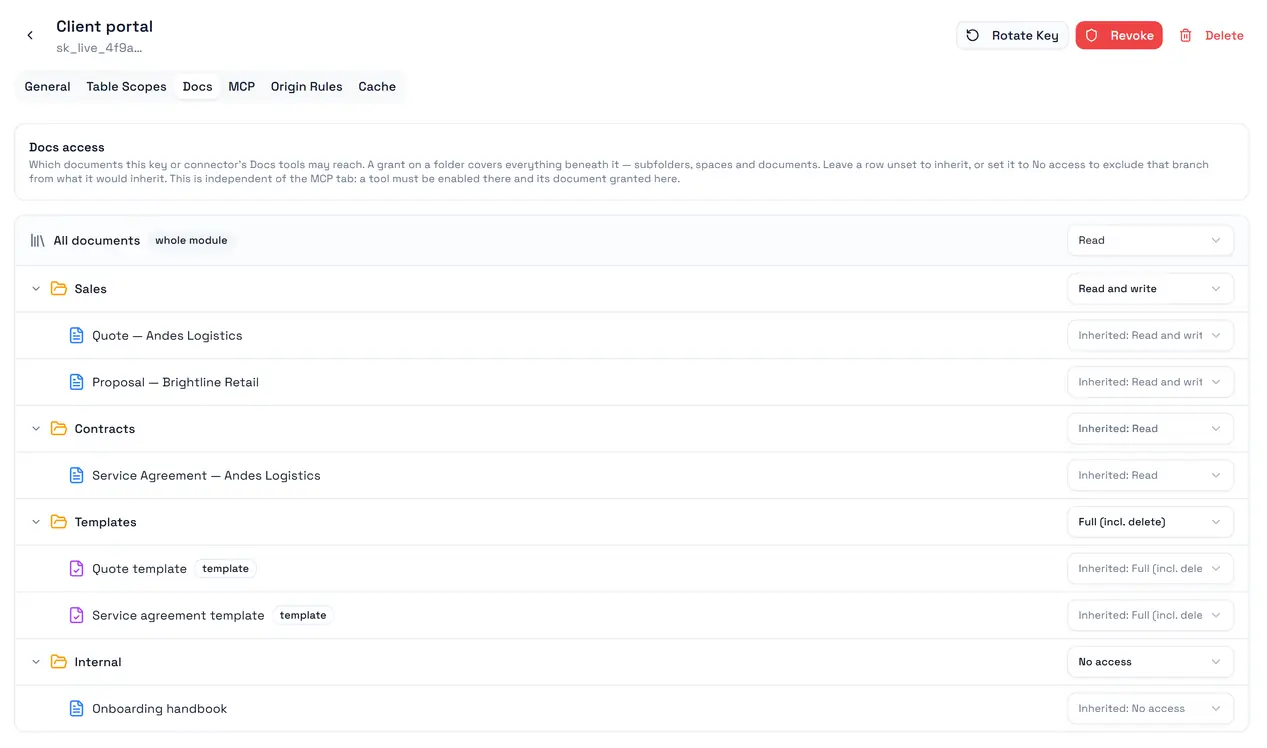
Level | Allows |
No access | Nothing, even if a broader grant would allow it |
Read | Listing and reading |
Read and write | Plus creating and editing |
Full (incl. delete) | Plus deleting |
A grant can target the whole module, a folder or a single document, and the most specific grant wins — so a folder set to No access stays closed under a module-wide Read.
A credential sees no documents until you grant some. This applies to keys and connectors created before Docs access existed too; none were given access automatically. See Docs Scopes.
External MCP clients do not get the signature, export and PDF tools; those remain available to the workspace's own agents.