
Versions and History
Vincent Depassier · September 24, 2026
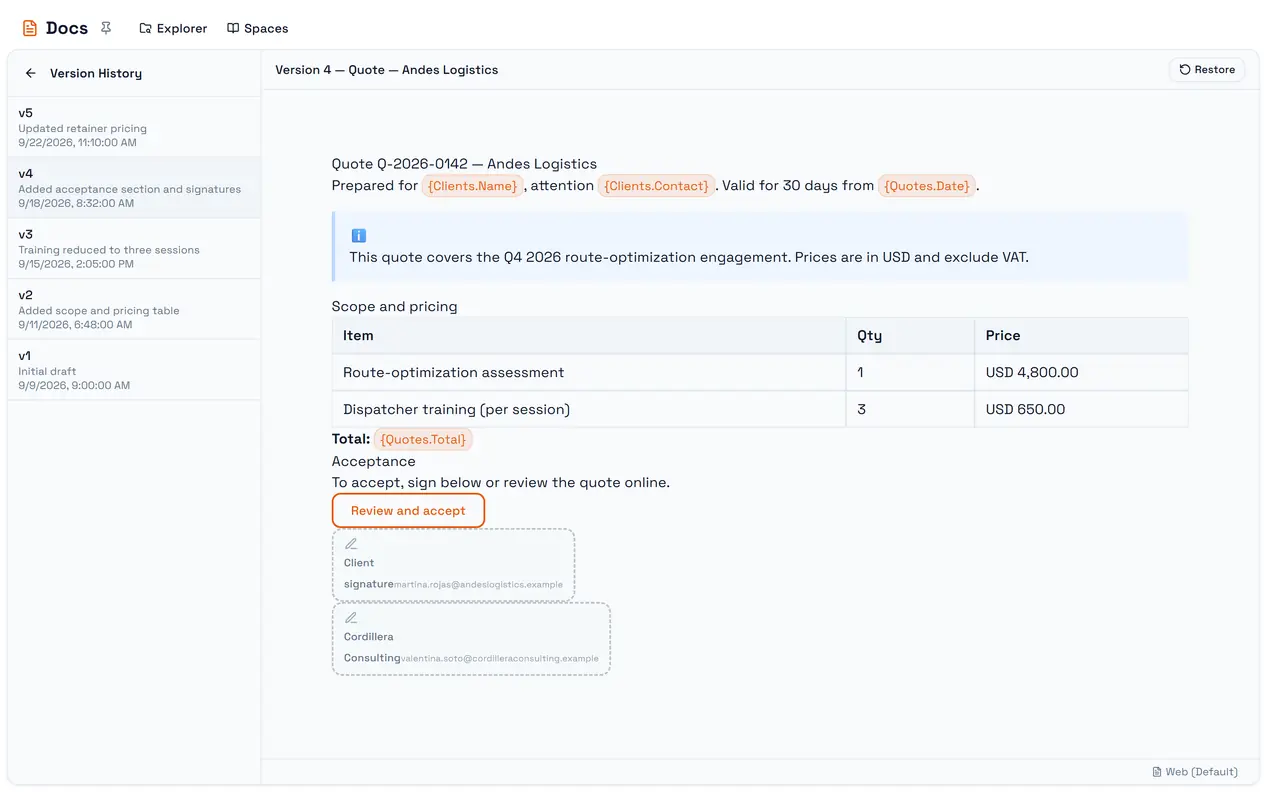
Every Save keeps a copy of what the document looked like before it. History lists those copies, lets you read any of them, and puts one back with Restore.
The trap: restoring does not touch the public page. If the document is published, Restore changes the draft you are editing, not what readers see at the public link. The public page catches up the next time you Save or Publish. Restore also puts back the content only — the current title stays.
How versions are numbered
A version is the content as it stood before a save. Saving a document for the fifth time stores what the fourth save produced, and the document moves on to version six. So:
The newest entry in History is the state before your last save, not the page you are looking at.
A document you have never saved has no history yet ("No versions saved yet").
Each entry shows its number and when it was made. Versions made by the platform say why — a restore, or a document regenerated from its template.
Restoring
Select a version to preview it, then Restore. You are asked to confirm: Restore this version? Current content will be saved as a new version first.
That is exactly what happens:
The current content is saved as a new version, labelled Snapshot before restoring version N.
The chosen version's content becomes the document's content.
Nothing is deleted on the way. Versions newer than the one you restored stay in the list, so a restore can itself be undone by restoring the snapshot.
What history does not do
It is not per-keystroke. Only saves create versions. Work you never saved has no version, and there is no autosave.
It does not survive deletion. Deleting a document deletes its versions with it.
It is not copied. Duplicating a folder gives each copied document a fresh history that starts over.
It is not pruned. There is no limit on the number of versions and no way to delete one.