
Signatures
Vincent Depassier · September 24, 2026
A document with signature boxes can be sent to one or more people for an electronic signature. Each signer gets an email with a personal link, signs in the browser without an account, and the document records who signed, when and from where.
The trap: saving the document after sending it cancels the signing. When you send, the platform takes a fingerprint of the document's content, and every signature is checked against it. If you save the document while a process is open, you are warned — This document has an active signature process. Saving these changes will cancel it and signers will no longer be able to sign. — and if you save anyway, the process is cancelled and nobody can sign it. Finish the document before you send it; to change it afterwards, save, and send it again.
Before you send
A workspace mailbox must be connected. Invitations go out from the workspace's own email account, not from a Praxsuite address. Without one, sending is refused with a message pointing to Settings → Mailing Engine. See Mailing.
Templates cannot be signed. Generate a document from the template and send that.
Add signature boxes. More → Blocks → Signature Box in the editor. Click a box to set its label, the signer's email and name — which can be variables, such as
{Contacts.email}— whether it is Required, and the signing order.
Boxes and signers
Box | Who can sign it |
Assigned to an email | Only that signer. Anyone else is refused with This signature box is assigned to another signer |
Not assigned | Any signer of the process, once |
A signer counts as Signed when they have signed every required box assigned to their email — so one person can sign in several places, such as initials on each page and a signature at the end. A signer with no boxes assigned counts as signed after their first signature. Each box can be signed only once.
Sending
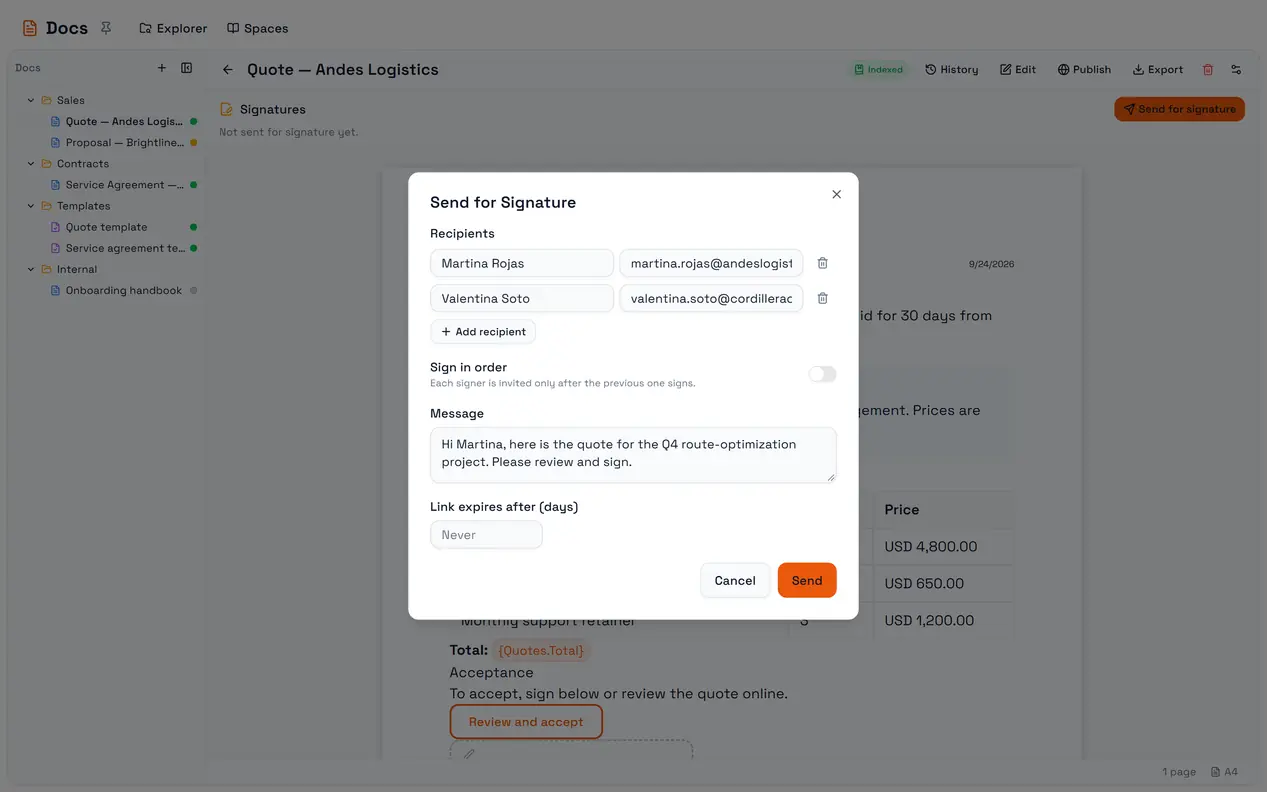
On the document, the Signatures panel shows Send for signature. The dialog fills the recipients from the signature boxes' emails; you can add or change them.
Option | What it does |
Sign in order | Each signer is invited only after the previous one signs. Lower order signs first |
Message | Included in the invitation |
Link expires after (days) | Blank means Never |
If some boxes have no email, the dialog tells you how many before you send.
Invitation and completion emails are written in Spanish when you use the portal in Spanish, and in English otherwise.
Signing
The signer opens their link, sees the document, and at each of their boxes:
Makes a signature — Draw, Type (rendered in a script font), Initials or Upload an image.
Enters their Full Legal Name.
Ticks the consent: I agree that this constitutes my electronic signature and I intend to sign this document.
Each signature is stored with the signer's name, the time, the address the request came from, the browser, and the consent. Once everyone has signed, the process is Completed and every party gets a completion email.
Decline to Sign asks for confirmation first — the sender will be notified and you will not be able to sign it afterwards — and cannot be undone. A declined process can never complete: cancel it and send again. With Sign in order, a decline also stops everyone after that signer.
Following a process
The Signatures panel shows the process and each recipient.
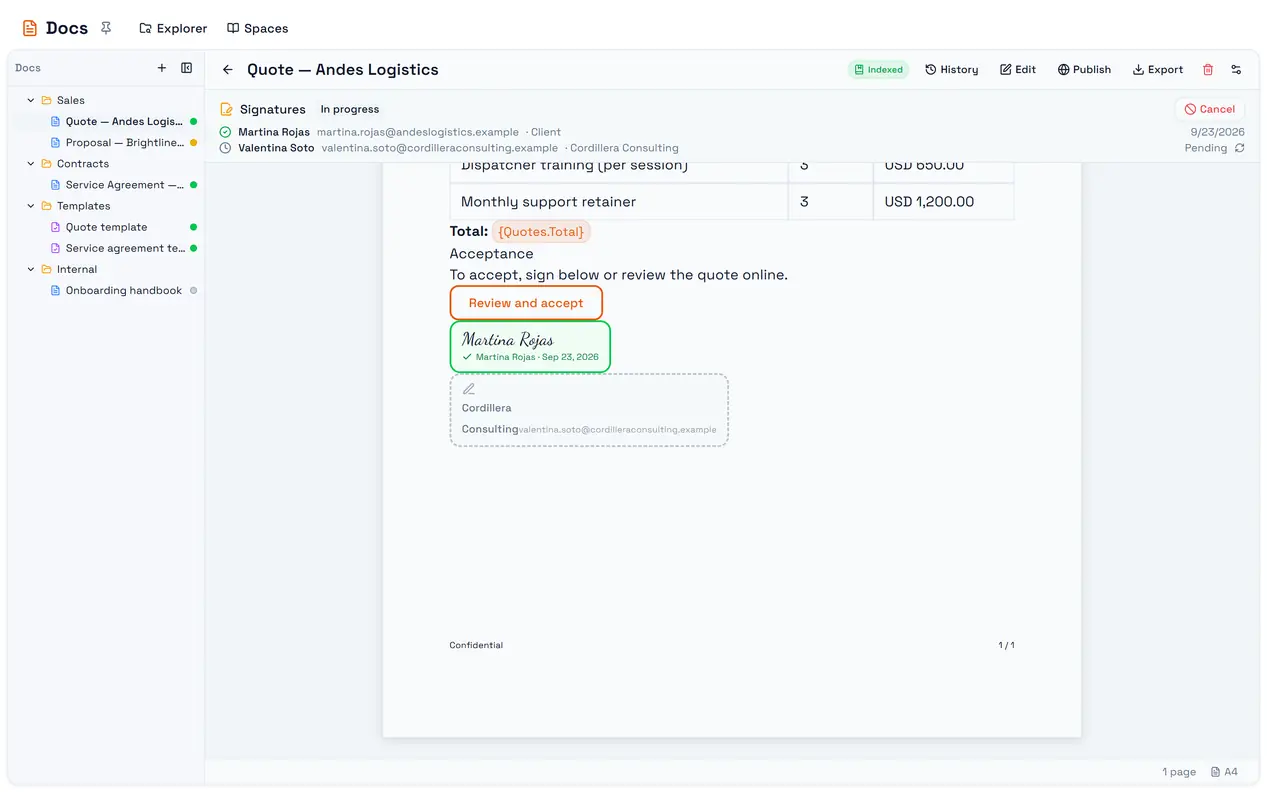
Process status | Meaning |
Sent / In progress | Waiting for signatures |
Completed | Everyone has signed |
Expired | The link's expiry passed |
Cancelled | You cancelled it, or the document was saved while it was open |
Recipient status | Meaning |
Pending | Invited, not opened |
Viewed | Opened the link |
Signed | Signed all their required boxes |
Declined | Refused to sign |
From the panel you can Cancel, Resend email, Copy signing link for a recipient, and switch between View signed and View original.
Expiry is checked when a signer opens their link. A process whose date has passed shows as Expired the next time someone tries.
After signing
Once at least one person has signed, the document's public page — if it is published — shows the signed version with the signatures on it, and keeps doing so even if the process later expires. Only a cancelled process stops it.
Signing can also be started and followed from automations — see Automations, AI and the API.