
Export
Vincent Depassier · September 24, 2026
There are two ways a document leaves Praxsuite as a file, and they produce different results. The portal's Export as PDF prints the document as you see it. The export used by automations and AI agents writes a PDF or Word file with the document's text, headings, lists and tables.
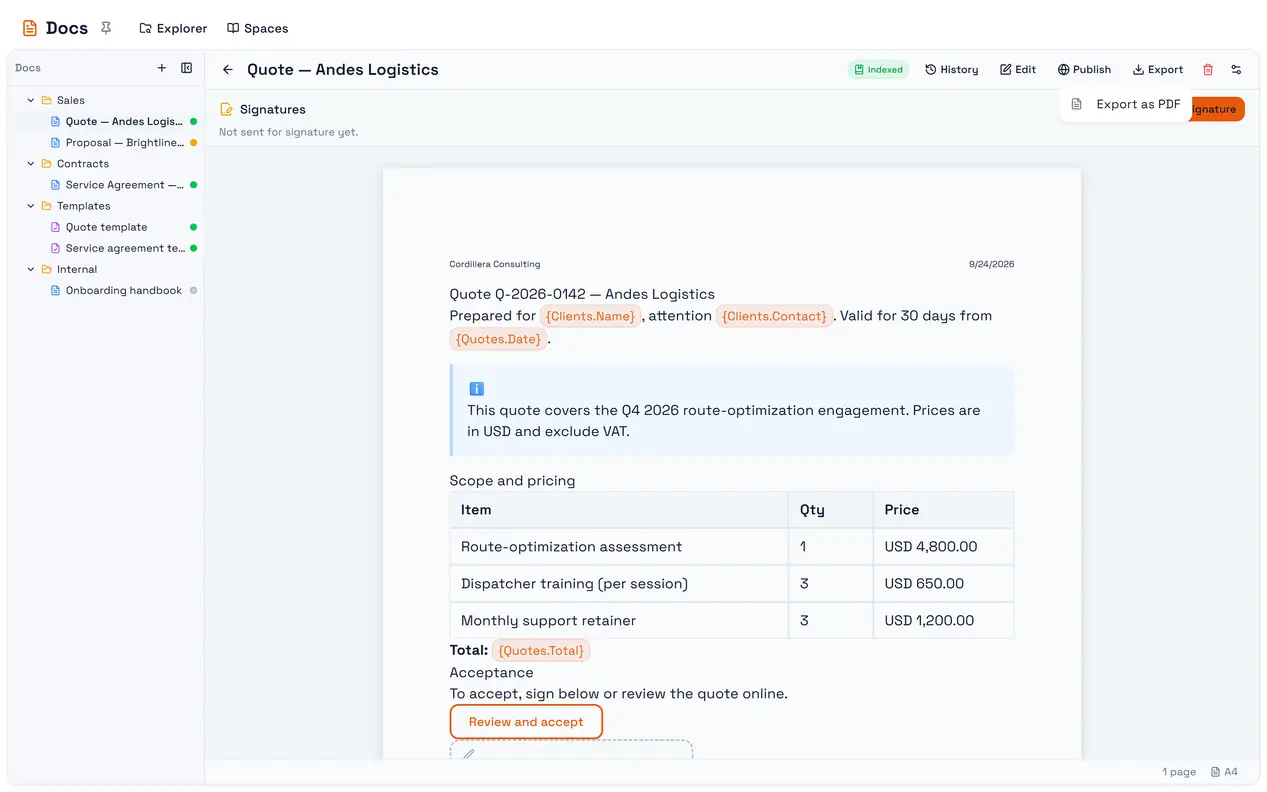
The trap: an automation's export leaves out images and blocks. The Docs: Export to File node, and agents that export, keep text, headings, lists, code, quotes and tables — and drop images, callouts, buttons and signatures. A quote with a logo and a signature comes out without either. If a client needs the document as it looks on screen, send them the public link or a PDF exported from the portal.
From the portal: Export as PDF
Export → Export as PDF opens your browser's print dialog with the document laid out for printing. Choose Save as PDF as the destination to get a file.
What you get is what the editor shows: the page size, header and footer, tables, images and colors.
In a template with Preview Values on, the export uses the preview values.
It opens a new window. If your browser blocks pop-ups, you see Unable to open print window. Please allow popups. — allow them for the portal and try again.
There is no Word export in the portal.
From the public page
A published document's public page offers Export → PDF and Print document to its readers, when Export as PDF is on in the document's public view settings. It works the same way — through the reader's print dialog.
From automations and agents
The Docs: Export to File node and the workspace's AI agents can export a document to PDF or Word. The file is saved to the workspace's Files, private unless the node is set to make it public, in which case it gets a permanent public link.
Kept | Dropped |
Headings, paragraphs | Images |
Bullet, numbered and task lists | Callouts, buttons, embeds |
Code blocks, quotes, dividers | Signature boxes and signatures |
Tables, as real tables |
|
Pages are always A4. The export always uses the document's current saved content, published or not.
Exporting through the API needs the Export permission on the document — see Permissions.