Files
Vincent Depassier · September 1, 2026
Files in Praxsuite are workspace-level objects, not attachments. A file exists on its own, and rows point at it.
That one design choice explains most of how Files behaves:
The same file can be referenced by many rows without being duplicated.
Removing a file from a row does not delete the file.
Deleting a file does affect every row that pointed at it — so there is a way to check first.
Getting a file in
Upload puts a file in the workspace's storage and gives you back an id. You can file it into a folder at the same time, or leave it at the root and organise later.
The maximum upload size depends on your plan. An oversized upload is refused with a message naming the actual limit, so you do not have to guess.
Once uploaded, a file can be attached to any File-type column on any row. A File column holds a list, so one cell can carry a contract and its annexes.
Sharing a file
There are two ways to hand someone a link, and picking the wrong one is the most common mistake here.
| Temporary link | Public link |
Expires | Yes | Never |
Needs a session | No | No |
Right for | A preview, a one-off share, an email that will be read this week | An image in a published site, a logo in an email template |
A temporary link works in an image tag or an embed with no authentication header, which is what makes previews work. It stops working when it expires.
A public link never expires. Anyone holding it can read the file, forever, with no login — which is exactly what a published web page needs and exactly wrong for a customer's signed contract. Publishing is treated as a distinct act: it requires the permission to share files, not merely to read them, and both publishing and revoking are written to the workspace audit log.
Revoking a public link stops it working immediately.
Before you delete
A file can be referenced from many places, and nothing warns you at delete time by default. There is a reverse lookup: ask which rows and columns across the workspace reference a given file, and you get the list.
Run it before deleting anything you did not upload yourself five minutes ago. A logo referenced by four email templates and a published page is not obviously different from an orphaned draft until you look.
Browsing
The Files view pages through the workspace's files with filtering and sorting applied before they reach you — by extension, by date, by name, by size. This matters once a workspace has thousands of files: it is the difference between a list that opens and one that does not.
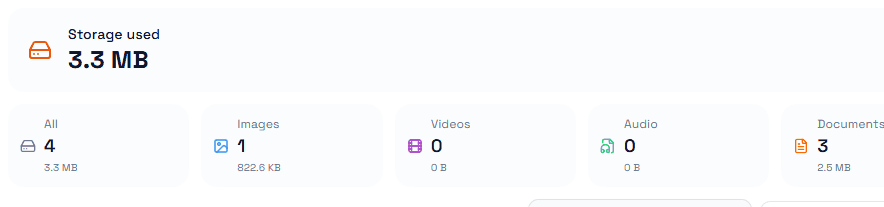
There is also a storage summary — counts and totals per file type across the whole workspace — which is how you find out that 60% of your storage is one person's video uploads without opening a single record.
Folders
Folders organise the workspace sidebar, and files are one of the things that can live in them. The same folder tree holds tables and dashboards, so a folder called "Q3 Audit" can hold the table, the dashboard reading it, and the source documents together.
This is a different tree from the one in Docs. Docs folders organise documents; workspace folders organise workspace objects. They do not mix.
A note on file names
Accented and non-Latin file names are handled correctly on download — a file called Presentación.pdf arrives with its name intact. If you are building something that consumes downloads programmatically, read the encoded name rather than the plain fallback.
Next
Datatypes in Praxsuite
Folders in Praxsuite
Files
The Vault
Permissions in Praxsuite
What it looks like
The header answers the question you actually have when you open Files: how much is stored, and what kind of thing is it. The breakdown is by category, not by extension, so a .docx and a .pdf both land under Documents.
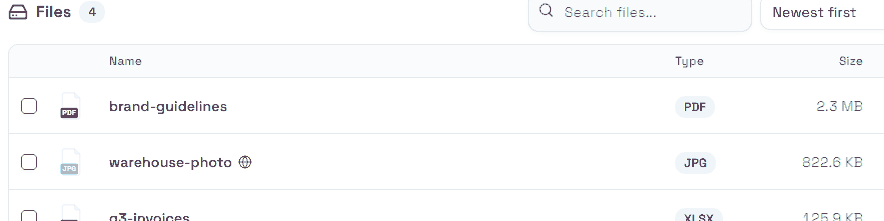
Below it, the list itself. The globe next to a name means that file has a permanent public URL — that is the one marker worth scanning for before you share a workspace with someone new.