
Templates and Variables
Vincent Depassier · September 24, 2026
A template is a document with variables in it — placeholders such as {Clients.Name} or {Quotes.Total} that fill in from rows of your tables. Generate turns a template plus the rows you pick into an ordinary document: one quote per client, one contract per deal, written once.
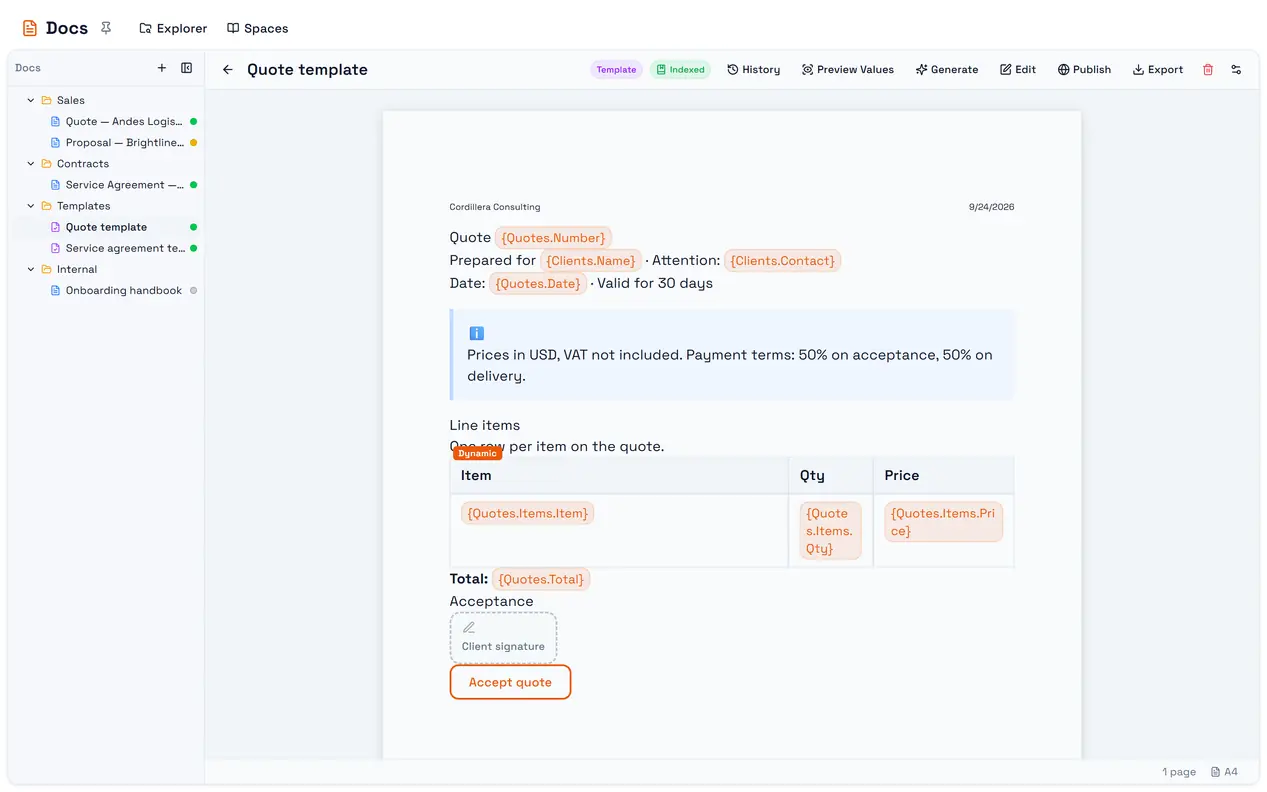
The trap: the preview is not the output. Preview Values formats each value for your screen — Yes/No, 1,234.50, 15%, a date in your locale. The generated document writes the raw value: true/false, 1234.5, 0.15, 2026-09-24. Always generate one real document and read it before you send a hundred.
Making a template
New → New Template in the Explorer, or
Convert to Template on any document's menu. Convert to Document turns it back.
Templates in the Explorer lists them all. A template cannot be sent for signature itself — you sign the documents generated from it.
Variables
While editing, type /, pick a table, then a column. The editor inserts a token:
Token | Fills in with |
| That column's value on the row you pick for that table |
| A value from the record linked through a relation column, one level deep |
Names are matched ignoring case and spaces, so {Clients.Company Name} and {clients.companyname} are the same variable.
Variables also work inside the settings of a block — a button's label and URL, a link, an image's address, a signature box's signer email and name — so a "View invoice" button can point at a different URL on every generated document.
Column types a variable can read
Short text, long text, email, phone number, number, currency, integer, big integer, decimal, percentage, status, yes/no, date, date and time, period and formula. Relation columns — to another table, to end users, to workspace users or to agents — are followed one level.
How values are written
Column type | Written as |
Date |
|
Date and time |
|
Yes/no |
|
Number, currency, decimal, formula | The number with trailing zeros removed — |
Percentage | The stored fraction — |
If you need $1,234.50 or 15% in the document, put the symbol in the template next to the variable, or store the formatted text in a formula column and use that.
Dynamic tables
A dynamic table repeats a row once per related record — the line items of a quote, the people on a project.
Insert a table and write one row using variables from the related table.
Put the cursor in that row and choose Dynamic table (repeating rows).
Pick the Source Table and the Relation Column that links it to the records.
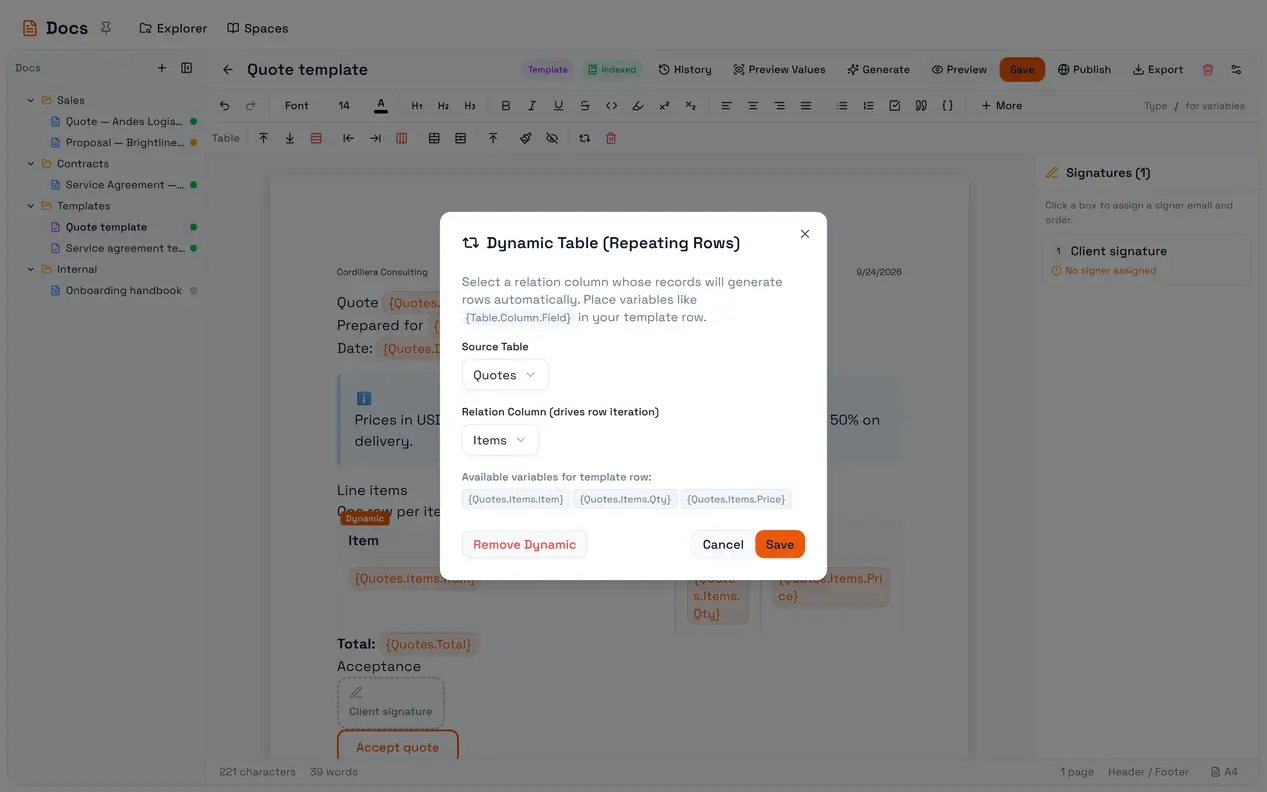
When the document is generated, that row is copied once for every linked record. There is no cap on the number of rows.
Generating a document
On the template, Generate opens Generate Instance: a title for the new document and one row picker for each table the template uses.
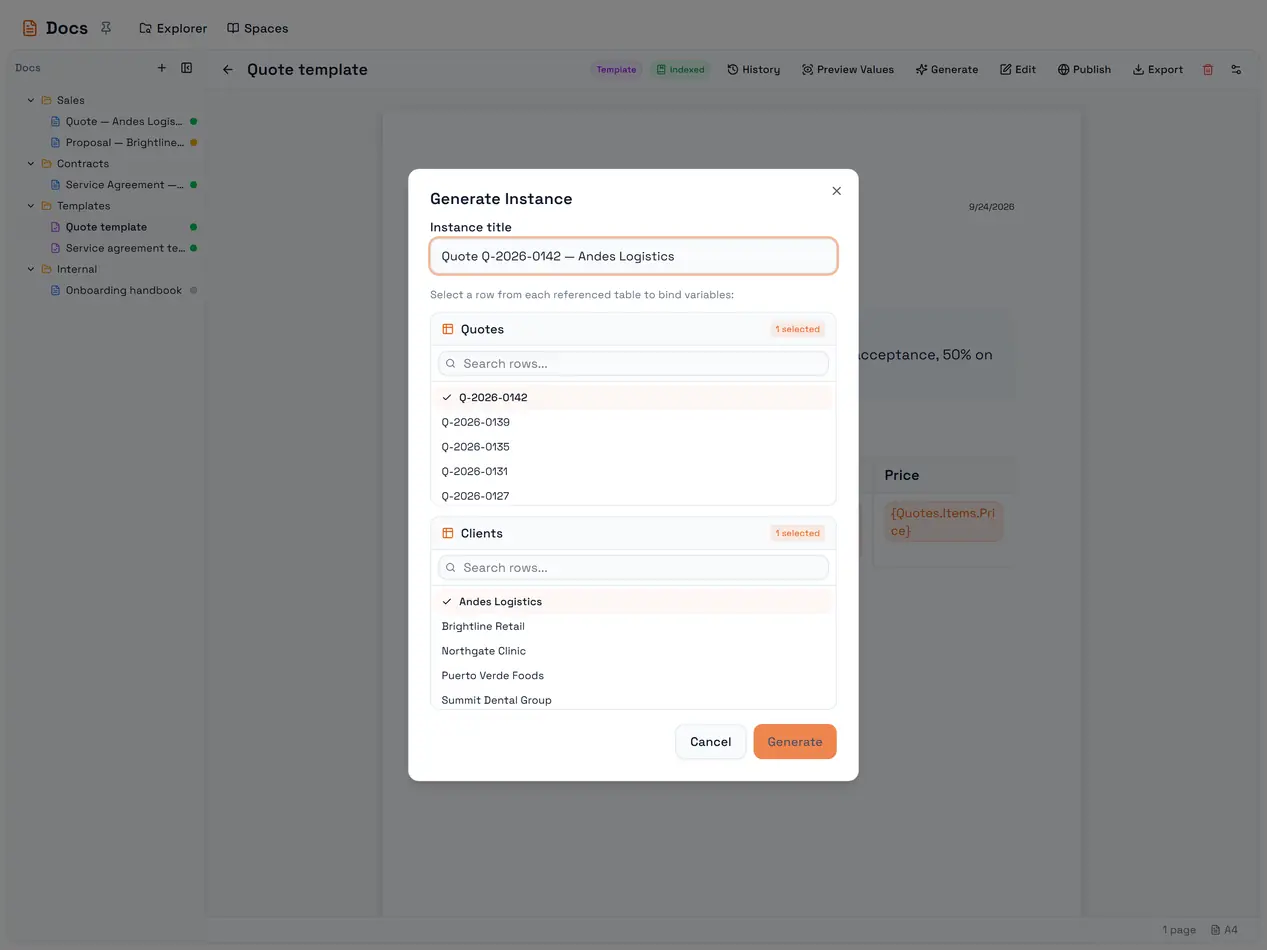
The new document is an ordinary draft, filed in the same folder as the template. It remembers which template and which rows produced it. From the portal you cannot choose another folder; automations and the API can.
A template with no variables still generates — you get a plain copy.
Traps worth knowing
Generate uses the saved template. Unsaved edits to the template are not part of what is generated. Save first.
The row picker loads the first 50 rows of each table, and its search looks only through those 50. For a large table, generate from an automation instead.
Preview Values uses the first row of each table, not a row you choose.
A variable that cannot be resolved disappears from the generated document — it does not stay as
{Table.Column}and it does not raise an error. A misspelled variable produces a blank.`{Table.Relation.Column}` shows the related record's display name, not that column, unless the relation has a matching one-to-one column. Check the output when you reach through a relation.
Renaming a table or a column breaks the variables that use it, including dynamic tables, because variables refer to names. Rename, then fix the template.
Deleting a template breaks regeneration. Documents generated from it keep their content, but an automation that regenerates them fails with The template this doc was generated from no longer exists.
The help text on some screens still mentions an older
{ColumnName}syntax. Use{Table.Column}.