
Publishing and Sharing
Vincent Depassier · September 24, 2026
Publish puts a document at a public link that anyone can open without signing in. Unpublish takes it back. There is no in-between: a published document is public, and who may see it inside the workspace is a separate question answered by permissions.
The trap: saving a published document changes the public page immediately. Once a document is published, every Save goes straight to the link — there is no staging copy waiting for you to publish again. If a client has the link to a quote, they see your edits the moment you save them. To work on a revision privately, Duplicate the document — the copy is a draft named "(Copy)" with its own link — edit the copy, and paste the result into the original when it is ready.
What publishing does
Action | Result |
Publish | The current content goes live and the document becomes public |
Save, while published | The public page updates to the saved content |
Unpublish | The document goes back to draft and private. The link stops working |
Publish again | The same link works again |
Publishing and unpublishing are recorded in the workspace's activity log.
The link
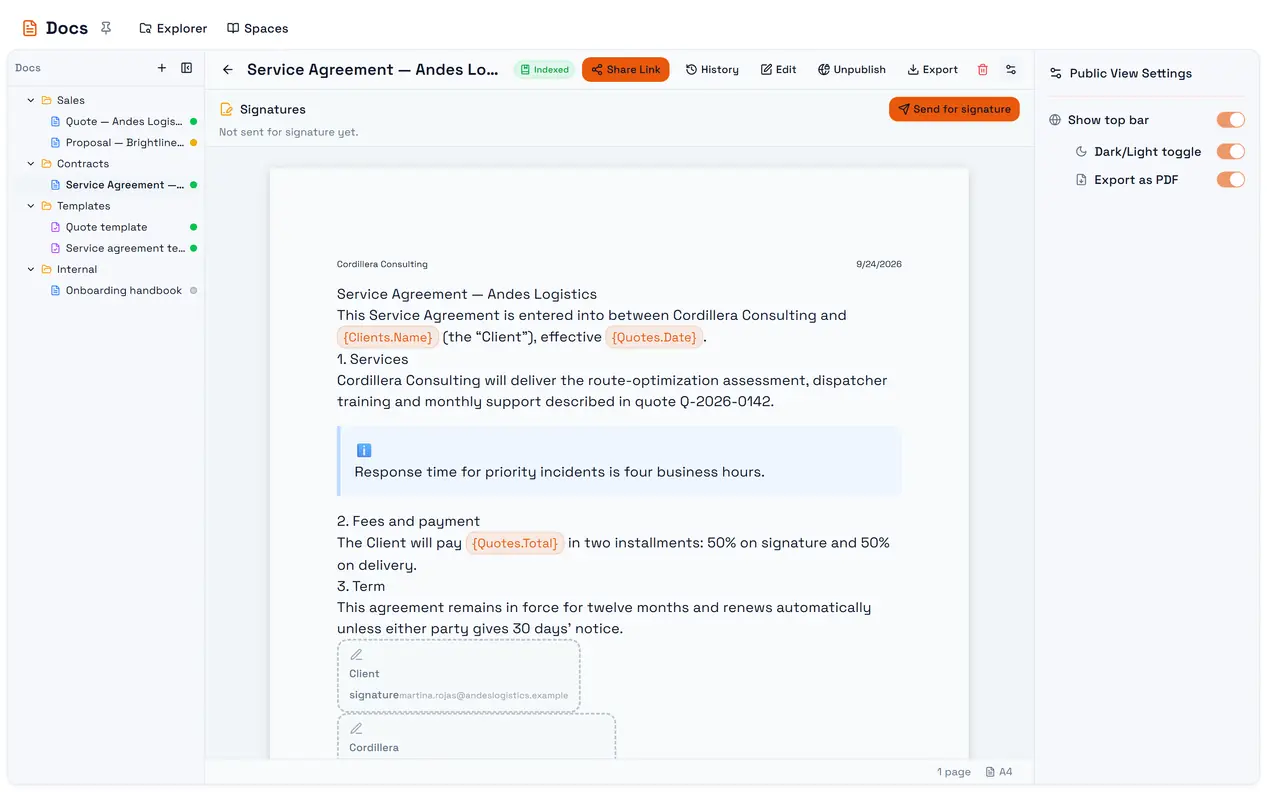
Share Link appears in the header while the document is published and copies its address to the clipboard. It has this shape:
<your portal>/public/workspace/<workspace-id>/docs/<slug>A reader who opens it after you unpublish sees This document may not be public or doesn't exist.
The slug
The last part of the link, the slug, is made from the title when the document is created, and it is unique within the workspace — a second document with the same title gets -2, the next -3.
Three things about slugs catch people out:
Renaming does not change the slug. A document created as "Draft quote" and renamed "Quote — Andes Logistics" keeps
draft-quotein its link. That is what keeps links you have already sent working, but it means the link does not describe the document. Choose the title before the first save if the link will be public.Accents and non-Latin letters are dropped. Only
a–z, digits, spaces and hyphens survive, so "Cotización" becomescotizacin. A title written entirely in non-Latin script produces an empty slug.You cannot edit the slug in the portal.
Public view settings
The gear next to the publish controls opens Public View Settings, which shape what the reader sees around the document:
Setting | Default | What it does |
Show top bar | On | A bar above the document with the controls below |
Dark/Light toggle | On | Lets the reader switch theme |
Export as PDF | On | Lets the reader download or print the document |
These settings have their own Save button inside the panel and do not need the document to be saved.
When the public page shows something else
If the document has been sent for signature and at least one person has signed, the public page shows the signed version — with the signatures on it — rather than the content you last saved. See Signatures.