
Vincent Depassier · September 24, 2026
A WhatsApp channel links a phone's WhatsApp account to the Inbox the same way WhatsApp Web does: as a linked device. Messages to that number appear as conversations, and you answer them from the Inbox.
The trap: every chat on the phone comes into the Inbox — personal ones included. A linked number mirrors all its chats, one-to-one and groups, and there is no setting to limit it to some of them. Link a number used only for the business, never someone's personal WhatsApp: everything on it will be readable by whoever can see the channel.
This is not the WhatsApp Business API
The channel works as a linked device of a normal WhatsApp or WhatsApp Business app, not through the official Business API. In practice:
No message templates and no 24-hour window. You can write to anyone who is in the account's chats.
The number can be banned by WhatsApp without notice, as the linking screen warns. Automated or bulk messaging makes that more likely.
The phone has to stay linked. If it is unlinked from the phone, the channel stops until you link it again.
Linking a phone
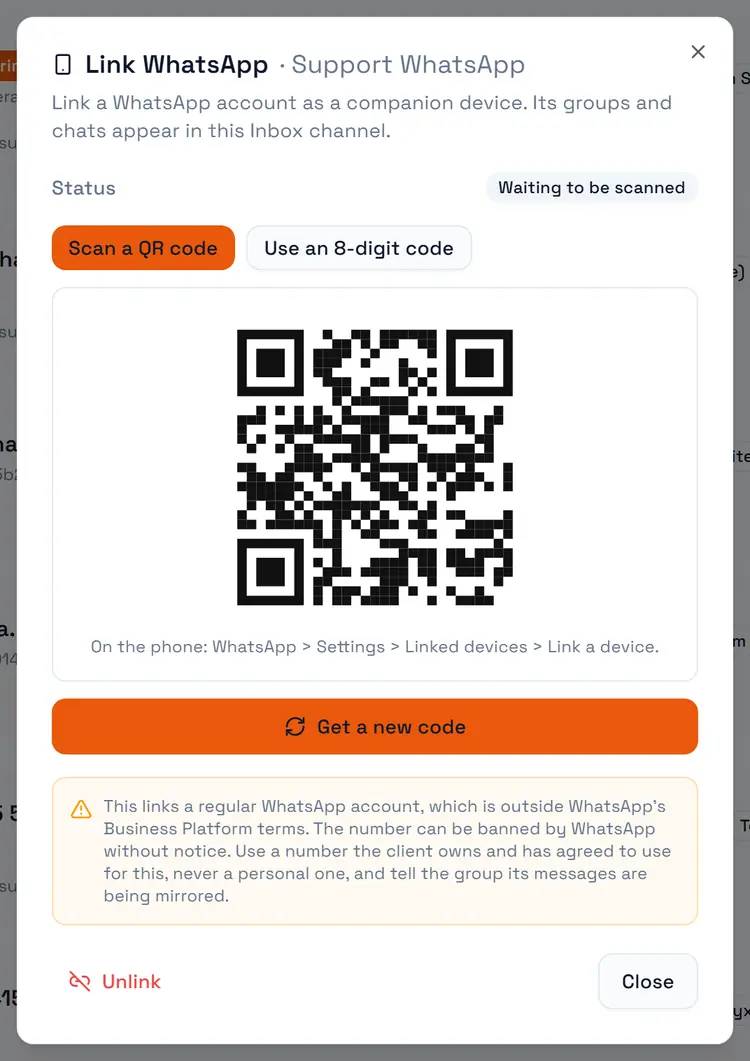
Channels → Add Channel → WhatsApp (linked device), give it a Display Name and create it. The Link WhatsApp dialog opens straight away.
Choose how to link:
- Scan a QR code — on the phone: WhatsApp > Settings > Linked devices > Link a device.
- Use an 8-digit code — on the phone: Link a device > Link with phone number instead.
Wait for Connected.
Status | Meaning |
Connected | Working |
Waiting to be scanned | The code is ready; nobody has scanned it |
Reconnecting | The link dropped and is coming back |
Unlinked from the phone | Someone removed the device on the phone — link it again |
Not linked | Never linked, or unlinked here |
The dialog also lists the groups the account belongs to. Unlink removes the link from the Inbox side.
What comes in
Text, images, video, audio, voice notes and documents, up to 32 MB each.
Groups: one conversation per group chat.
Messages the Inbox cannot show — polls, locations, view-once media and other special kinds — arrive as a short placeholder saying what they were. View-once media is never copied.
Messages you send from the phone itself also appear in the conversation, and they are treated like incoming messages: the conversation shows as unread for the rest of the team, and they start automations set to Received as well as Sent.
What goes out
Text only. Attachments are dropped and a reply that is only a file fails; send a link instead. Each number can send 20 messages a minute. A message past that limit is not queued — it fails, and has to be sent again. An automation that writes to many contacts on one number needs to space its sends.