
Conversations
Vincent Depassier · September 24, 2026
A conversation is one thread with one contact on one channel. The list on the left shows them, the middle pane shows the messages, and the details pane on the right shows who the contact is and who is handling it.
The trap: on chat channels, a message after you close a conversation starts a new one. WhatsApp, SMS, calls, web chat and Instagram only add a message to a conversation that is Open. If you close, snooze or archive it and the contact writes again, a fresh conversation is created and the old one keeps its status. On email it is the other way round: a reply to the same thread goes into the old conversation but does not reopen it, so it stays out of the Open view. When a closed email conversation might get a reply, check Closed now and then.
Finding conversations
Control | Options |
Channel | All inboxes, or one channel |
Status | All, Open, Snoozed, Archived, Closed, Spam |
Read state | All, Unread, Read |
Sort | Newest, Oldest |
Search | Subject, contact name and address |
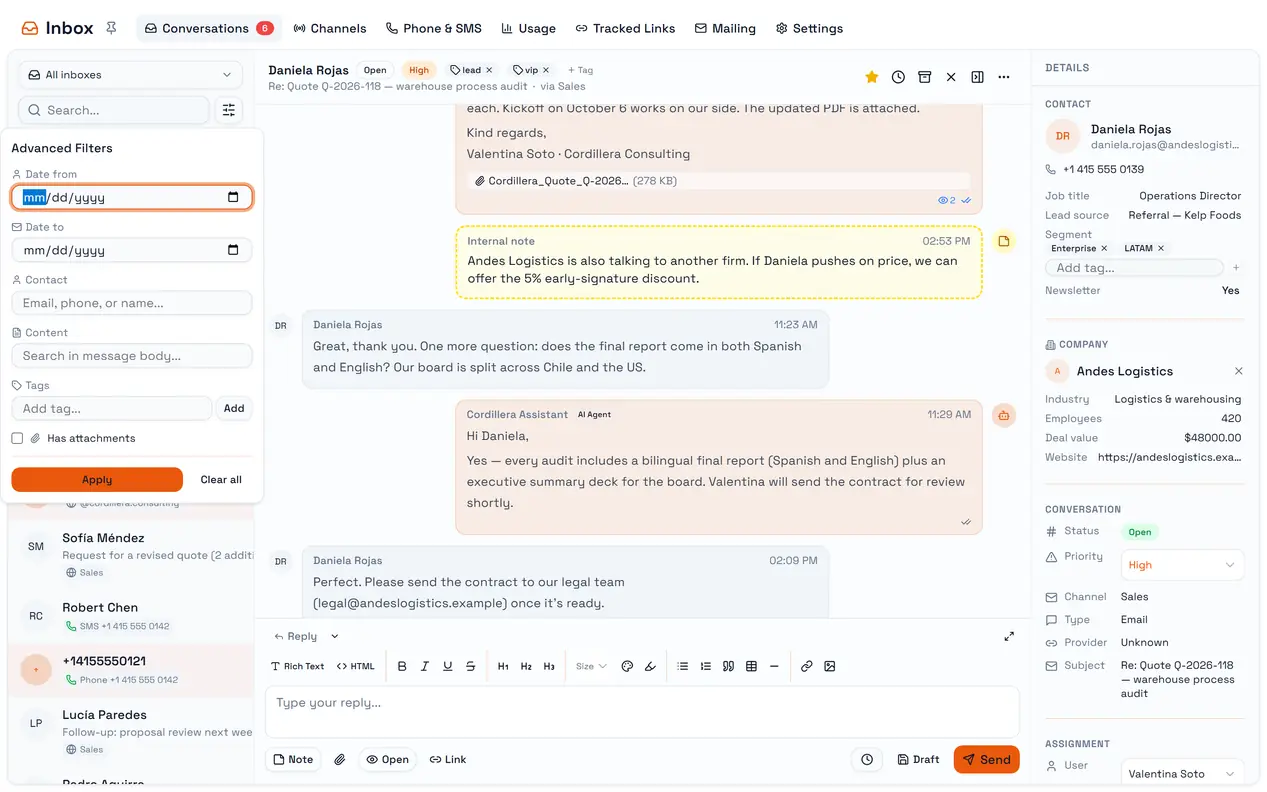
Advanced Filters adds a date range, a contact (email, phone or name), words inside the messages, tags, and Has attachments. Active filters show as chips you can remove one by one. The list loads 50 conversations at a time; Load more brings the next 50.
Tags are free text, and the tag filter matches on part of a word: filtering by sales also finds conversations tagged presales.
Statuses
Status | Meaning |
Open | Needs attention. The only status you can reply in |
Snoozed | Put aside until a time you choose |
Archived | Done, kept out of the way |
Closed | Resolved. Its resolution time is recorded |
Spam | Not a real conversation |
You can only reply to an Open conversation. The composer disappears in every other status; Reopen brings it back.
Snooze
Snooze offers 1, 2 or 4 hours, tomorrow morning (9:00) or afternoon (14:00), Monday morning, or a custom date and time in the future.
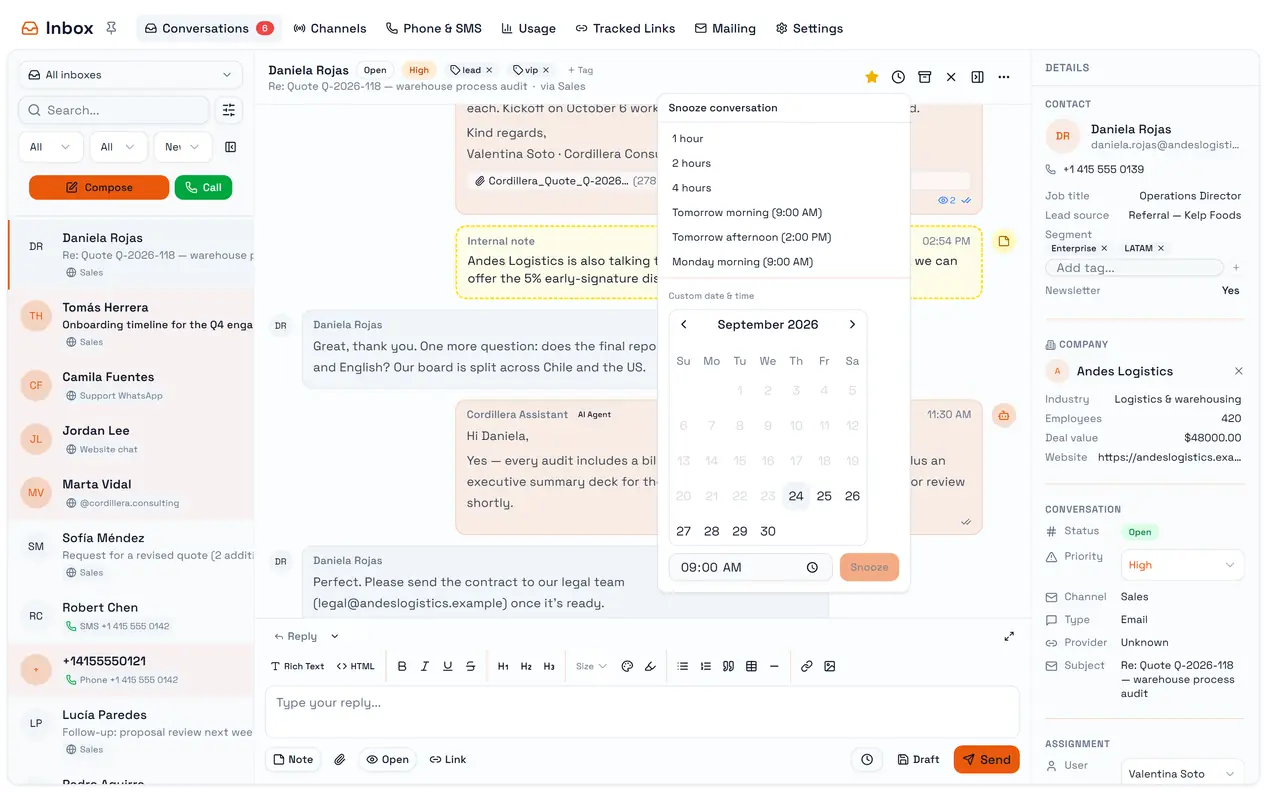
For now, a snoozed conversation does not come back to Open on its own when the time comes. Use Unsnooze when you get to it, and do not rely on snooze as a reminder.
The thread header
The header shows the status and the tags — type a tag and press Enter to add it — and the actions: Star, Snooze, Archive, Close or Reopen, and the … menu with Mark as unread and Mark as spam.
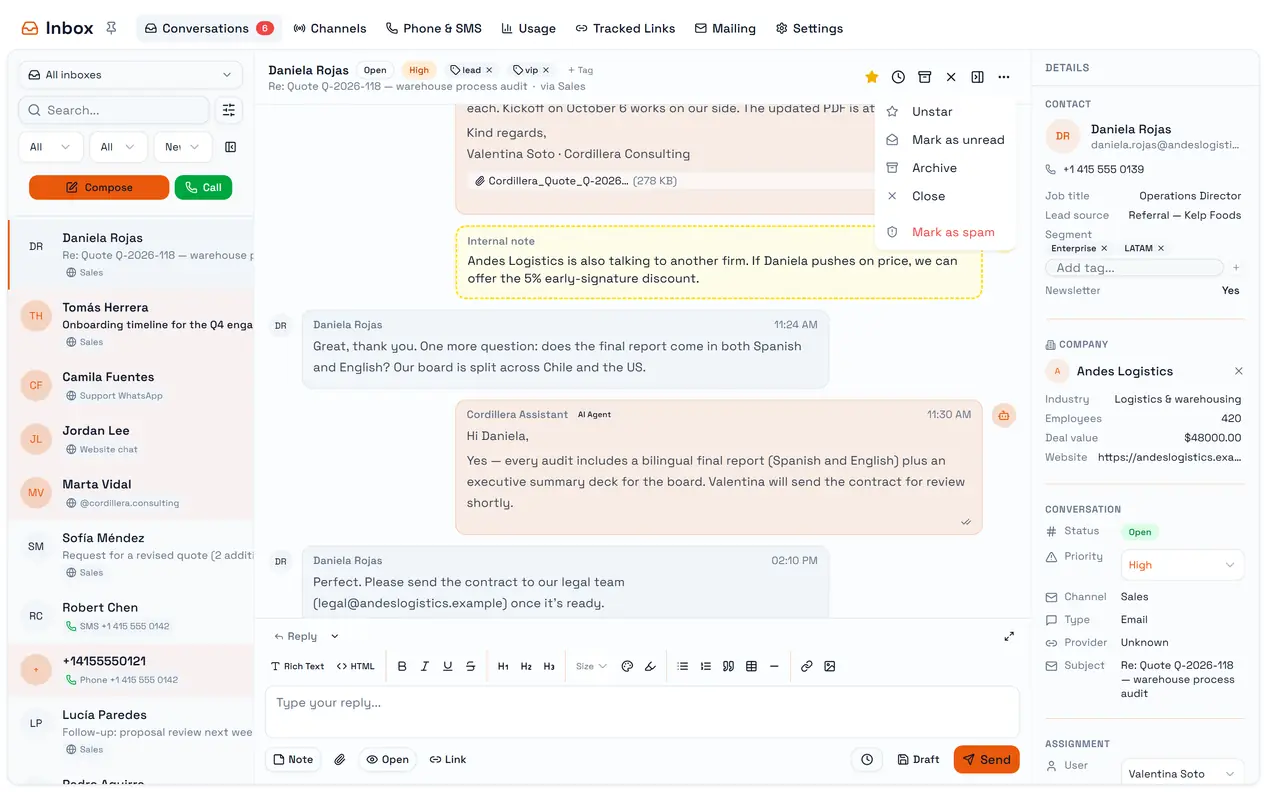
Read and unread are per person: marking a conversation read does it for you, not for your colleagues. The unread count counts conversations, not messages.
Details
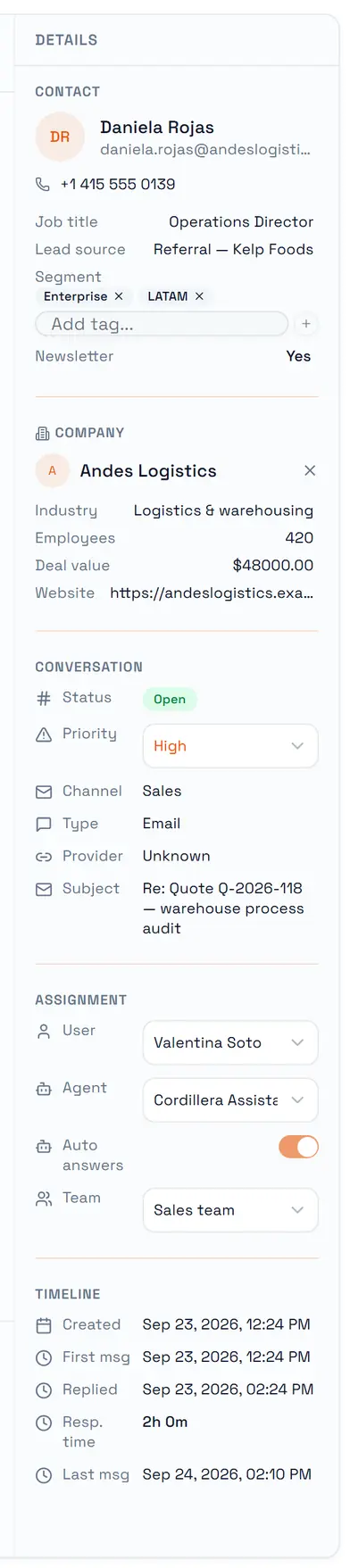
Section | What you can do |
Contact | Edit the name; see the phone or email; see the extra fields chosen in Settings |
Company | Link the contact to a company, create one, or unlink it |
Conversation | Status, Priority (None, Low, Medium, High, Urgent), channel, subject |
Assignment | A user, an AI agent, and a team of agents |
Timeline | First and last message, and response time |
A conversation is assigned to one person at most. Assigning a person does not remove the AI agent, but an agent never answers a conversation that a person is assigned to — see AI auto answers.
Messages
Each message shows who wrote it — the contact, a teammate, the AI Agent or the system — and, for what you send, its state: Queued, Sent, Delivered, Read, Failed or Bounced. A failed message shows the reason under it.
Internal notes are marked Internal note. They are never sent to the contact and never shown in the web chat.
Only notes, drafts and scheduled messages can be deleted. A message that was sent stays in the thread.