
How to Switch Between Workspaces in Praxsuite
Camila Escobar · June 17, 2026
Learn how to switch between workspaces in Praxsuite, select environments on login, and navigate between teams or clients using the side panel workspace selector.
Praxsuite allows you to work across multiple workspaces, each representing a different team, client, or environment.
Switching between them is quick and can be done at any time from the side panel.
What is a workspace switch
A workspace switch allows you to move from one workspace to another without logging out.
Each workspace contains its own:
Data
Tables
Automations
Dashboards
Structure
Switching ensures you are working in the correct environment.
How to select a workspace when logging in
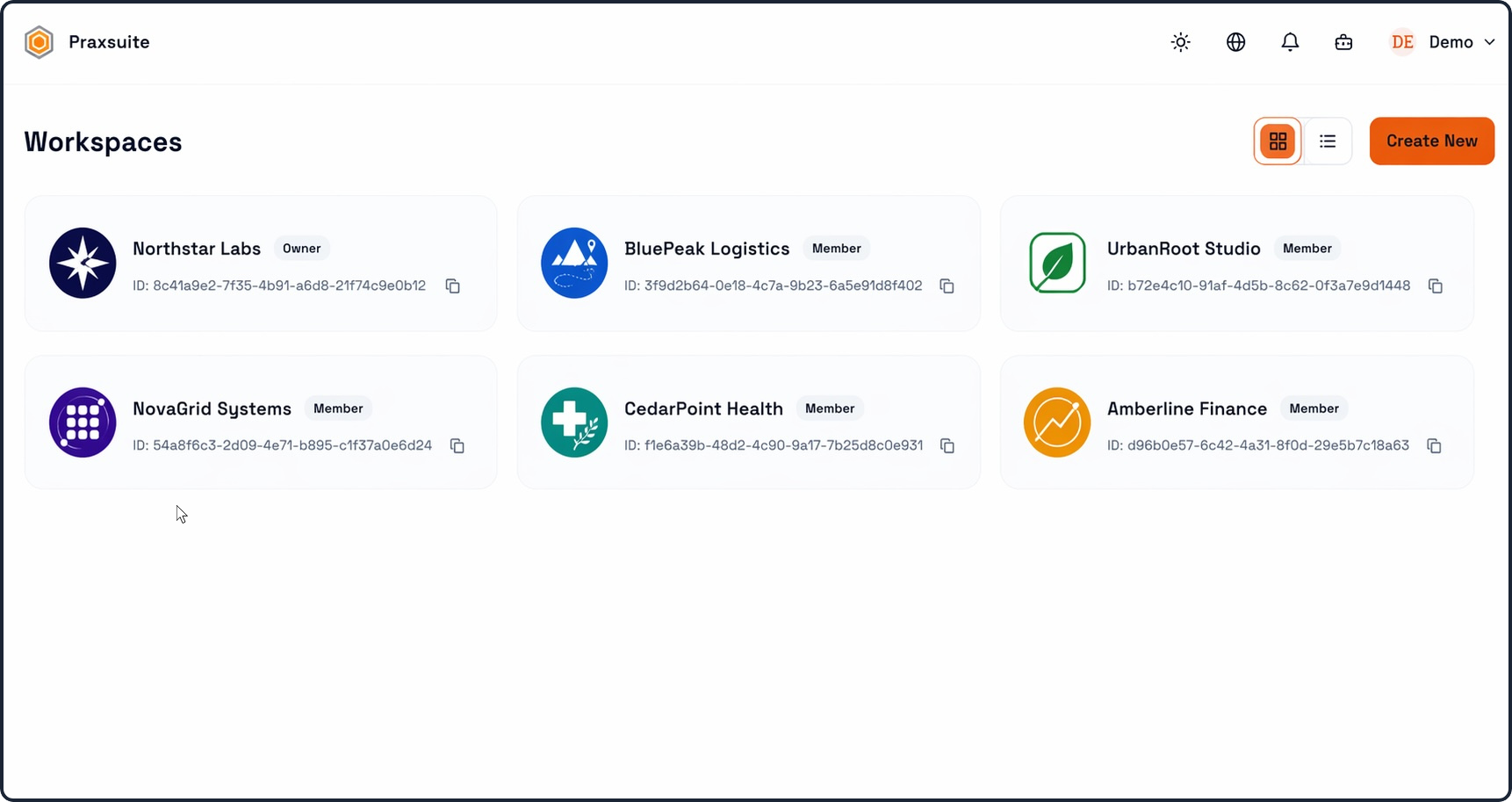
After logging into Praxsuite, you will see the Workspaces screen.
Here you can:
View all available workspaces
See your role (e.g., Owner, Member)
Identify each workspace by name and logo
To enter a workspace:
Click on the workspace card you want to access
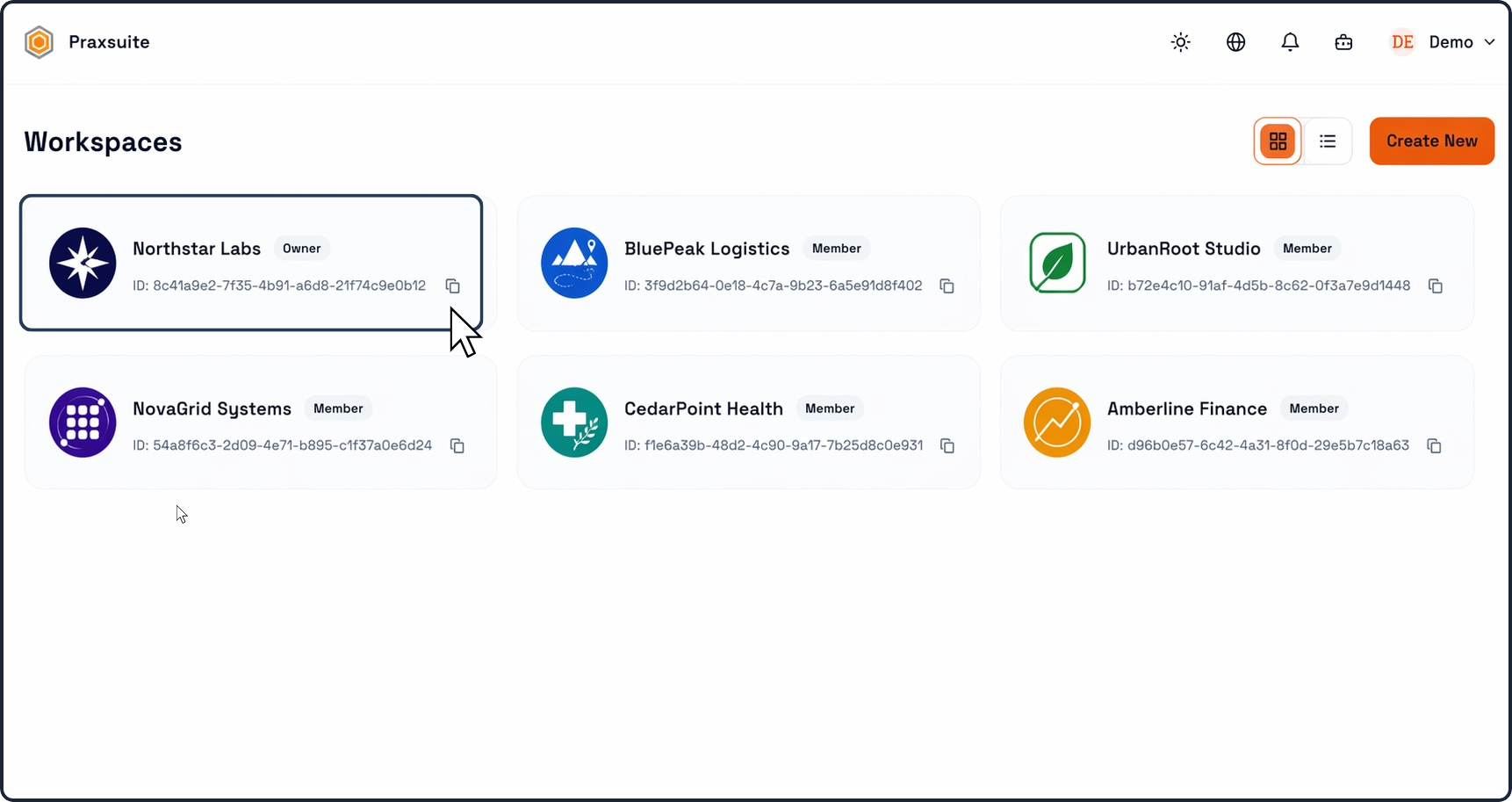
You will then be redirected into that workspace.
How to switch workspaces from the side panel
Once inside a workspace, you can switch to another one without returning to the main screen.
Step 1: Open the workspace selector
Click on the workspace name at the top of the left side panel (e.g., “Testing”)
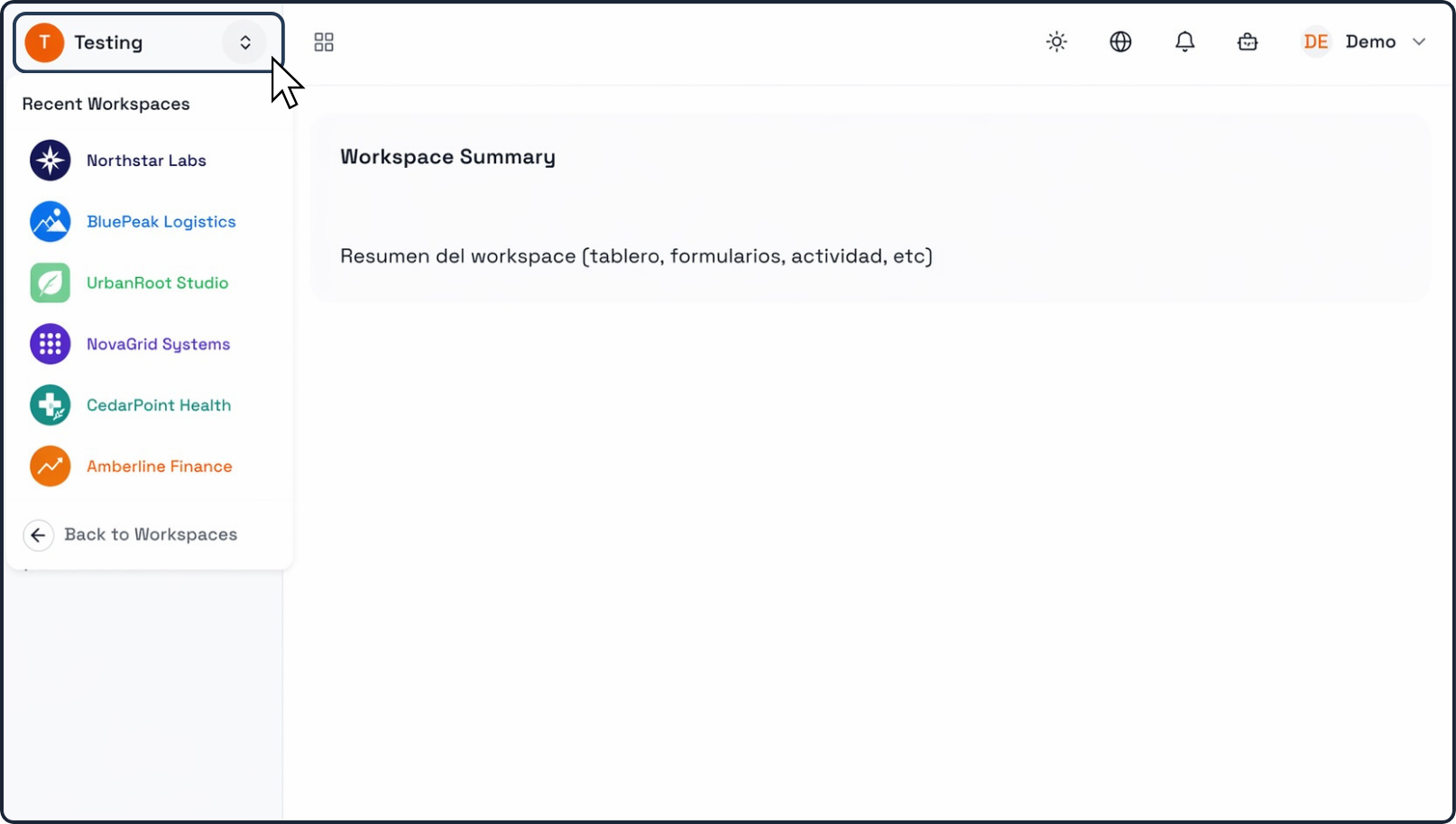
This will open a dropdown panel.
Step 2: View recent workspaces
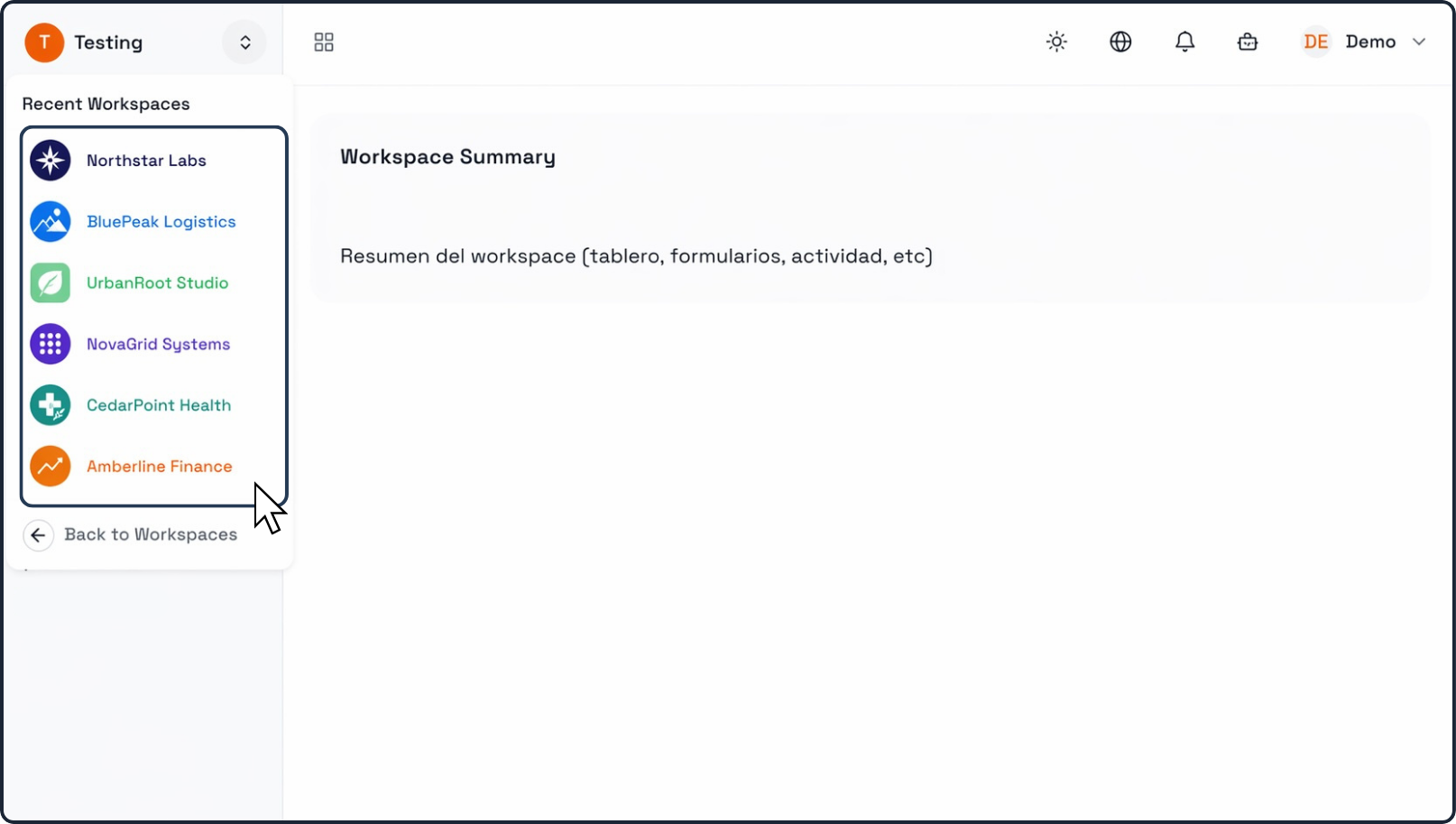
In the dropdown, you will see:
A list of recent workspaces
Each with its name and icon
Step 3: Select a workspace
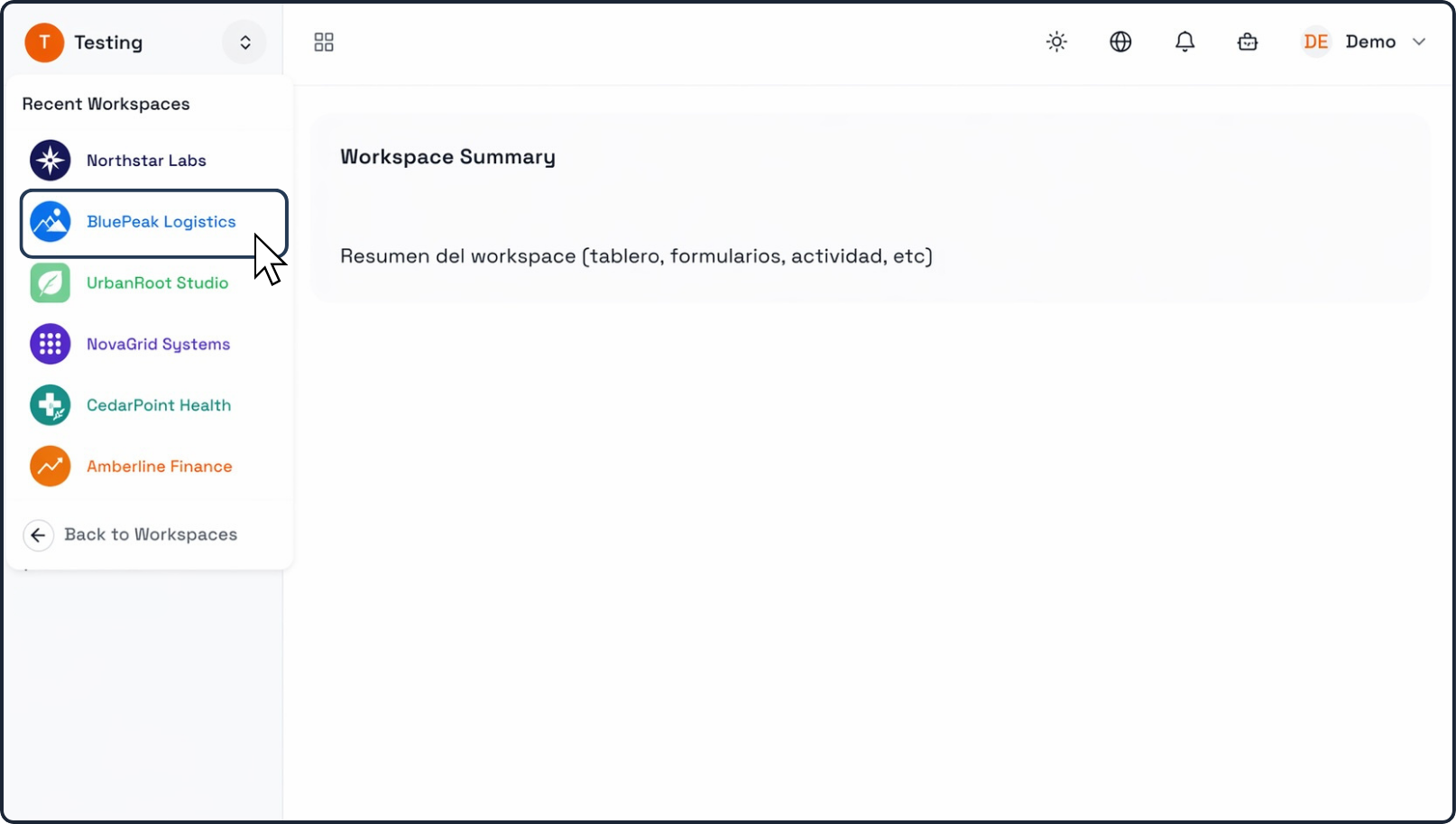
Click on any workspace in the list
Praxsuite will automatically switch you to that workspace.
Step 4: Go back to the full workspace list (optional)
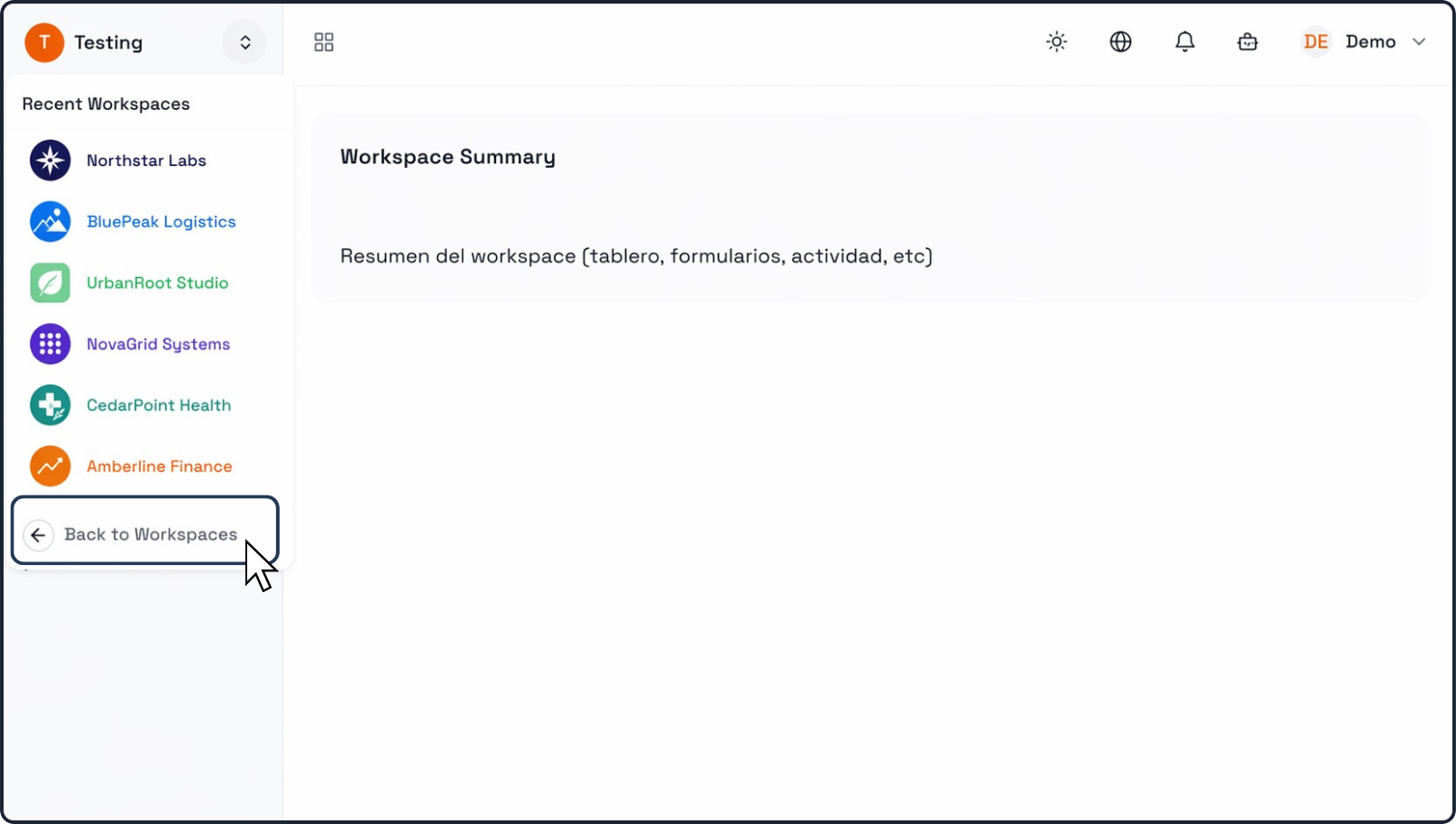
If the workspace you want is not listed:
Click “Back to Workspaces” at the bottom of the dropdown
This will take you back to the full workspace selection screen.
Why switching workspaces is useful
Switching workspaces allows you to:
Work across different teams or departments
Manage multiple clients or projects
Separate environments (e.g., testing vs production)
Keep data isolated and organized
Example use cases
Example 1: Managing multiple clients
An agency uses one workspace per client:
Client A Workspace
Client B Workspace
Users switch between them to manage each account separately.
Example 2: Internal vs external environments
A company separates:
Internal operations workspace
Customer-facing workspace
Switching ensures teams work in the correct context.
Example 3: Testing vs production
Teams create:
Testing workspace
Production workspace
This allows safe testing without affecting live data.
Best practices
Always confirm the workspace name before making changes
Use clear workspace names for easy identification
Switch workspaces instead of mixing processes in one
Use the “Back to Workspaces” option when managing many environments