
Understanding and Navigating the User Interface
Camila Escobar · June 17, 2026
Learn how to navigate the Praxsuite user interface and locate key elements such as the side panel, Workspace selector, tables, forms, dashboards, settings, and documentation. This guide explains how to use light and dark mode, language options, notifications, and Tabs to move efficiently through your Workspace..
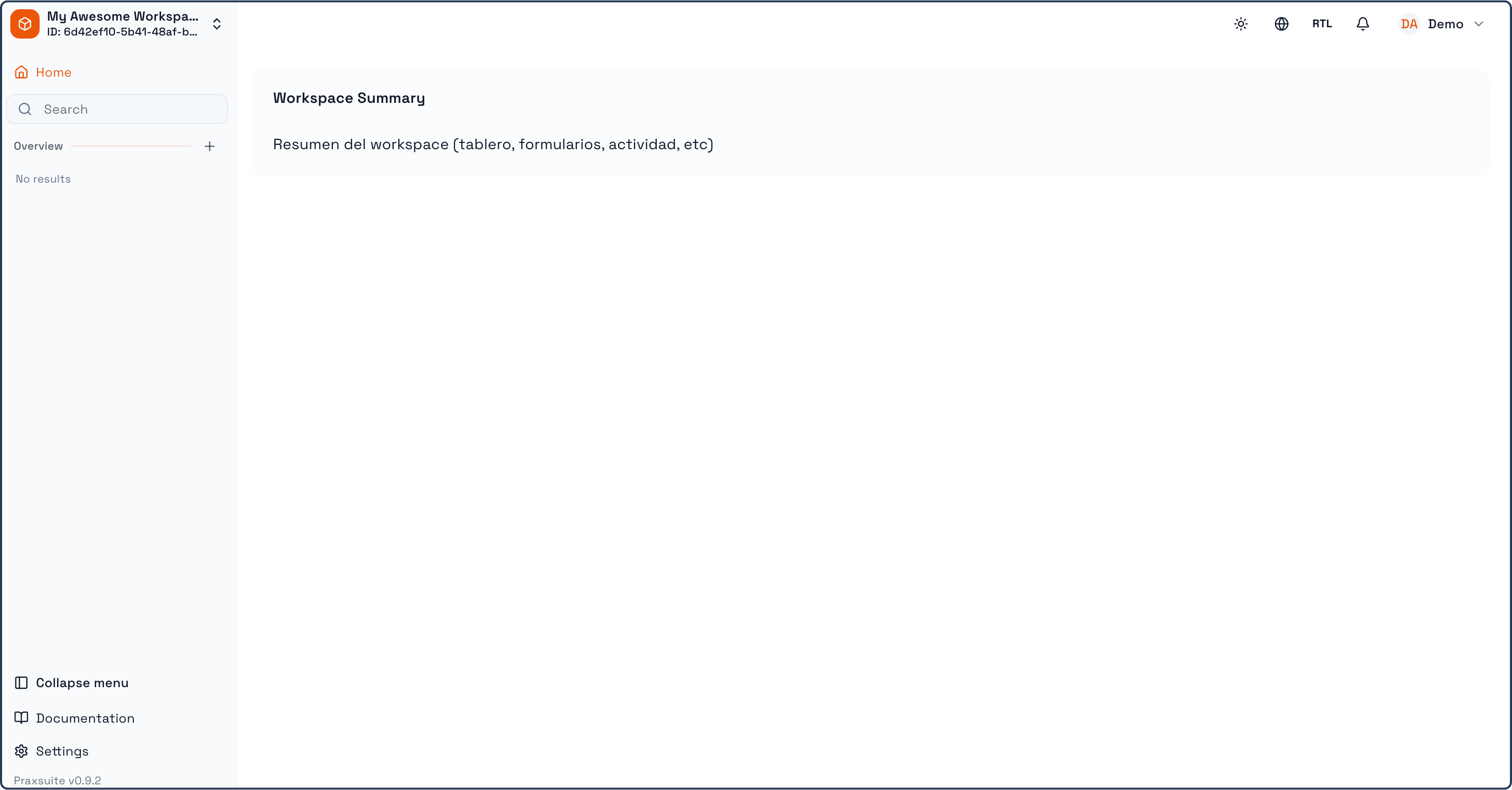
The Praxsuite user interface is designed to provide clear access to your data, tools, and settings while keeping daily operations simple and efficient. This section explains the main areas of the interface and how to navigate them effectively.
Side Panel (Left Navigation Panel)
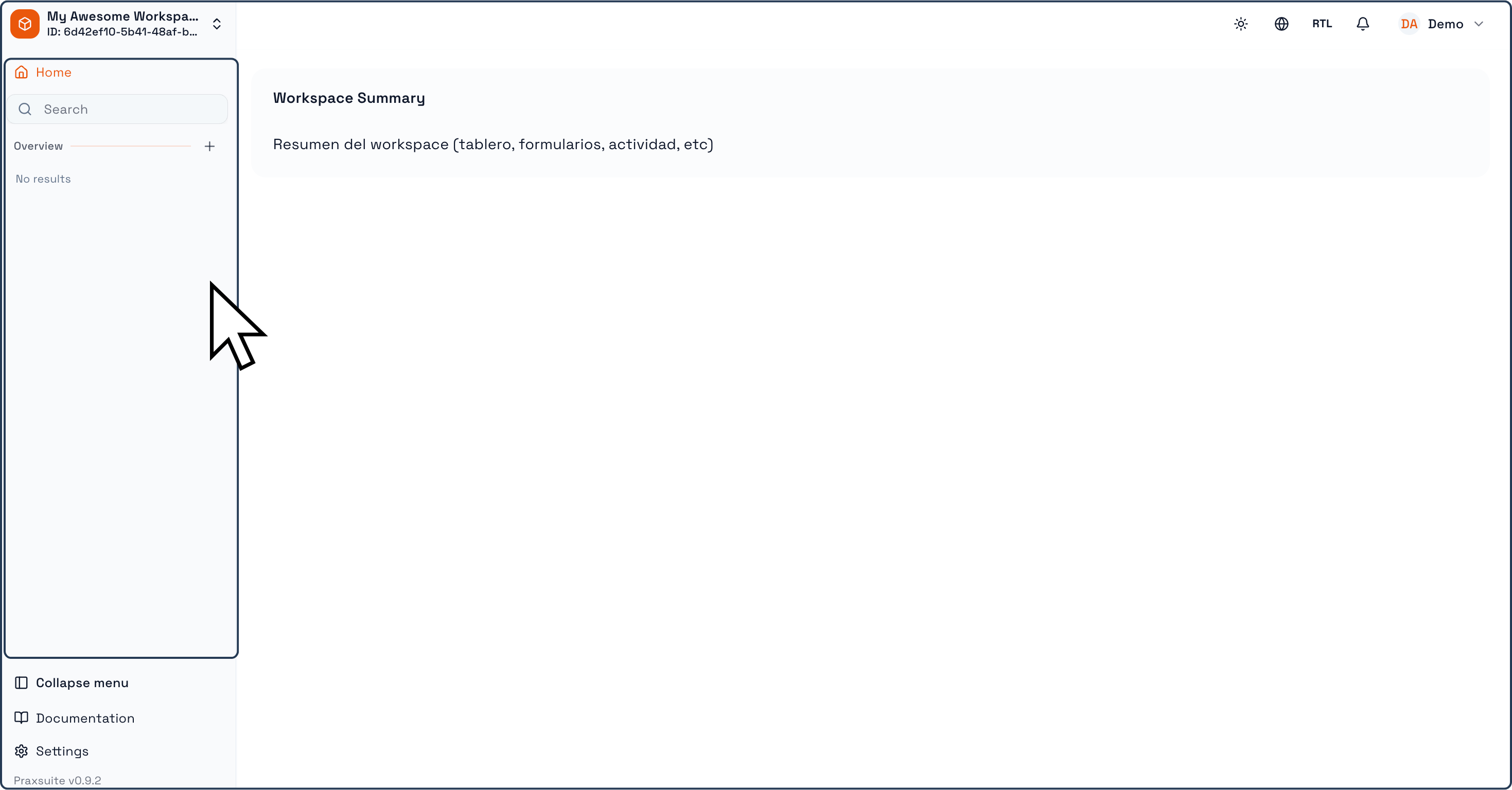
The side panel, located on the left side of the screen, is the primary navigation area of your Workspace. From here, you can access all the elements you create and manage, including:
Tables
Forms
Dashboards
Folders and other workspace resources
As you create new elements, they will automatically appear in this panel, allowing you to organize and navigate your Workspace structure easily .
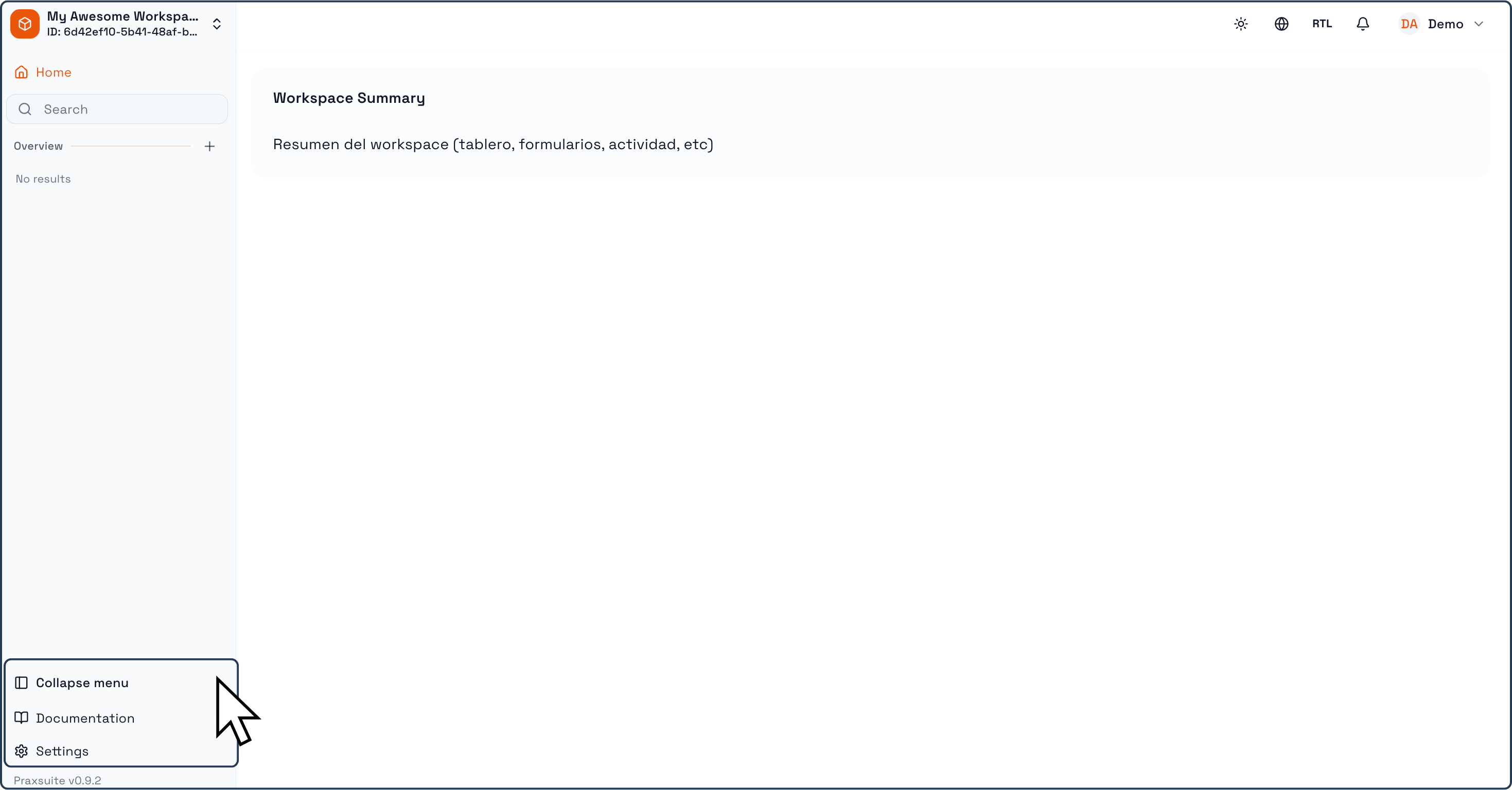
At the bottom of the side panel, you will find quick-access buttons that allow you to:
Hide or show the side panel
Access documentation
Open Workspace settings
Main Work Area
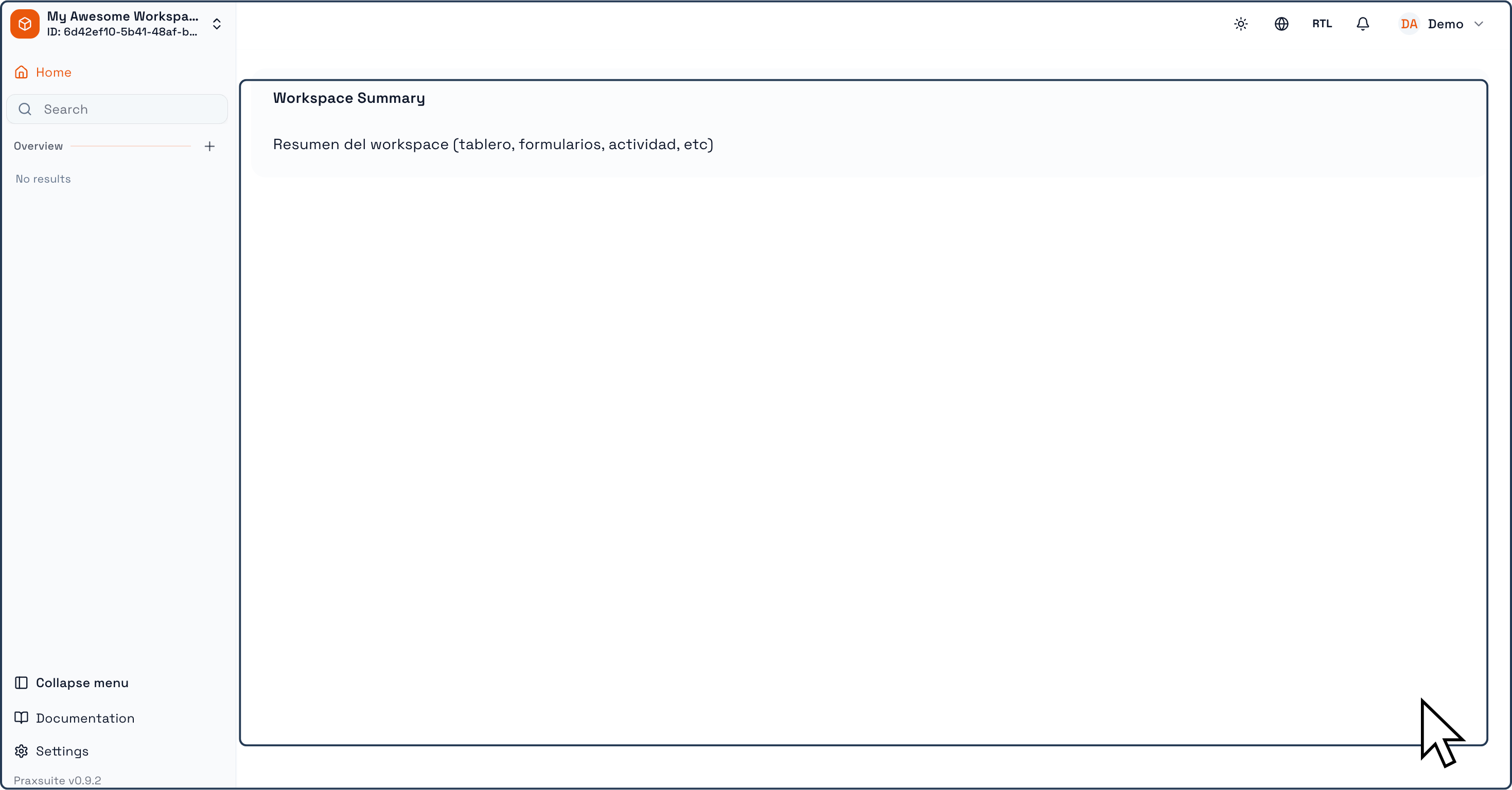
The main work area is the central section of the interface. This is where the selected content from the side panel is displayed. Depending on what you open, this area may show:
A Workspace summary
Tables and their records
Forms
Dashboards and metrics
The content displayed here changes dynamically based on your selection, allowing you to focus on the task you are working on.
Top Navigation Bar
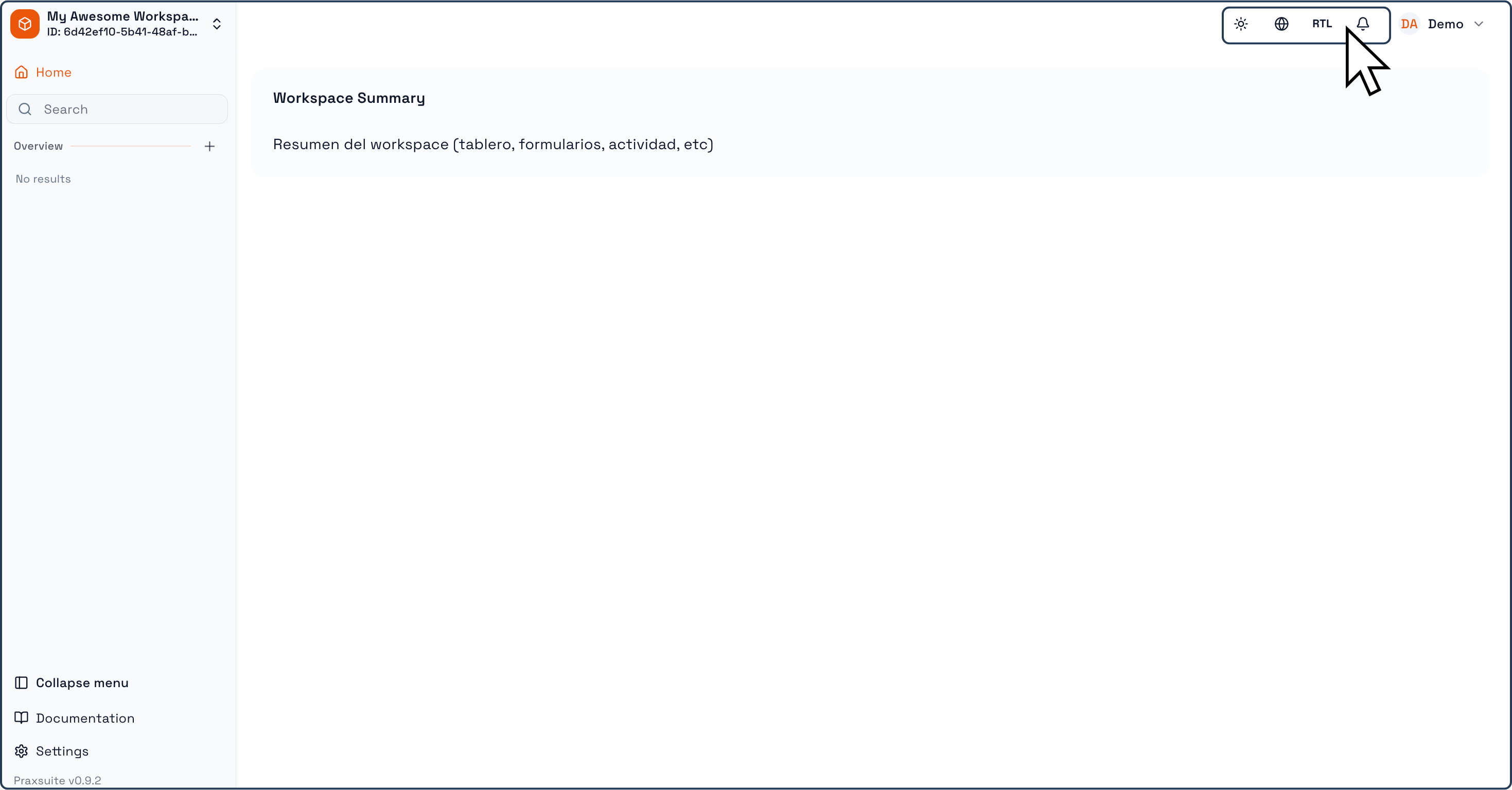
At the top of the interface, Praxsuite provides a set of controls that allow you to customize your experience and manage notifications:
Light / Dark Mode Selector
Switch between light mode and dark mode according to your visual preference.
Language Selector
Change the Workspace language from the available options.
Layout Direction (LTR / RTL)
Toggle between left-to-right and right-to-left layouts, depending on language or reading preference.
Notifications Button
Access system notifications and alerts relevant to your activity.
These controls are always visible, allowing you to adjust your Workspace environment at any time .
Workspace Selector and Sign Out
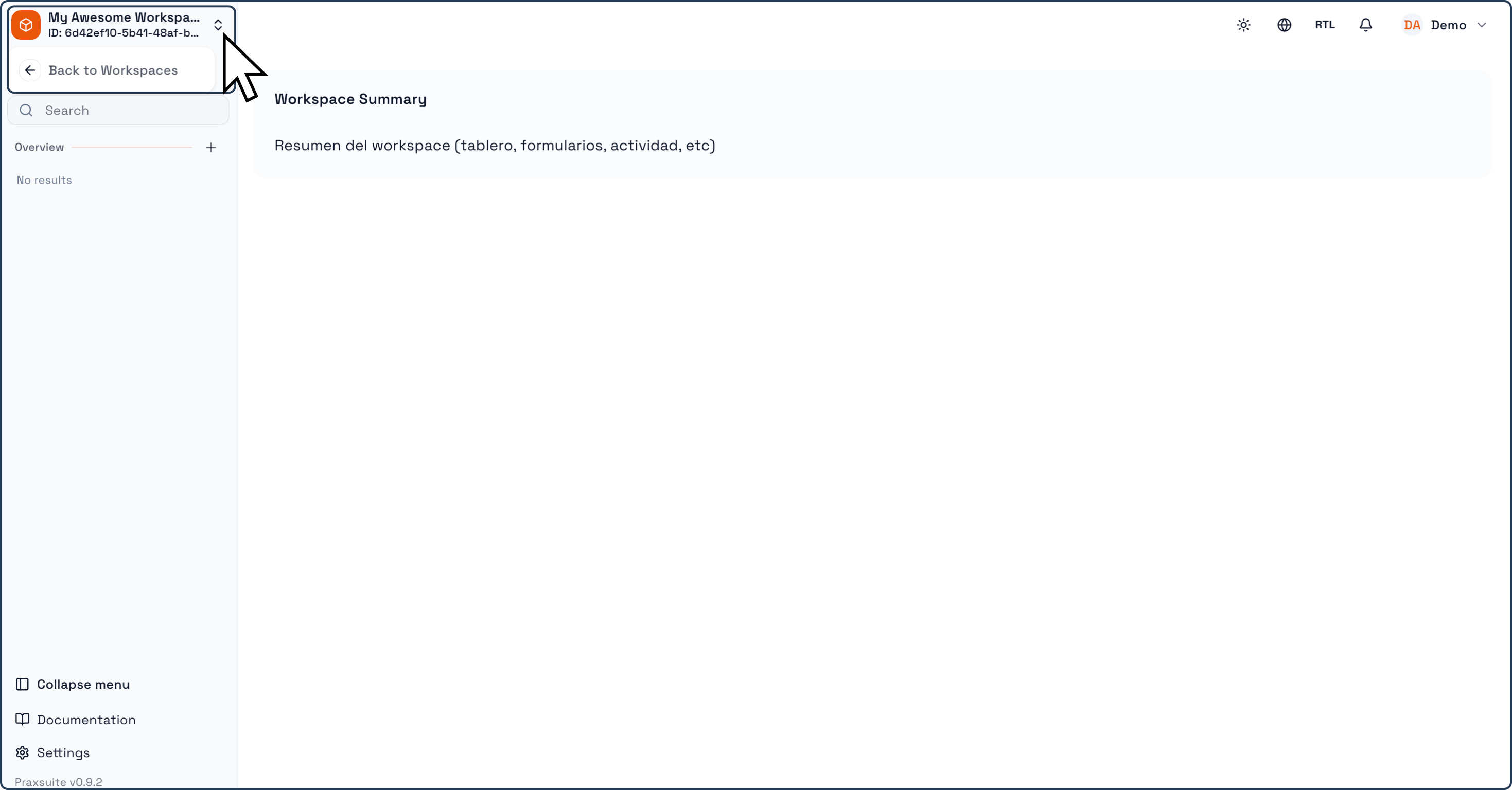
In the upper-left corner, you will find the Workspace selector, which allows you to switch between different Workspaces you have access to.
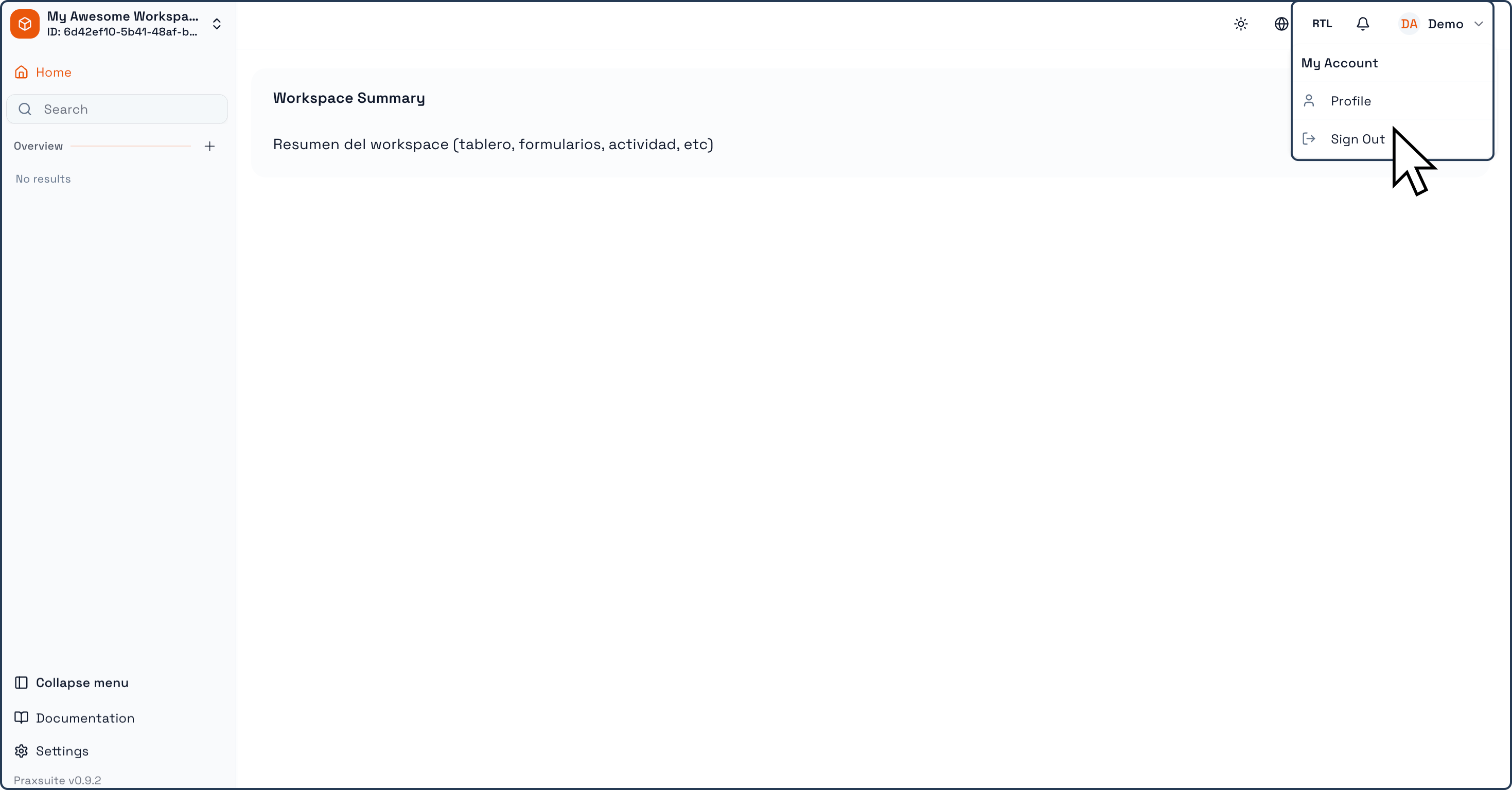
In the upper-right corner, clicking on your user name opens the menu where you can sign out of Praxsuite securely when needed .
Navigating Between Tables

When working with Tables, Praxsuite uses Tabs at the top of the main work area. Each Tab represents an open Table, allowing you to switch quickly between different datasets.
Becoming familiar with these interface elements will help you work more efficiently and take full advantage of everything your Workspace offers.