
Understanding the Apps Window in Praxsuite
Camila Escobar · June 17, 2026
Learn how to use the Apps Window in Praxsuite, access tools, navigate modules, and explore the Module Store to extend your workspace with powerful add-ons.
The Apps Window is your central access point to additional tools and modules that extend your workspace capabilities.
From here, you can quickly navigate to built-in features and access the Module Store, where you can explore and activate new add-ons.
How to access the Apps Window
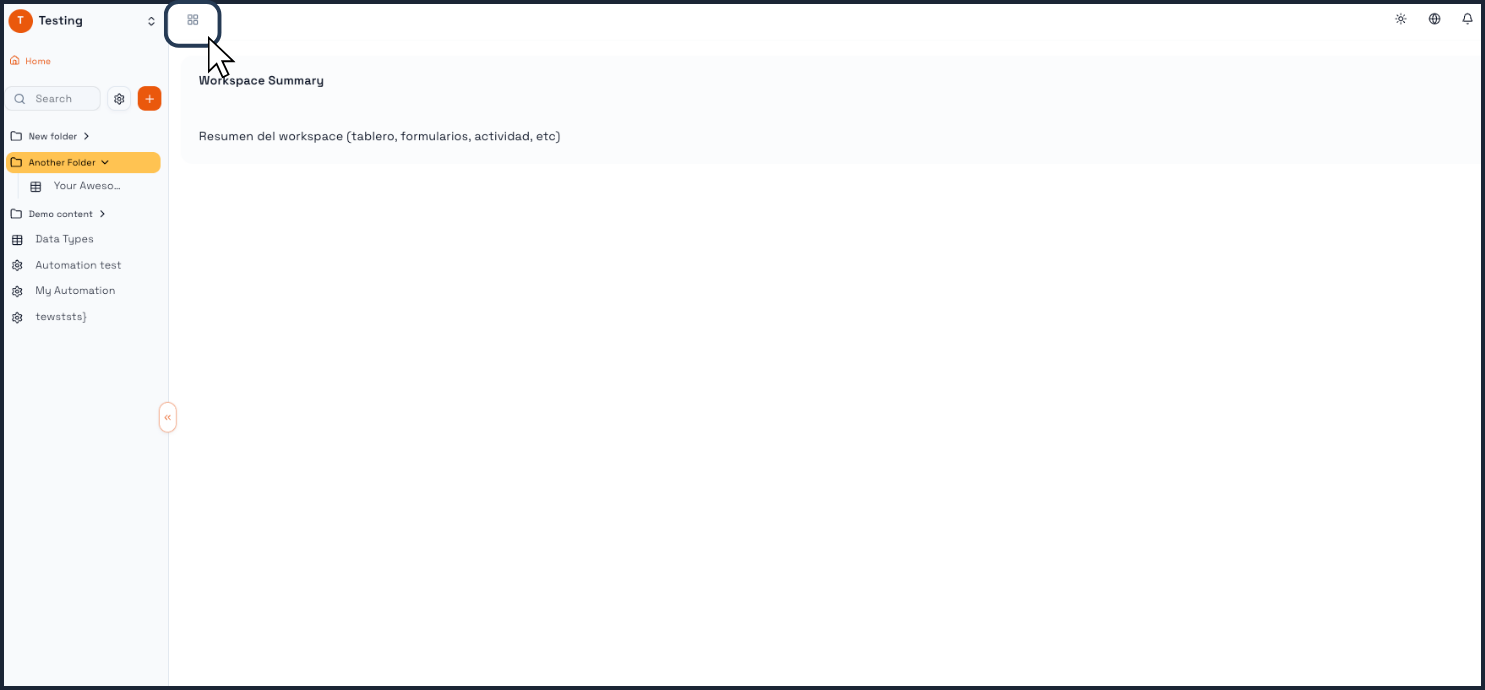
To open the Apps Window:
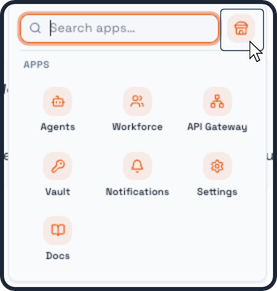
Click the grid icon (▦) located near the top-left area of the interface, next to your workspace name
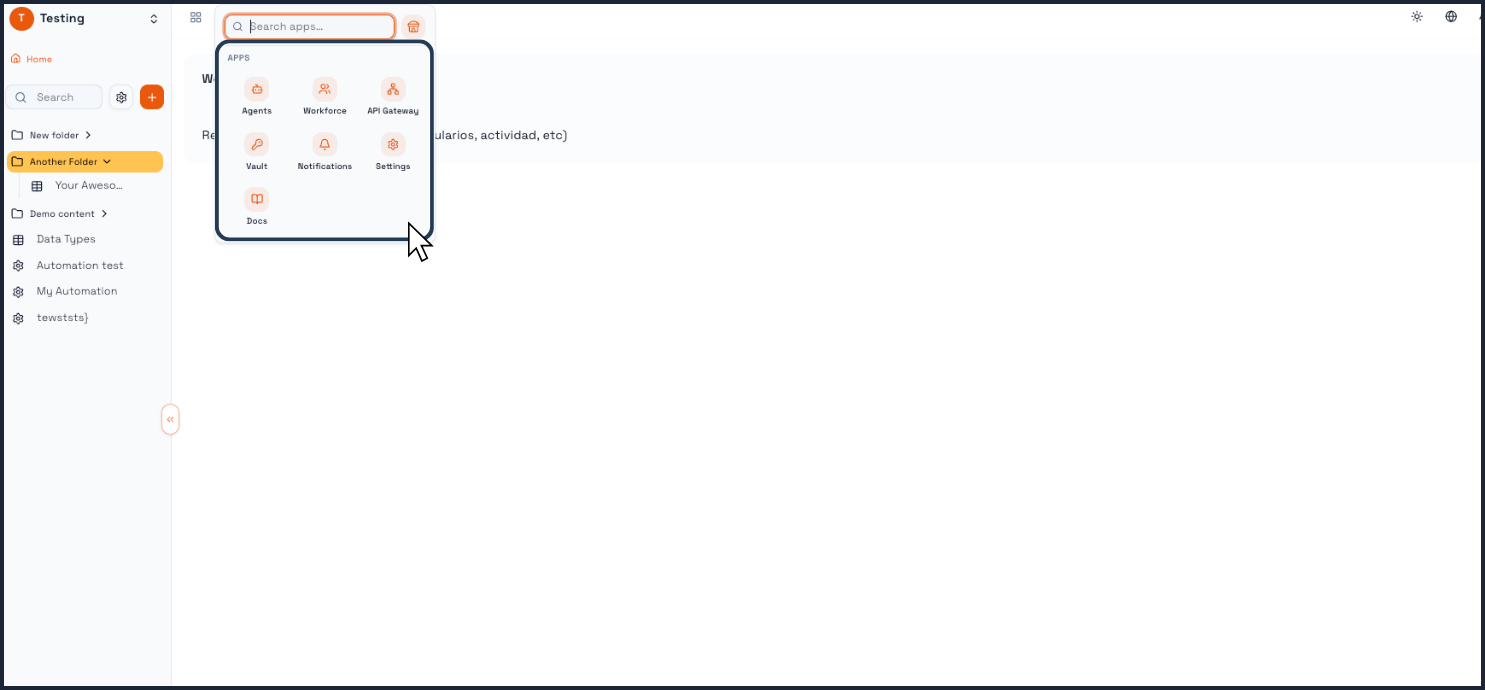
This will open a panel displaying all available apps and shortcuts.
What each button does
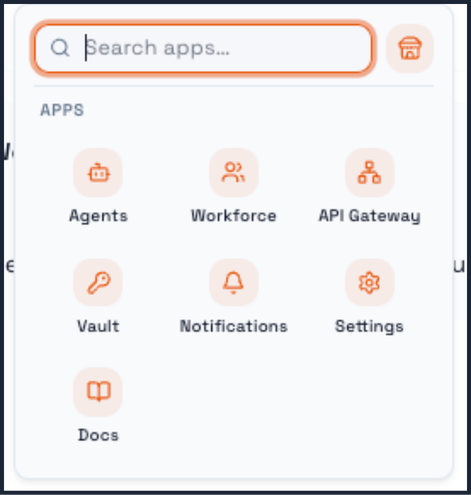
Inside the Apps Window, you will find several modules. Each one provides a specific functionality:
Agents
Access AI-powered agents that help automate workflows and assist with tasks.
Use cases:
Automating repetitive actions
Assisting users with guided processes
Workforce
Manage users, roles, and team structure within your workspace.
Use cases:
Assigning responsibilities
Managing permissions and access
API Gateway
Connect Praxsuite with external systems through APIs and webhooks.
Use cases:
Integrating with third-party tools
Sending or receiving real-time data
Vault
Securely store and manage sensitive information such as API keys and credentials.
Use cases:
Protecting secrets
Managing secure configurations
Notifications
Configure alerts and communication rules across your workspace.
Use cases:
Receiving real-time updates
Triggering alerts based on events
Settings
Access and configure workspace-level settings.
Use cases:
Customizing behavior and preferences
Managing system configurations
Docs
Open documentation and guides related to Praxsuite.
Use cases:
Learning how features work
Accessing onboarding materials
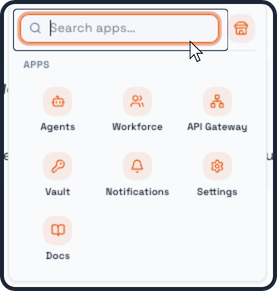
Search bar (Search apps…)
At the top of the Apps Window, you will find a search bar.
This allows you to quickly find apps by typing their name instead of browsing manually.
Module Store (Add-ons marketplace)
Next to the search bar, you will find the Module Store button.
This button opens a marketplace where you can discover and activate additional modules for your workspace.
What the Module Store is for
The Module Store allows you to:
Expand your workspace capabilities
Add new features without development
Customize Praxsuite to your business needs
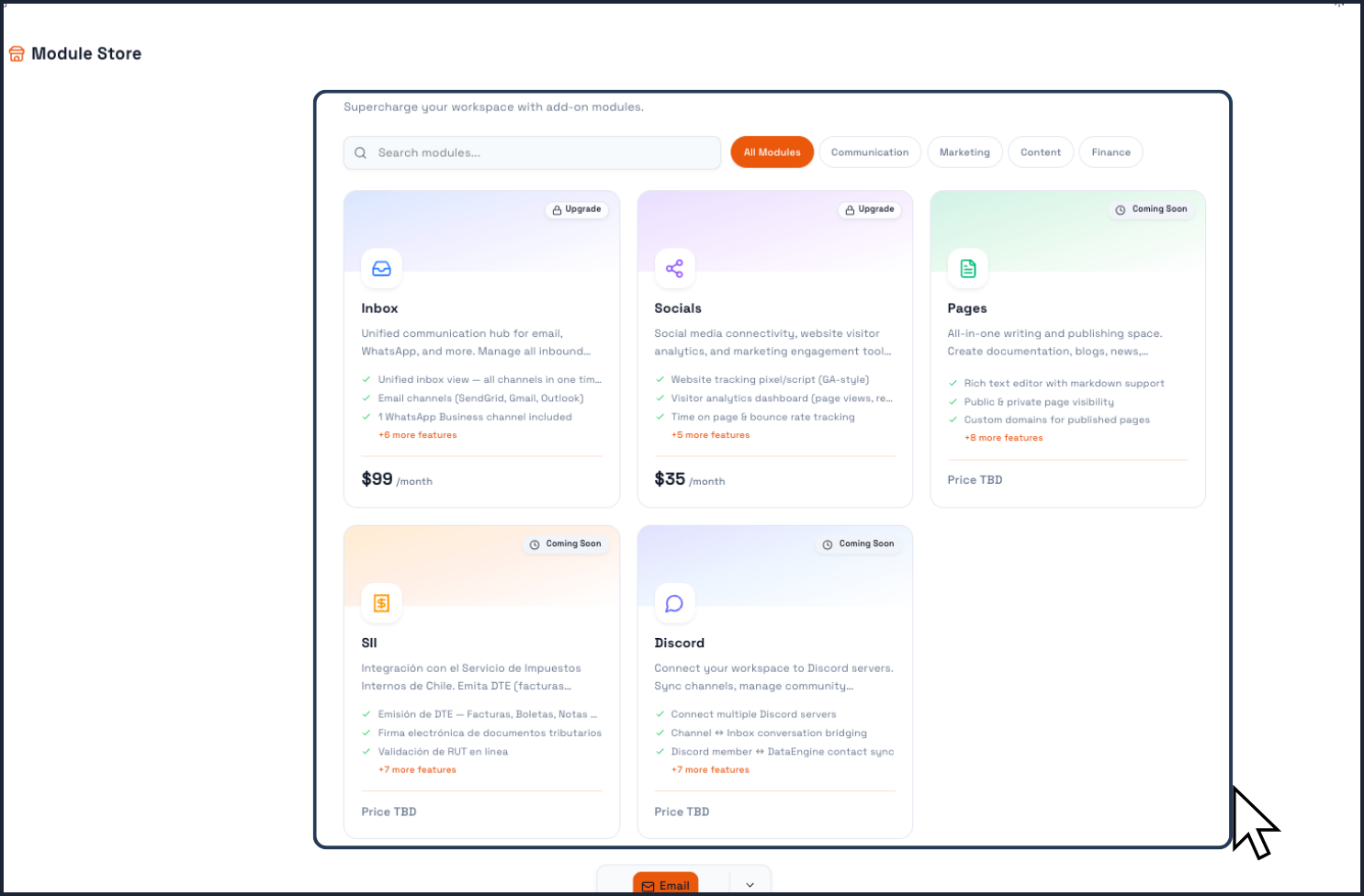
Examples of modules available
From the module store (as shown in the screenshot), you can find add-ons such as:
Inbox
A unified communication hub for managing emails, WhatsApp, and other channels in one place.
Socials
Tools for tracking website visitors and managing social media engagement.
Pages
A content and publishing module for creating documentation, blogs, or internal pages.
SII (Chile)
Integration with Chile’s tax authority for issuing and managing electronic tax documents.
Discord
Connect your workspace with Discord to sync conversations and manage communities.
How to use the Module Store
Open the Apps Window
Click the Module Store button
Browse available modules
Select a module
Click Upgrade / Activate (depending on availability)
Some modules may be marked as:
Coming Soon
Upgrade required
Price TBD
Why the Apps Window is important
The Apps Window is key to scaling your workspace because it allows you to:
Access core tools quickly
Discover new capabilities
Customize your environment
Integrate external systems
Centralize all advanced features in one place
It acts as your control center for extensions and advanced functionality.