
Expand / Collapse Navigation Panel
Camila Escobar · June 17, 2026
Learn how to use the expand and collapse navigation panel in Praxsuite to optimize workspace visibility, improve focus, and navigate efficiently between tools and sections.
The expand/collapse button allows you to control the visibility of the left navigation panel in your workspace. This feature helps you adapt the interface depending on whether you need more space to work or easier access to navigation options.
You can find this button on the left edge of the screen, typically represented by a small arrow icon.
How to use it:
Click the arrow button once to collapse the sidebar
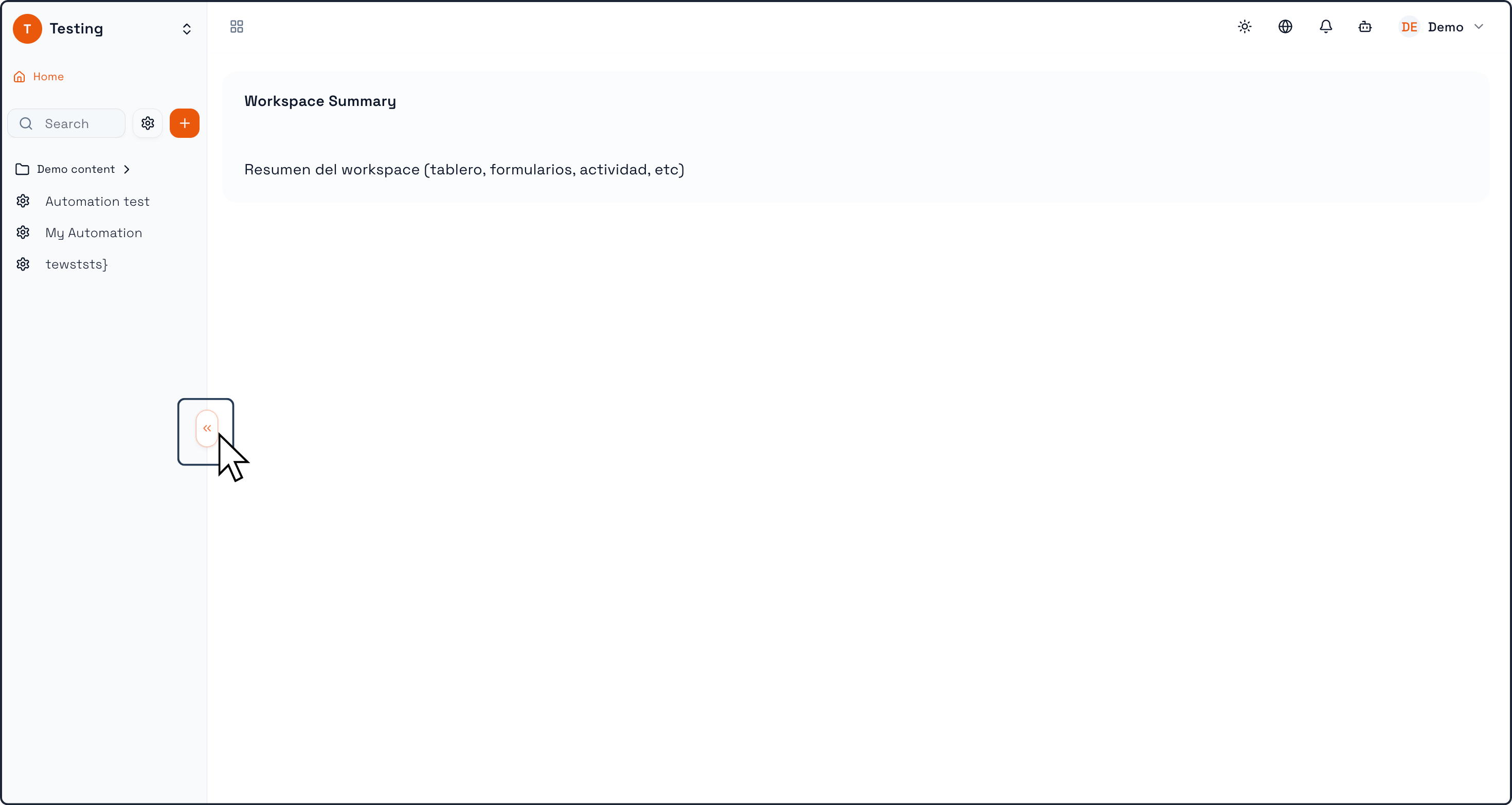
Click it again to expand the sidebar
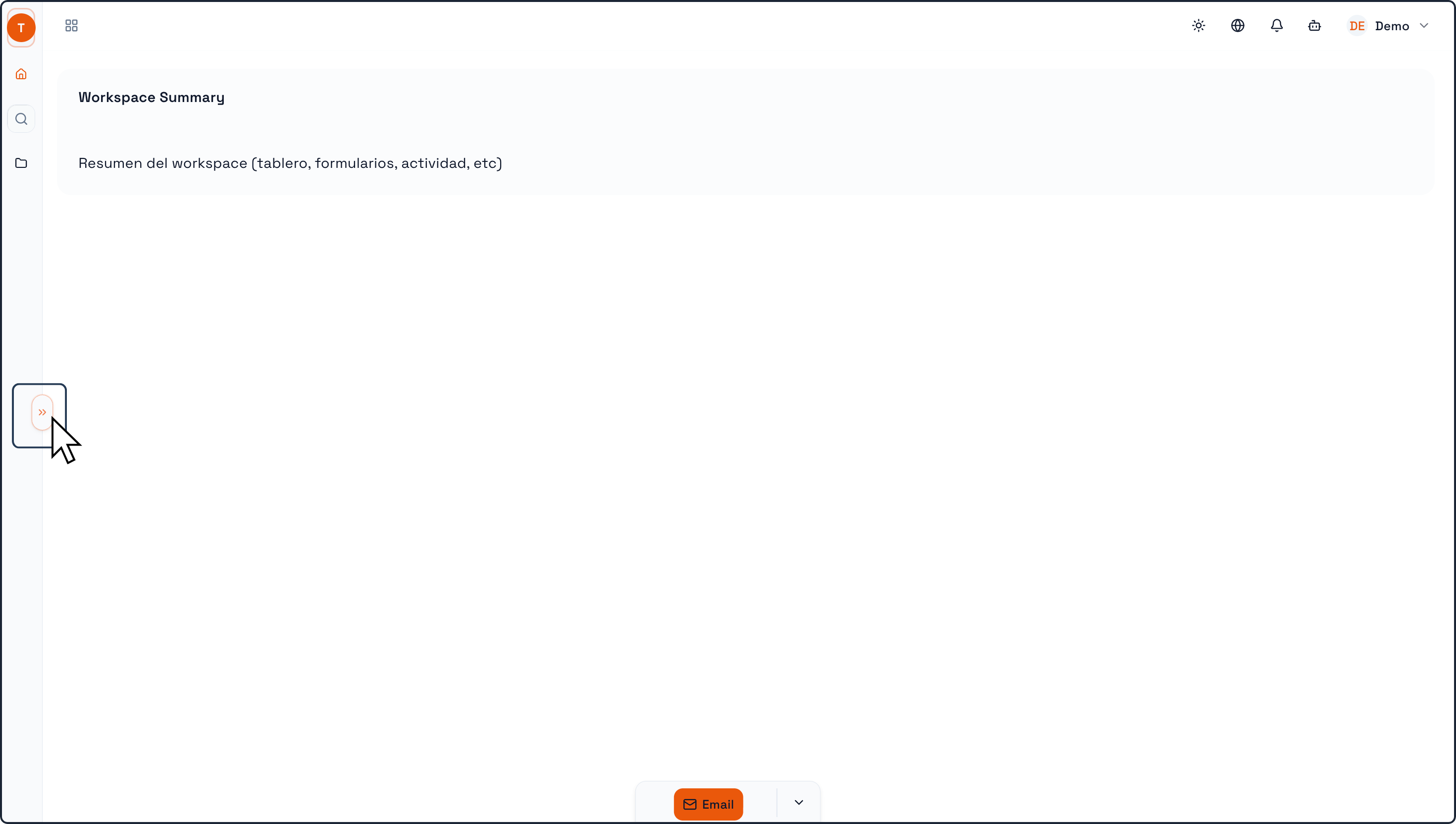
What happens when you collapse the panel:
The navigation panel is minimized
Only icons remain visible
You gain more horizontal space to work on your content
What happens when you expand the panel:
Full labels and menu options are displayed
You can easily navigate between sections, tables, and tools
When to use each mode:
Use collapsed mode when working on dashboards, tables, or detailed views where space is important
Use expanded mode when navigating between different sections or setting up your workspace
This simple control improves usability by letting you switch between focus and navigation instantly.