
Change your Workspace Colors
Camila Escobar · June 17, 2026
Learn how to customize your Praxsuite workspace colors. This guide explains how to modify light and dark theme colors, adjust primary and secondary palettes, and save your workspace branding settings.
Praxsuite allows administrators to customize the visual appearance of the workspace by modifying the system color palette.
This includes adjusting the colors used in:
Primary interface elements
Secondary UI components
Background surfaces
Text colors
Customizing workspace colors helps organizations align the platform with their brand identity and improve visual consistency for users.
This guide explains how to change workspace colors step by step.
Step 1 — Open Workspace Settings
From the main workspace interface:
Open the left navigation menu
Click Settings
This will open the Workspace Settings page where administrative configuration options are available.
Step 2 — Locate the Theme Color Settings
Inside Workspace Settings, scroll down until you find the theme configuration sections.
Praxsuite provides two color schemes:
Light Theme Colors
Used when the workspace is displayed in light mode.
Dark Theme Colors
Used when the workspace is displayed in dark mode.
Each theme allows you to configure the main interface color palette.
Step 3 — Identify the Color Categories
Each theme contains several color categories:
Primary
Main color used for buttons, highlights, and key interface elements.
Secondary
Supporting color used in UI accents and secondary actions.
Background
Defines the base background color of the workspace.
Surface
Used for panels, cards, and content containers.
Text
Controls the main text color across the interface.
Adjusting these colors changes the overall visual style of the workspace.
Step 4 — Choose a New Color
To modify a color:
Click the color box next to the field you want to edit.
The color picker will appear.
Select the desired color visually or adjust the selector.
You can also enter a hexadecimal color value directly into the input field for precise brand colors.
Example format:
#ea580cStep 5 — Save the Workspace Theme
After adjusting the desired colors:
Scroll to the bottom of the section.
Click Save.
Your workspace will immediately apply the updated color configuration.
These changes affect the entire workspace interface, ensuring consistent branding across the platform.
The two colour sets
Colours are defined twice, once for the light theme and once for the dark one, so the Workspace stays readable whichever theme a member has chosen. Each set has the same five slots.
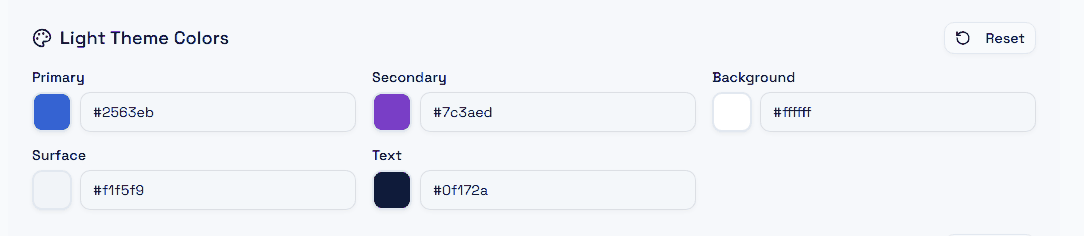
Primary drives buttons and highlights, Secondary the accents beside them, Background the page itself, Surface the cards and panels that sit on it, and Text the body copy. You can type a hex value straight into the field or pick from the swatch.
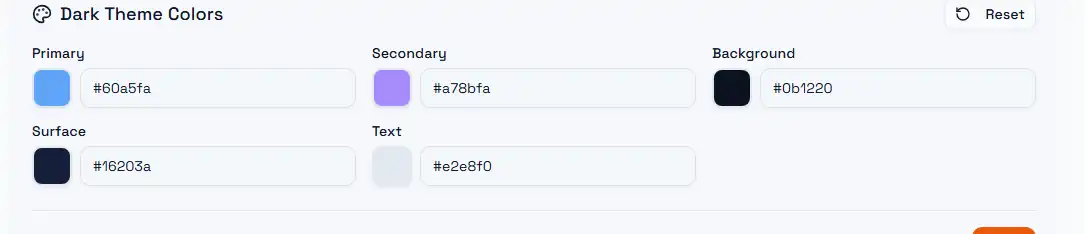
Each set has its own Reset button, which returns only that theme to the Praxsuite defaults. Nothing is applied until you press Save.