
Edit Mode: Organizing Your Navigation Panel
Camila Escobar · June 17, 2026
Learn how to use Edit Mode in Praxsuite to organize your workspace navigation panel, rearrange folders and tables, and create a clearer, more efficient structure.
Edit Mode allows you to rearrange folders and tables in the left navigation panel, helping you structure your workspace in a way that matches how your team works.
Instead of adapting to a fixed structure, Edit Mode gives you full control over how information is organized and accessed.
Why is Edit Mode useful?
As your workspace grows, you may end up with many tables, folders, and sections. Without organization, this can make navigation slower and less intuitive.
Edit Mode helps you:
Keep related data grouped together
Improve navigation speed
Align the workspace structure with your workflows
Create a clearer, more intuitive experience for your team
A well-organized panel reduces friction and helps users find what they need faster.
How to activate Edit Mode
Go to the left navigation panel
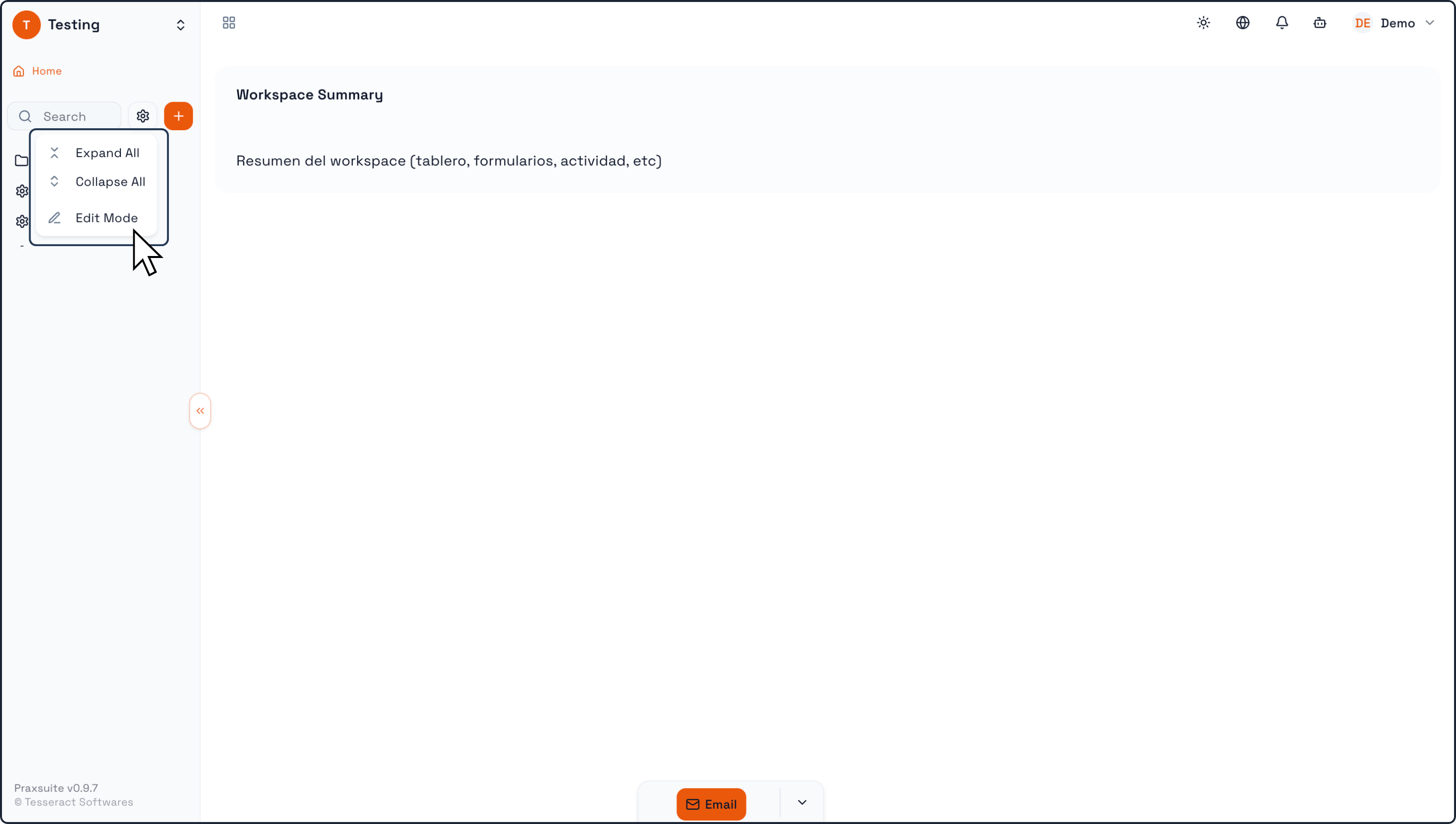
Click the settings (⚙️) icon next to the search bar
In the dropdown menu, click “Edit Mode”
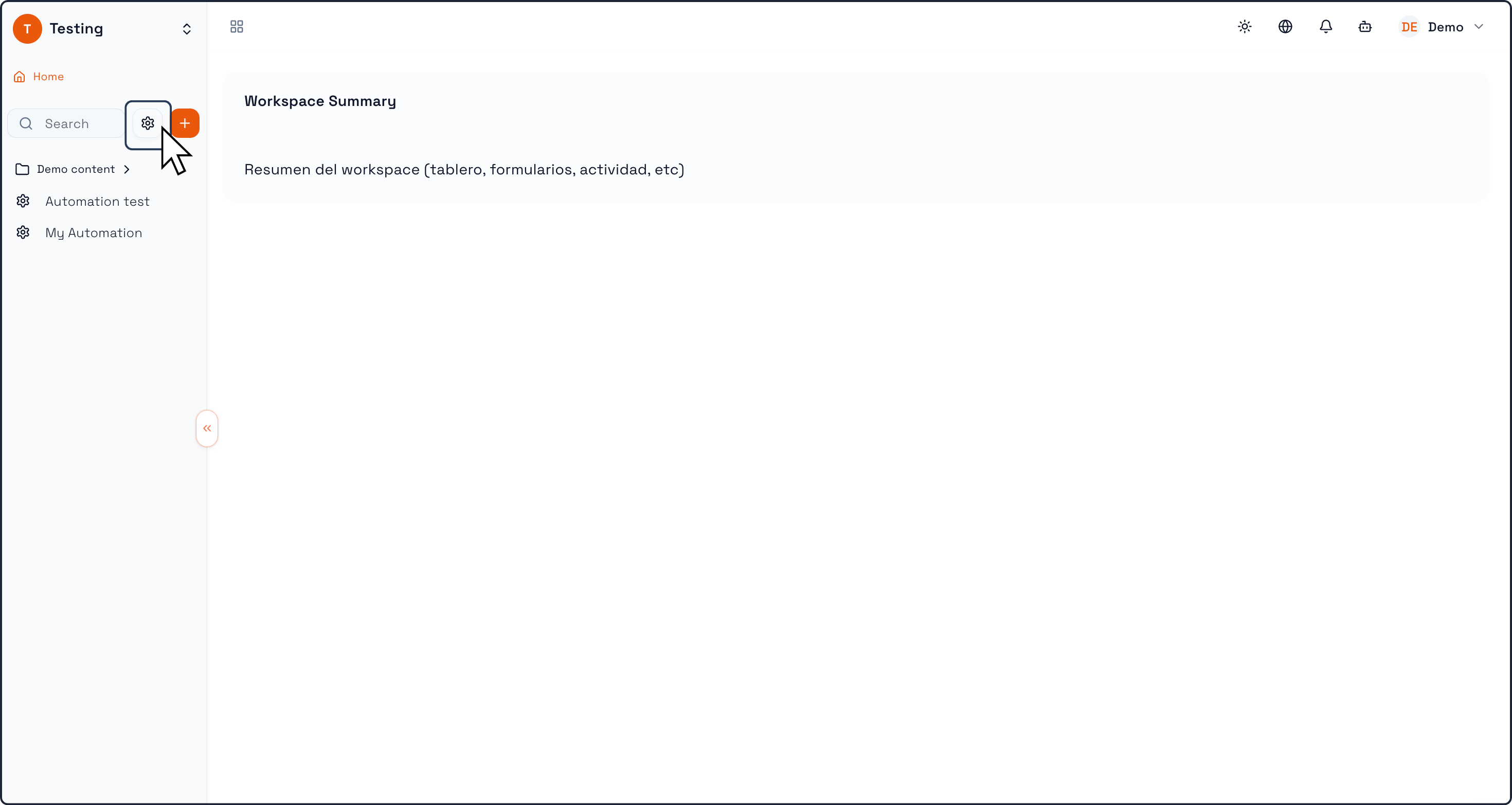
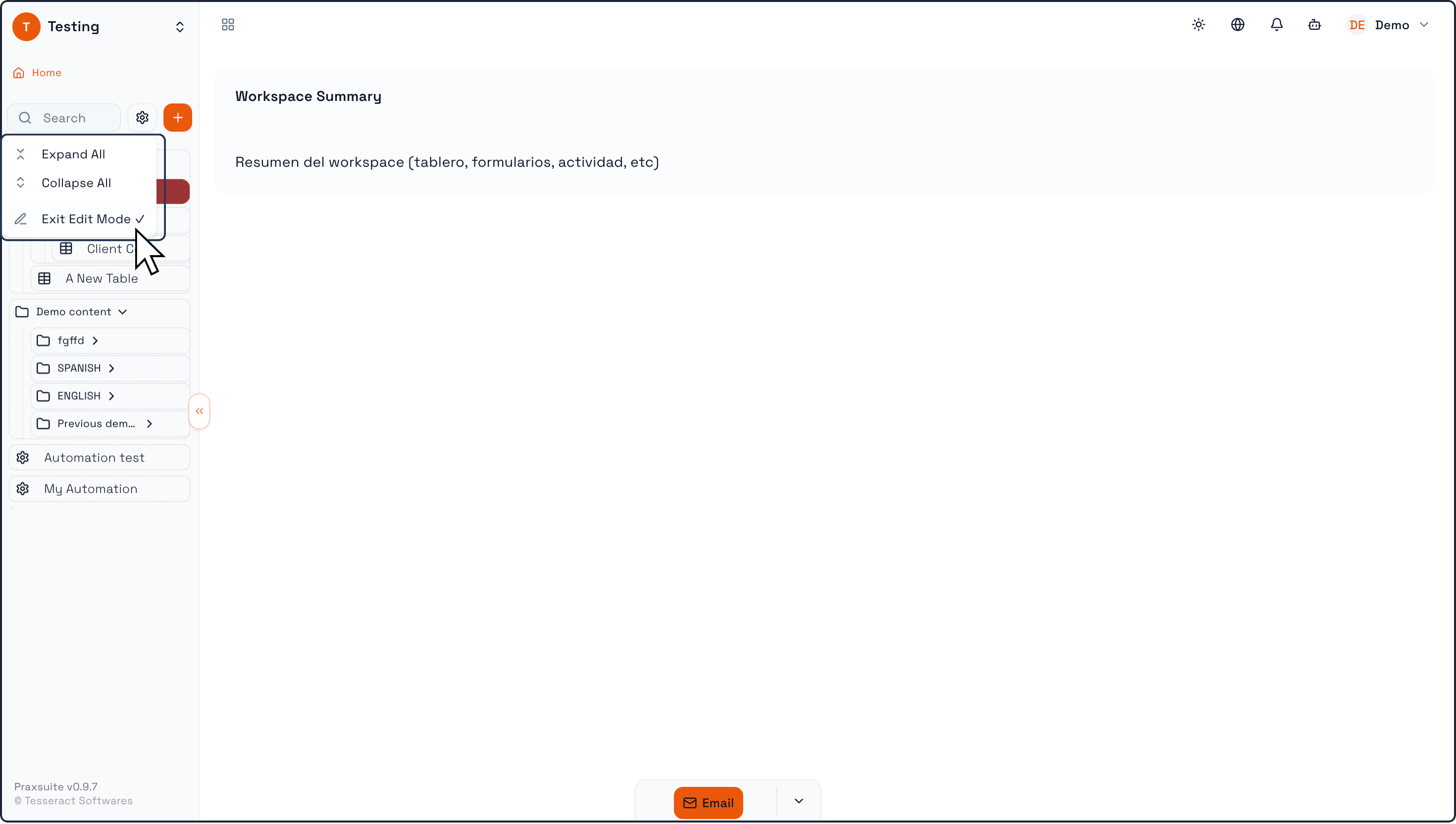
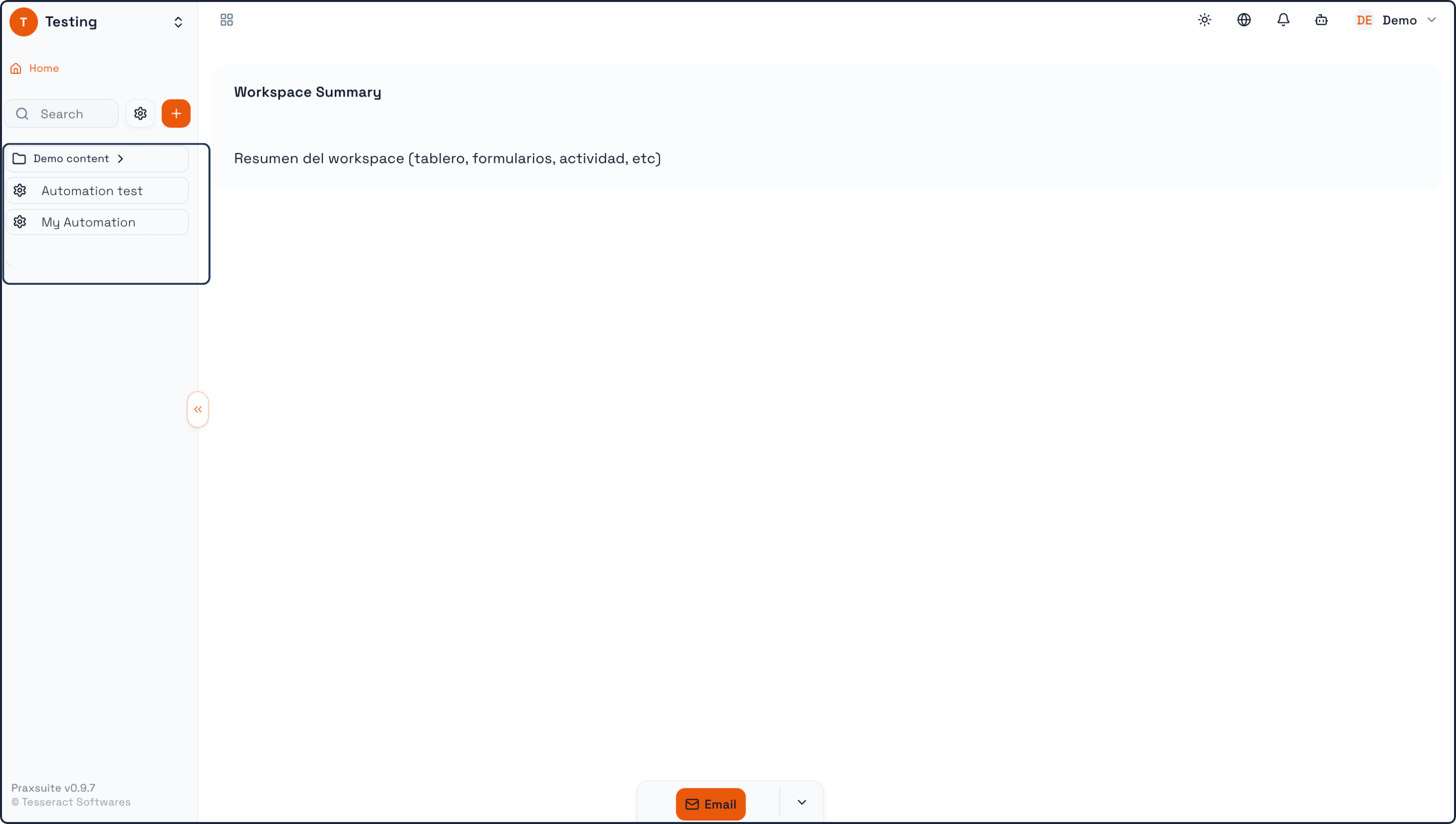
Once activated:
The panel becomes editable
You can drag and rearrange folders and tables
Additional options like Expand All and Collapse All become available
How to rearrange items
While in Edit Mode:
Click and hold a folder or table
Drag it to a new position
Drop it where you want it to be placed
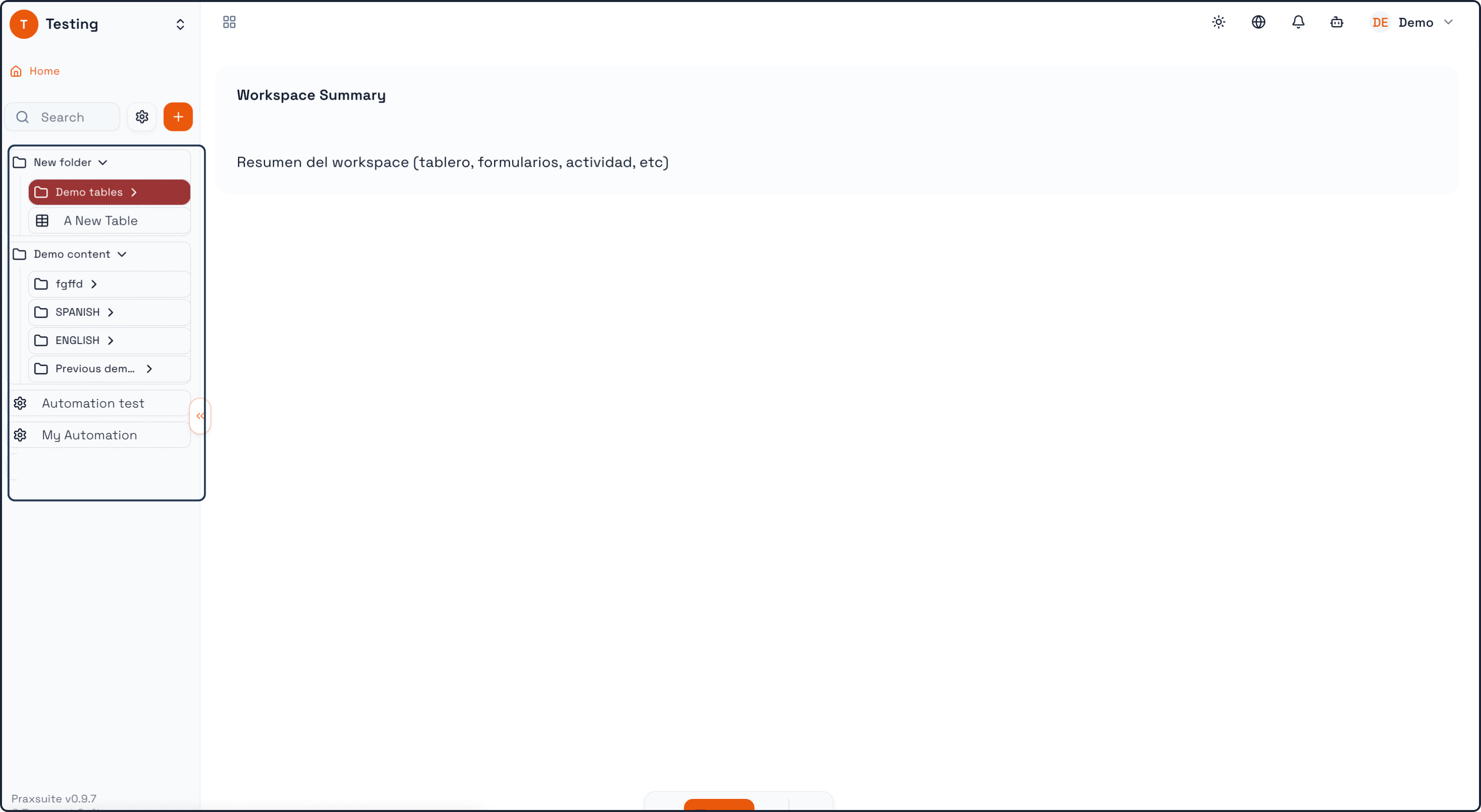
You can:
Move tables between folders
Reorder items within the same folder
Structure your workspace hierarchy freely
How to deactivate Edit Mode
Click the settings (⚙️) icon again
Select “Exit Edit Mode”
Once deactivated:
The panel is locked again
No accidental changes can be made
The structure you defined remains saved
Examples of use
Example 1: Organizing by department
Group tables into folders like:
Sales
Operations
Finance
This helps each team quickly access their relevant data.
Example 2: Structuring by process
Organize folders based on workflows:
Leads → Opportunities → Clients
This creates a logical flow aligned with your business process.
Example 3: Cleaning up a growing workspace
Move unuse