
How to Audit a Table in Praxsuite
Camila Escobar · June 17, 2026
Learn how to enable table auditing in Praxsuite and display Created Date, Updated Date, Created By, and Updated By directly in your table. This guide shows how to make row history visible from Table Settings.
Table auditing in Praxsuite allows you to display who created and last updated each row directly inside the table view. This helps teams make record history visible without leaving the table.
This guide explains how to enable auditing in an existing table.
Step 1: Open the table you want to audit

Go to the table where you want to display audit information.
Auditing is configured at the table level, so you need to open the specific table where you want these fields to appear.
Step 2: Open Table Settings

In the top-right corner of the table view, click the settings icon.
This opens the Table Settings panel.
Inside this panel, you will see options such as:
Display Audit
Dev Mode
table cleanup options such as Delete all and Trash
Step 3: Find the Display Audit option
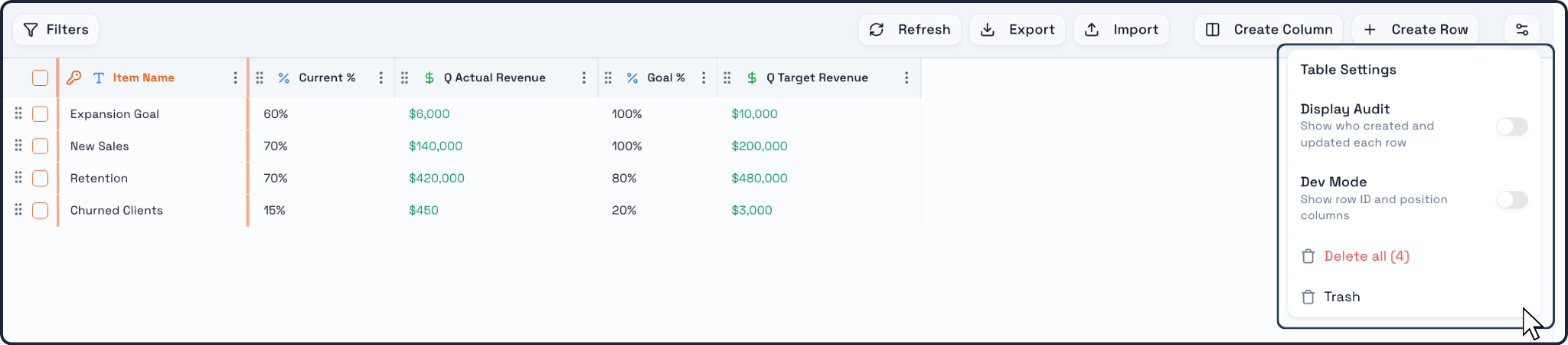
Inside Table Settings, locate the Display Audit toggle.
This option controls whether the table shows the audit fields for each row.
The description shown in the UI explains its purpose:
Show who created and updated each row
Step 4: Enable Display Audit
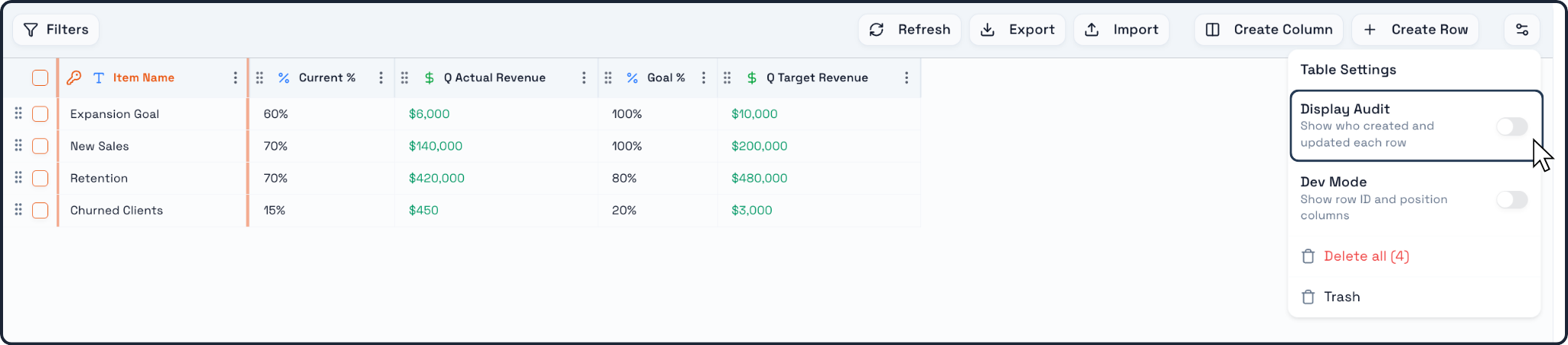
Turn the Display Audit toggle on.
Once enabled, Praxsuite adds audit columns directly to the table view.
These columns include:
Created Date
Updated Date
Created By
Updated By
This makes audit information visible alongside the operational data already stored in the table.
Step 5: Review the audit columns in the table

After enabling the toggle, the new audit columns appear in the table.
You should now be able to see, for each row:
when the row was created
when it was last updated
which user created it
which user last updated it
This gives users an immediate view of row history without needing a separate audit screen.
Step 6: Disable auditing display if needed
If you no longer want these columns visible in the table, open Table Settings again and turn Display Audit off.
When the toggle is disabled, the audit columns are removed from the visible table layout.
This affects the display of the audit information in the table view.
Key things to remember
Auditing is enabled from the Table Settings panel
The option used is Display Audit
When enabled, Praxsuite shows:
- Created Date
- Updated Date
- Created By
- Updated By
This helps users understand row history directly inside the table
Auditing display can be turned on or off depending on what the team needs