
Protected Forms
Vincent Depassier · September 3, 2026
A form has three visibility levels, and they answer one question: who is allowed to open it.
Visibility | Who can open it |
Public | Anyone with the link |
Private | Only members of the workspace |
Protected | Only the end users you invited, after they log in |
Protected is the one that lets you send a form to someone outside your organisation without also opening it to the internet. This page is about that mode.
What Protected actually does
A public form's link is its own authorisation: if you have it, you can fill it in. That is fine for a contact form and wrong for a supplier's price submission, a patient intake, or anything where the answer means something because of who sent it.
Protected replaces the link-as-password with a real identity. The form's address is no longer enough. Opening it requires:
An end user account in your workspace, with a password.
An active invite for that email, on that specific form.
Both. Neither one alone gets in — an end user who was never invited to this form is refused exactly like a stranger.
Inviting people
Open the form in the builder and use its Invites panel. It has two tabs: the invite list, and the access log.
The picker searches the end users already registered in your workspace. You select one, click Invite, and Praxsuite does two things:
Creates the invite for that end user's email.
Sends them an invitation email from your workspace's own mailing setup, with a link to the form's login page.
Because the invitation is sent through your workspace's mailing configuration, a workspace with no mailbox connected creates the invite but cannot deliver it. That is why the panel shows the login link right after the invite is created, with a copy button and the note share this link if email was not delivered. Keep that in mind rather than assuming silence means success.
The invited person needs a password already
The invitation says "log in with your email and password". It does not offer a way to set one.
So an end user who has never registered or been given a password cannot use their invite, no matter how valid it is. Make sure the account exists and can sign in before you send the invitation — otherwise you have sent someone a door with no key.
Invite states
State | Meaning |
Pending | Created, not used yet |
Accepted | The person has logged in with it at least once |
Revoked | You cancelled it |
Expired | It ran out — of time, or of allowed uses |
The panel lists active invites first and groups Revoked and Expired ones under Inactive, so a long-lived form's list stays readable.
Revoking takes effect immediately. The next time that person tries to log in, they are refused; there is no grace period and no cached session that keeps working for the rest of the day, because the invite is checked at every login.
One invite per email per form: creating a second active invite for the same address is rejected rather than silently duplicated.
About expiry and use limits
An invite can carry an expiry date and a maximum number of uses, and both are enforced — when the use count is reached, the invite flips itself to Expired on the spot.
The builder does not currently expose either setting, so invites created from the panel have no expiry and no use limit. If you need one, revoking is your control today.
Logging in
The invited person opens the form's login page and enters their email and password. On success they get an access token scoped to that one form — it grants nothing else in your workspace — and are taken straight to the form.
The token lasts up to 24 hours, and never outlives the invite: if the invite expires sooner, so does the token.
Failures are deliberately uninformative. A wrong password, an unknown email, a deactivated account and a missing invite all return the same invalid email or password, and the check takes the same amount of time either way. That is on purpose: a login screen that answers "that email is not registered" is a tool for confirming who your suppliers are.
The access log
The second tab records every access to the form: who, when, from which address, with which browser, and against which invite.
This is the reason to prefer Protected over a public form plus an obscure link. A public form can tell you what was submitted. A protected one can tell you who opened it and when, including the people who looked and did not submit.
The log is paged, and it survives the invite: revoking somebody does not erase the record that they were there.
Switching an existing form to Protected
Changing a form's visibility to Public or Protected is a moment worth pausing on, because a form does not only collect data — it can also display it.
If the form contains components that show existing workspace data — a Table component, or any component that surfaces records — Praxsuite refuses the change until you explicitly acknowledge the data exposure. It is not a warning you can click past without reading; the update fails without the acknowledgement.
Take the prompt seriously. It exists because the fastest way to leak a table is to make a form public without noticing that the form shows it.
Protected or Private?
If everyone who fills the form is already a member of your workspace, use Private — they are logged in already, and there is nothing to invite.
Use Protected when the person filling it is not a workspace member: a client, a supplier, a candidate, a patient. They get an identity in your workspace as an end user, and access to exactly one form.
The rule of thumb: Private is for colleagues. Protected is for everyone else you still need to identify.
Practical guidance
Create the end user account first, invite second. In that order the invitation works on the first try.
Confirm a mailbox is connected before relying on invitation emails, and keep the copyable login link as your fallback.
Revoke when someone leaves the process, not at the end of the project. It is instant, and the access log keeps their history.
Read the exposure acknowledgment when you see it. It is the last check between a table and the outside.
Use the access log as evidence, not just as debugging. "Opened but never submitted" is often the answer to a question about why a deadline was missed.
Next
How to Create a Form — building the form itself.
End Users — the account type your invitees hold.
Authentication — how end users get a password in the first place.
What it looks like
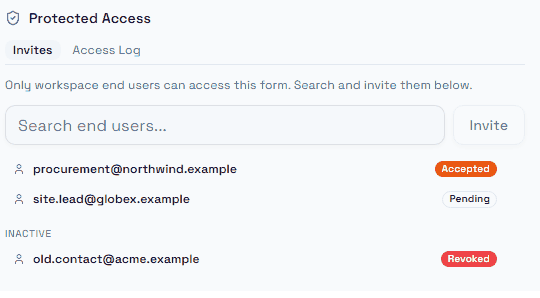
Active invites sit at the top with their status badge; revoked and expired ones drop under Inactive, which keeps a long-running form's list readable. The second tab is the access log.