
Scheduler Component
Vincent Depassier · September 1, 2026
The Scheduler turns a form into a booking page. It shows a month, marks which days still have room, and offers the free slots on the day someone picks.
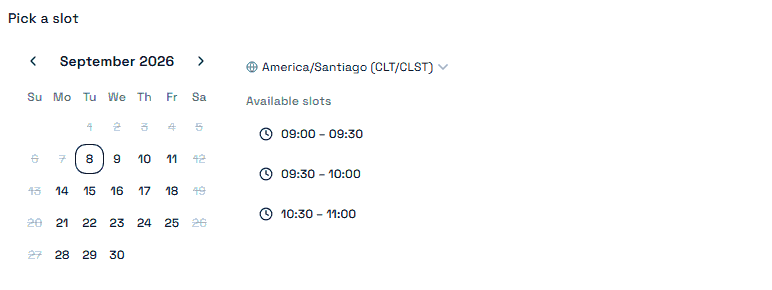
Use it for appointments, viewings, service visits, interviews, consultations — anything where the answer is a time and two people must not be given the same one.
What it needs
A Date & Time column in the bound table. The chosen slot is written there, and the component will tell you if the table has no such column. This is the one prerequisite people miss.
The taken slots are worked out from the bookings already recorded in that column, which is what stops two people choosing the same time. That also means the field is only as accurate as the table — bookings made outside Praxsuite and never written back are invisible to it.
Settings
Setting | Effect |
Slot duration | How long each bookable block is, in minutes |
Buffer before / after | Dead minutes kept free around each booking |
Opens at / Closes at | The daily window slots are generated inside |
Available days | Which weekdays are bookable at all |
Booking window | How many days ahead people may book |
Time zone | The zone the schedule is defined in |
Buffers are the setting worth understanding. A 30-minute slot with a 10-minute buffer after it consumes 40 minutes of the day — so travel time, notes and turnaround come out of the schedule instead of out of the person doing the work.
Time zones
The schedule is defined in the time zone you configure, and each visitor sees the slots converted to their own — which is what the zone label above the calendar is telling them.
Set the time zone deliberately. It defaults to a suggestion, and if that suggestion is wrong, every slot is offered at the wrong hour to everyone: the person who books 09:00 arrives at a time you are not there. Set it to where the work actually happens, not to where whoever built the form happens to be.
The trap
A booked slot is only reserved once the form is submitted. Choosing a time in the calendar does not hold it. Two people filling the form at the same moment can both select 10:00, and the second submission is the one that discovers the conflict.
For low-traffic booking this never comes up. If you are collecting many bookings into a narrow window, expect it, and decide what should happen to the loser — an automation that emails them the next free slot beats a silent double booking.
Not the same as a booking link
This component collects a time inside a form, alongside the rest of your questions. Praxsuite also has standalone booking links, which are their own page with their own cancel and reschedule flow. Use the component when the time is one field among several; use a booking link when the booking is the entire interaction.
Next
Praxsuite Forms: Components Overview
Date Picker Component
Datatypes in Praxsuite
How to Create a Form
Create your First Automation