
File Component
Camila Escobar · June 17, 2026
The File component lets someone attach files to their submission, by picking them or dragging them onto the field.
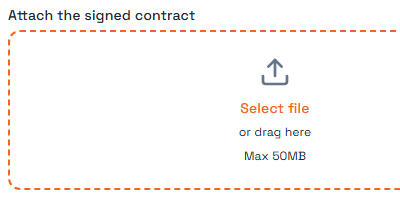
Use it for signed contracts, receipts, photos of damage, identity documents, delivery proof — anywhere the answer is a document rather than a sentence.
Settings
Setting | Effect |
Label | The question shown above the drop area |
Accepted types | Which file types the picker offers and the field accepts |
Multiple | Whether more than one file can be attached |
Maximum size | The largest single file allowed |
Maximum files | How many can be attached at once |
Required | The form will not submit while nothing is attached |
Restricting the accepted types is worth doing even when you are relaxed about it. It filters the file picker, so people are shown their PDFs instead of hunting through a folder of everything.
Where the files go
Files uploaded through a form become workspace files, and the row stores references to them. Three consequences follow:
One cell can hold several files, because a File column stores a list.
Detaching a file from the row does not delete the file itself.
The same file can be referenced from more than one row without being duplicated.
The size ceiling shown on the field comes from the workspace's plan, not from the form. If someone reports that an upload was rejected, the message names the real limit.
The trap
Required means at least one file, not the right file. The component checks that something was attached. It cannot check that the photo is of the right vehicle, that the PDF is signed, or that the file is not a blank page someone exported to get past the form.
If the content matters, someone or something has to look at it after submission. Build that step into the process rather than assuming a required field did it.
Next
Praxsuite Forms: Components Overview
Files
QR Scanner Component
Datatypes in Praxsuite
How to Create a Form