
Boolean Component
Camila Escobar · June 17, 2026
The Boolean component captures a yes/no answer.
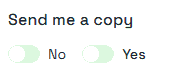
Use it for consent, eligibility and flags: has signed, is active, wants to be contacted.
Settings
Setting | Effect |
Label | The question shown above the control |
True label / False label | The words next to each option |
Display mode | Toggle or checkbox, single control or two separate ones, or a dropdown |
Default value | What the field holds before anyone touches it |
Allow clear | Whether someone can go back to "no answer" |
Required | The form will not submit while nothing is chosen |
Three states, not two
This is the part that catches people. A Boolean field can be true, false, or empty — and empty is not the same as false.
"Did not answer" and "answered no" mean different things in almost every real process. Consent that was never given is not consent that was refused. A checklist item nobody looked at is not one that was checked and rejected.
So:
If the distinction matters, leave the default empty, turn allow clear on, and read empty as "not answered" in your reports.
If it does not, set a default of false and mark the field required, and every submission arrives with a real answer.
What you should not do is set a default of true. Every skipped field then arrives as an affirmative you never received, which is a genuine problem when the field records consent.
The label trap
Set the true and false labels explicitly. If you leave them alone, the field falls back to built-in defaults, and on a form served in English those defaults do not currently translate — an English form can show a Spanish "Sí" next to "No". Typing your own labels avoids it entirely, and reads better anyway: "Yes, contact me" beats a bare "Yes".
Next
Praxsuite Forms: Components Overview
State Component
Rating Component
Datatypes in Praxsuite
How to Create a Form