
QR Scanner Component
Camila Escobar · June 17, 2026
The QR Scanner turns the device camera into an input. The person points it at a code and the field fills itself.
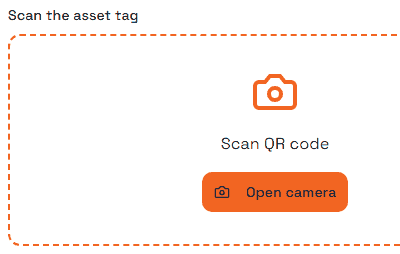
It exists for the field: asset tags, equipment serials, delivery labels, event tickets. Anywhere someone is standing in front of the thing and typing a twenty-character code would be slow and wrong.
Settings
Setting | Effect |
Label | The question shown above the scanner |
Placeholder | Text shown in the field before a scan |
Auto scan | Opens the camera as soon as the field is reached |
Continuous | Keeps scanning for more codes instead of stopping after one |
Required | The form will not submit while nothing has been scanned |
Turn on continuous scanning when one submission covers several items — a delivery with eight parcels, an inventory sweep down a shelf. Leave it off when the form is about one thing, or people will scan the next code by accident.
What it needs to work
Two conditions, and both are outside your form:
A camera, and permission to use it. The browser asks the person, and they can say no. The field stays typeable, so a refusal is not a dead end — but plan for it rather than assuming the scan always happens.
A secure connection. Browsers only grant camera access to pages served securely. Published Praxsuite forms are, so this is not something you configure; it is the reason the component cannot be tested from a plain local file.
The trap
The scanner reads whatever the code contains, not what you expect. A QR code on a shipping label often encodes a full URL, or a JSON payload, not the bare reference number you have in mind. What lands in the field is the entire decoded string.
Scan one of your real codes before you build a process on top of it, and look at what actually arrives. If it is a URL wrapping the id you want, pull the id out in an automation after submission rather than asking people to edit the field by hand.
Next
Praxsuite Forms: Components Overview
Text Box Component
File Component
How to Create a Form
Create your First Automation