
Publishing and Versions
Vincent Depassier · August 30, 2026
Publishing is the moment your edits become the site. Until then, everything you have done lives in drafts that only you can see. This page covers what a publish actually does, how to undo one, and how to push a site you built somewhere else.
What a publish does
Three things happen, in order:
A version is recorded — a numbered snapshot with the page count, who published it, when, and an optional note about what changed.
The static files are regenerated from your pages, theme and navigation.
The new files replace the old ones at the App's address.
The version is the part worth caring about. It is not a log entry; it is a complete snapshot, which is what makes the next section possible.
Rolling back
The version history lists everything the site has been. Rolling back publishes an earlier version again.
Note the phrasing: a rollback is a publish, not a delete. Version 12 is still there after you roll back to version 9 — you have simply made 9 current again, and the rollback itself becomes the newest entry. Nothing is lost, and you can roll forward the same way.
This is the reason to write a change note on each publish. "Fixed pricing table" is what makes a version list usable three months later, when the only other thing distinguishing the entries is a timestamp.
The App's own status
Separate from any version, the App has a status:
Status | The address serves |
Draft | Nothing yet — the site has never gone out |
Published | The current version |
Maintenance | A maintenance page |
Disabled | Nothing |
Maintenance is the one people forget exists. When you need the site down for an hour without giving visitors a dead hostname, this is the correct tool — not deleting the domain, and not publishing a half-finished version.
The generated files, and how to take one over
A publish regenerates a specific set of files into the site:
index.html
styles/global.css
404.html
robots.txt
These belong to the generator, and every publish rewrites them.
The important part: the first time you edit or delete one of them yourself, it becomes yours. From that point the generator stops writing that path, and your version survives every future publish. Handing it back is equally explicit — remove your override and the generator resumes.
Without this rule, an edited global.css would be silently reverted on the next publish, and a deleted robots.txt would come back from the dead. With it, you can take over exactly the files you care about and leave the rest managed.
Publishing a site you built elsewhere
Not every App is built in the editor. If you have a site from your own toolchain — a static site generator, a framework build, a folder of HTML — you can push the built output directly.
Deploy keys exist for this. A deploy key is scoped to a single App, and it lets a CI pipeline upload files without a user session:
It is shown once, when you create it. Only a hash is stored, so it cannot be recovered — losing it means creating a new one.
It can carry an expiry, or none.
It records when it was last used, which is how you find the ones nothing is using any more.
Give each key a name that says where it runs — "GitHub Actions, main branch" — because the only thing you will have later to decide whether a key is still needed is that name and its last-used date.
Alongside the keys, the App's files can be listed, uploaded, edited, renamed, moved and deleted directly. That is useful for a one-off fix, and it is also how you take over a generated file.
When changes appear
A published site is served from a cache close to your visitors. After a publish, the new version can take a few minutes to reach every location.
This catches people out because the usual reflexes do not help: a hard refresh, a private window and a different browser all ask the same cache. If a publish looks like it did nothing, wait a few minutes before assuming it failed — and if you are testing, add a changing query string to the URL rather than trusting the refresh button.
Next
Domains — putting the site on your own address
Deploy targets — publishing the same App to somewhere else as well
Analytics — who visited, and what they read
What it looks like
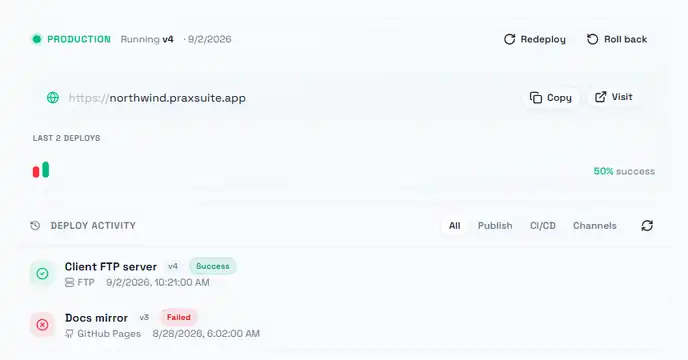
The top row is the answer to "what is the world seeing right now": a green dot, Running v4, and the address it is being served on. Roll back sits next to Redeploy on purpose — rolling back is a publish of an older version, not an undo, so it is the same class of action.
The strip under the address is the last few deploys as coloured ticks with a success rate beside them. It is there so a partial failure is not silent: an App can be live and still have a destination that is not receiving it. That is exactly what the activity list below shows — the same version 4 succeeded on one destination while an earlier attempt on another failed. A failed row keeps its error, so you can tell a rejected credential from a build that never started.
Version history on the right is what makes any of this reversible. Each entry is a snapshot with who published it and the note they left, and Restore on an older entry is how you get back to it. The note field is optional and almost always worth filling in — it is the only thing that distinguishes two versions six weeks later.