
Pages and Navigation
Vincent Depassier · August 30, 2026
A page is a URL. Navigation is the menu people click to reach it. They are two separate things in an App, and keeping them separate is what lets you reorganise a site without breaking its links, or link to a page that is deliberately not in any menu.
The page tree
Pages nest by naming a parent. The URL is built from the chain of slugs:
/                      home
/services              a page with no parent
/services/consulting   the same page, with /services as its parent
A page's position among its siblings is explicit, so the tree can be reordered without renaming anything.
Folder pages exist for the case where a level of the URL has no page of its own. If you want /blog/2026/first-post but nothing to show at /blog/2026, make that level a folder. It shapes the tree and produces no page.
Page types
Type | One page in the editor becomes |
Static | One page on the site |
Dynamic collection | One page listing rows from a table |
Dynamic detail | One page per row in a table |
Folder | No page at all — a node in the tree |
Dynamic detail is the one worth understanding properly. You build a single layout, bind it to a table, and every row becomes a reachable URL through it. A catalogue of four hundred products is one page in the editor, not four hundred.
A collection page and a detail page are usually built as a pair: the collection lists, each entry links into the detail.
Draft and published, per page
Every page holds two bodies at once — what visitors are being served, and what you are editing. They only converge when you publish.
The practical consequence: you can safely edit a live page. Open the busiest page on your site in the middle of the day, restructure it, leave it half-finished overnight, and visitors keep seeing the old one. Nothing you do in the editor reaches them until a publish.
A page also has a status of its own — draft, published or archived. Archived is the honest way to retire a page: it stops being served, and it stays in the tree with its content, which a delete does not.
What a page carries for search engines
Per page:
Field | What it controls |
Meta title / description | What a result looks like in search |
Social image | The preview when the link is pasted into a chat |
Canonical URL | Which address is the real one when several serve the same content |
No-index | Ask search engines to skip this page |
Structured data | JSON-LD, for rich results — a product, an event, an FAQ |
No-index is worth using deliberately on thank-you pages, internal landing pages, and anything reachable only from an email. Structured data is the difference between a plain blue link and a result with a price and a rating on it.
Navigation
Menus live in two places on an App — a header and a footer — and each is defined independently of the page tree. A menu holds its own list of items, so it can link to pages, to an anchor within a page, or to somewhere else entirely.
Each menu also carries its own presentation:
Setting | Effect |
Logo image or logo text | What sits at the start of the bar |
Style | Layout and appearance for that menu |
Theme toggle | Show a light/dark switch |
Locale switcher | Show a language switch |
Because menus are not generated from the tree, adding a page does not add it to the menu. That is deliberate — most sites have more pages than menu entries — but it is the first thing that surprises people. If a new page seems unreachable, check whether you linked it.
Themes
An App declares which theme modes it supports and which one it opens in:
Mode | Behaviour |
Light only | One appearance |
Dark only | One appearance |
Both | Both are available; the toggle picks |
System preference | Follows the visitor's device setting |
If you enable a toggle in a menu, enable the matching theme mode on the App — a toggle on a light-only App has nothing to switch to.
Components
A component is a reusable block: you write it once, name it, and place it on any page of that App. Components are compiled when you save them, not when a visitor arrives, so they cost nothing at request time.
Use them for the pieces that must stay identical everywhere — a pricing table, a testimonial block, a call-to-action band. Editing the component updates every page that uses it, which is the entire point, and also the thing to be careful about before a publish.
Head and body injection
An App can inject markup into the head and at the end of the body of every page. This is where analytics tags, verification meta tags and third-party widgets go.
Two cautions. It applies to every page, so anything expensive here is expensive everywhere. And it is the fastest way to break a site — a malformed tag in the head affects every URL at once, and the failure shows up on pages you never touched.
Next
Data and forms — making pages read and write workspace data
Publishing and versions — what a publish actually does
Domains — putting the site on your own address
What it looks like
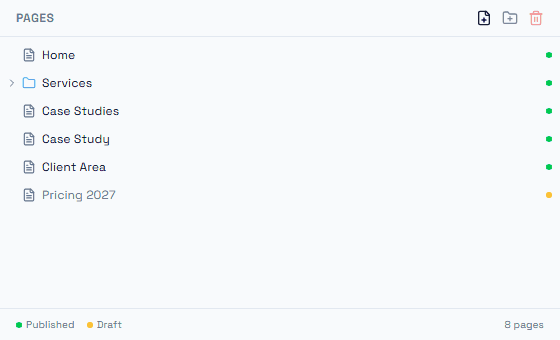
The tree is the whole site in one list. Two details are worth reading off it: the dot on the right is the page's own status — green published, amber draft — so a page you have edited but not published is visible at a glance without opening it. And the count in the footer is 8 pages while only six rows are visible, because Services is collapsed and its two children count too. Folder rows carry a chevron and a folder icon; a page row carries a document icon.
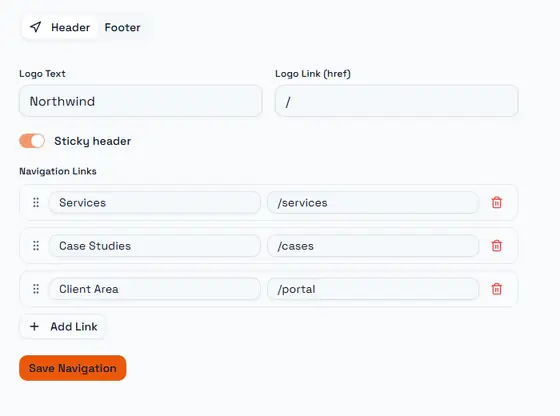
Navigation is edited separately from the tree, and the Header / Footer switch at the top means each one is its own menu with its own logo and links. That separation is the point: a link does not have to be a page in this App — the href is free text, so a menu entry can point at a section anchor, another App, or an external address. The handle on the left of each row reorders it; the order here is the order visitors see, independent of the page tree's order.