
User Roles in Praxsuite
Camila Escobar · June 17, 2026
Understand how roles and access work in Praxsuite to control who can view, create, edit, or manage data. Learn how Owners, roles, and access grants keep operations secure and scalable.
Praxsuite places data security at the center of its architecture. Because the platform is used to operate business-critical processes, access control is enforced through multiple layers that determine who can perform which actions at any given time.
User Roles are a core part of this security model. They define broad, organizational-level permissions that apply across entire features inside a Workspace.
How roles fit into Praxsuite's security model
Every time an admin user attempts to interact with a feature, Praxsuite evaluates access using a strict validation sequence:
Owner check
Role permissions check
Access Grants check
Roles operate at the second level of this hierarchy, providing high-level authorization after ownership is ruled out and before granular access is evaluated .
Owner vs Roles
The Owner of a Workspace is the highest authority.
If a user is the Owner:
They can perform any action without exception
They bypass roles
They bypass permissions
They bypass access grants
This is intentional. The Owner is the individual or entity that owns, pays for, and is legally and operationally responsible for the Workspace. Nothing inside the system can be hidden from them.
Security logic at this level is simple:
If Owner = Yes → Access Granted
If Owner = No → Evaluate Roles
What a role is
A Role is a group of users that share the same high-level access permissions.
Roles act as entities within the system and are assigned Permissions, which represent broad authority over entire feature categories such as Tables, Forms, Dashboards, Automations, and Users.
Roles are intentionally not granular. They do not control access to individual records or fields. Instead, they define global capability.
How role permissions work
Permissions assigned to a role apply to all items within a feature category.
Examples:
A role with permission to Create Tables can create any table
A role with permission to Read Tables can read all tables
A role with permission to Edit Forms can edit any form
Because of their wide scope, roles must be assigned carefully.
User and role relationships
Roles and users have a many-to-many relationship:
A user can have multiple roles
A role can include multiple users
When multiple roles are assigned, the system applies the highest permission level available
This allows flexible access models while keeping permissions predictable.
Available role permission levels
Each feature category supports the following permission levels:
Create
Allows creating new items inside a feature.
Example: creating tables, forms, dashboards, or automations.
If a user creates an item, they automatically gain read and edit access to that item.
Read
Allows viewing all items inside the feature.
This permission is not granular and provides full visibility.
Edit
Allows modifying existing items, including structure, fields, settings, and behavior.
Delete
Allows deleting items or content inside the feature.
Manage
Provides full administrative control over the feature.
Equivalent to Create + Read + Edit + Delete, plus configuration capabilities.
What roles answer
Roles answer the high-level security question:
"Does this user have global permission to perform this type of action?"
If the answer is Yes → Access is granted
If the answer is No → The system evaluates Access Grants
Roles in the full access validation flow
The complete validation sequence is:
Is the user the Owner?
Yes → Access Granted
No → Continue
Does the user have a role with the required permission?
Yes → Access Granted
No → Continue
Does the user, role, or system identity have an Access Grant for this specific action?
Yes → Access Granted
No → Access Denied
The system needs only one valid reason to allow access.
If all checks fail, the action is denied .
Why roles matter
Roles provide:
Organizational-level access control
Consistent permissions across teams
A clear separation between authority and data
A scalable way to manage growing user bases
They ensure that access is intentional, predictable, and auditable, while still allowing fine-grained control through Access Grants when needed.
Where roles live
Every role in the Workspace is listed under Settings → Roles, in the panel on the left.
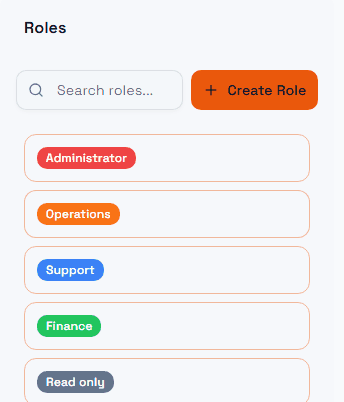
Two details worth knowing:
Each role carries a colour. It is not decoration: the same colour follows the role everywhere it appears, so a member list or an access dialog stays readable at a glance.
The search box filters the list, it does not create anything. New roles come from Create Role, and a role starts with no permissions at all until you grant them.
Selecting a role opens its permission matrix on the right, where you decide what that role may do with Tables, Dashboards, Automations and the rest.