
Inviting Users to Your Workspace
Camila Escobar · June 17, 2026
Learn how to invite users to your Praxsuite Workspace, assign basic user details, and manage collaboration by granting secure access to your environment.
Inviting users to your Workspace allows you to collaborate with teammates and control who can access your data and tools. In Praxsuite,
invitations are managed from Workspace Settings, inside the Users tab.
Open Workspace Settings
This is the starting point for managing users and roles in your Workspace .
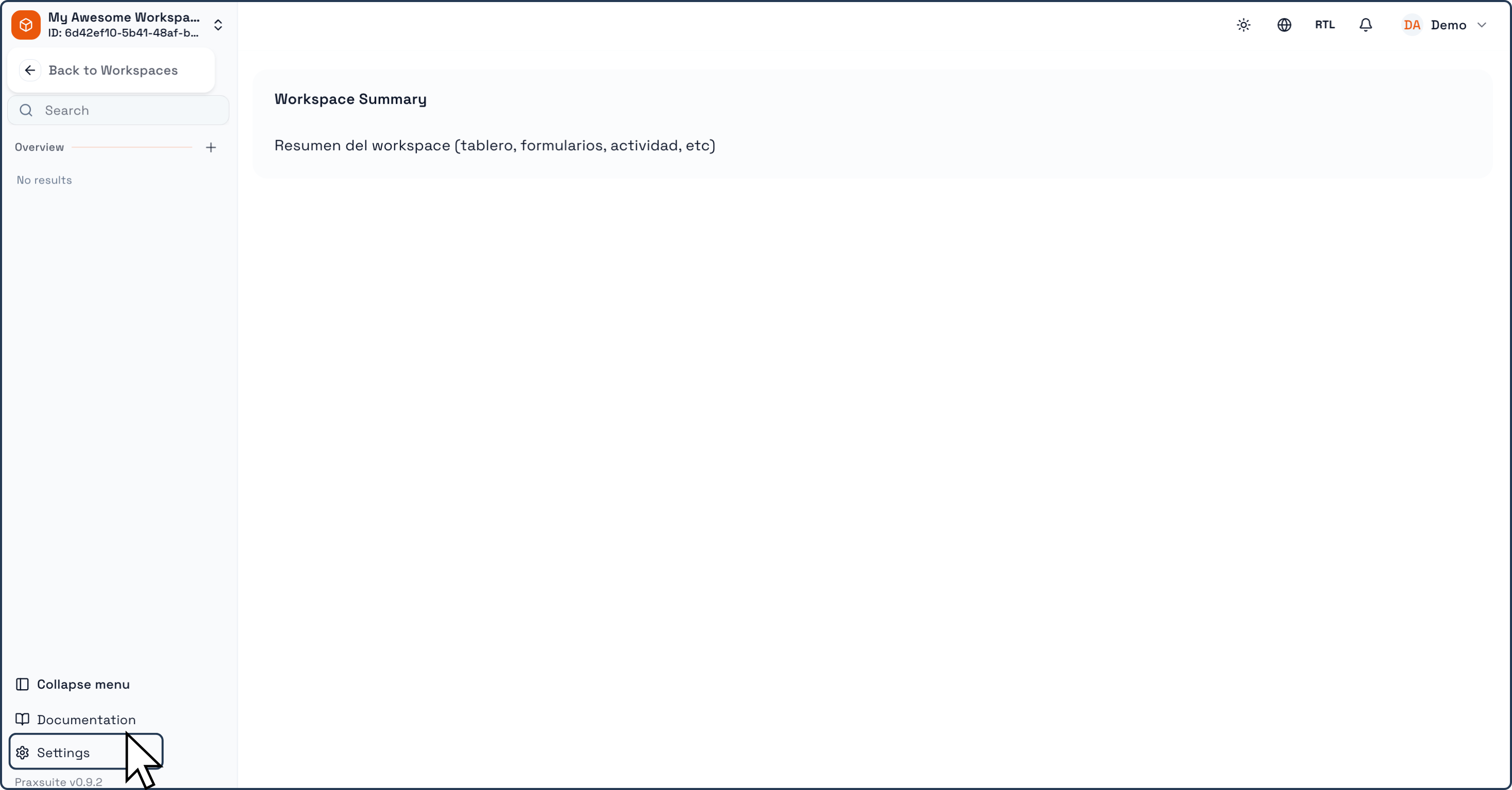
In the left side panel, click Settings.
Go to the Users Tab
In this section, you will see a list of all users who currently have access to the Workspace.
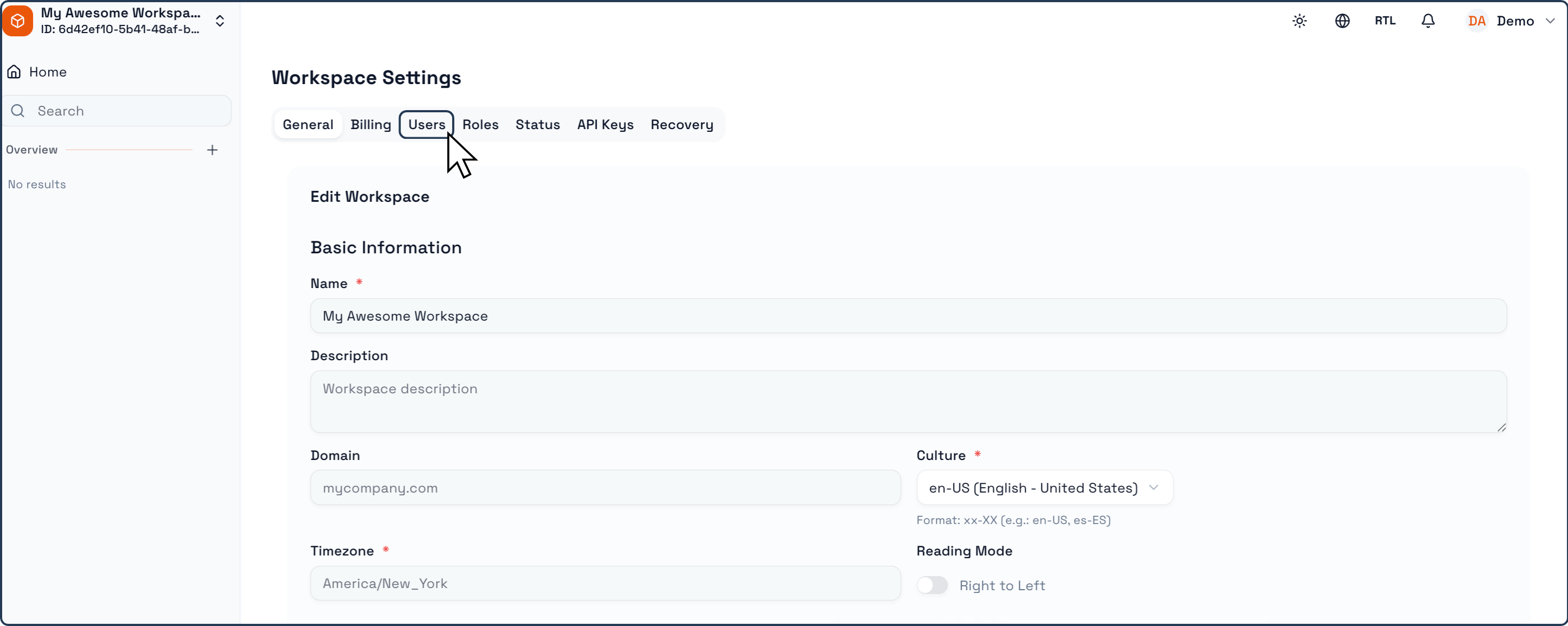
Inside Workspace Settings, locate the top menu tabs. Click Users to open the user management panel .
Start a New Invitation
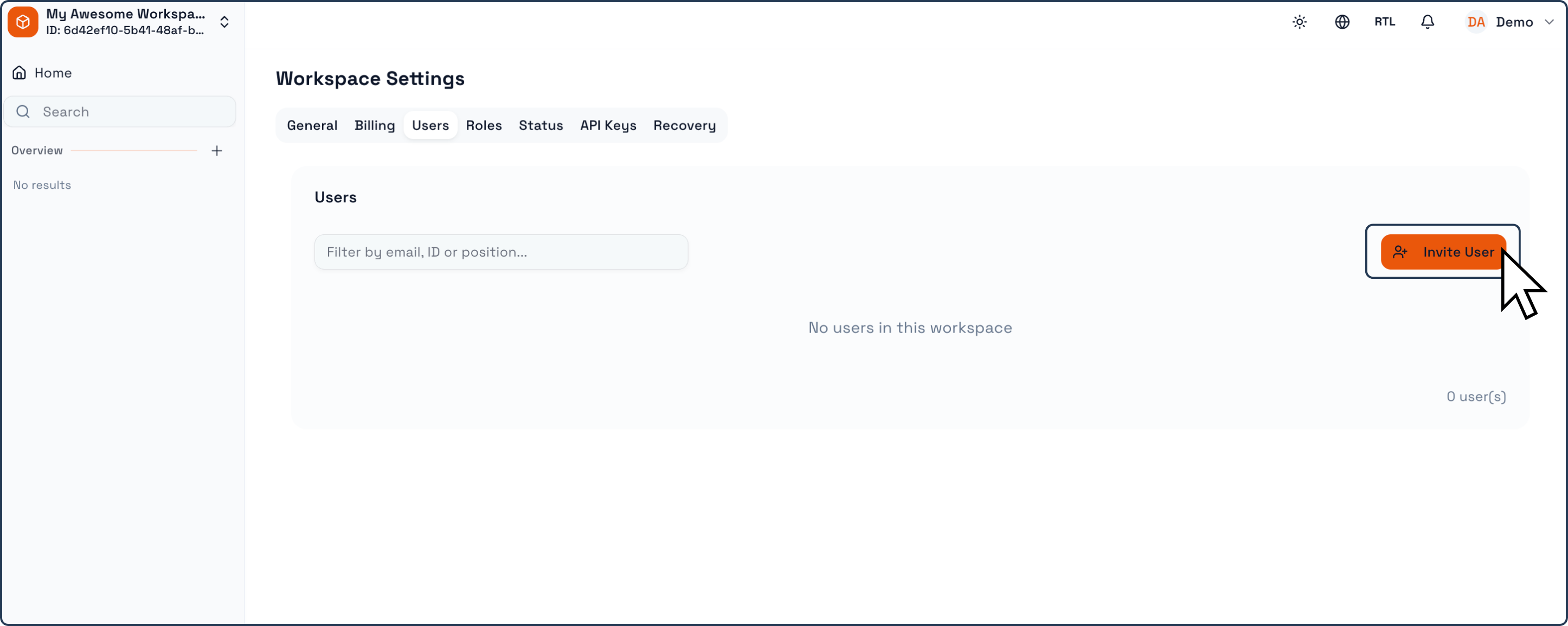
In the Users panel, click Invite User . A side window will open with the invitation form.
Complete the Invitation Form
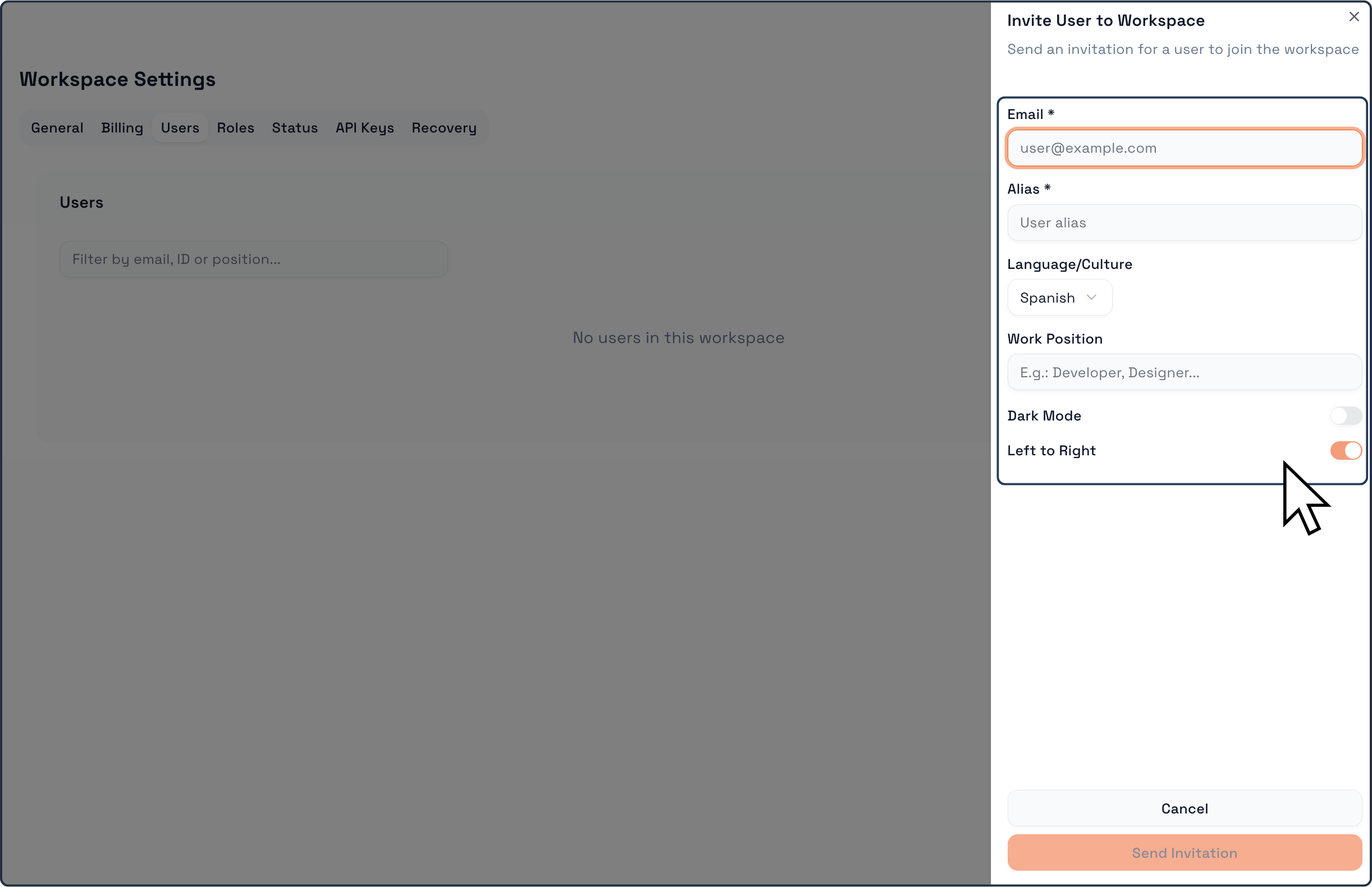
Fill out the following fields in the invitation window:
Email. Enter the user’s email address.
Alias (Nickname). Enter the name or nickname you want to display for this user in the Workspace.
Language / Culture. Select the user’s preferred Workspace language.
Work Position. Enter the user’s job position (for example: Operations Manager, Technician, Sales, Analyst).
User Preferences (Optional). Toggle the user’s default interface preferences:
- Dark Mode (on or off)
- Left to Right layout (on or off)
Both the Email and Alias fields are required; the remaining fields are optional and can be left empty without any issues.
Send the Invitation
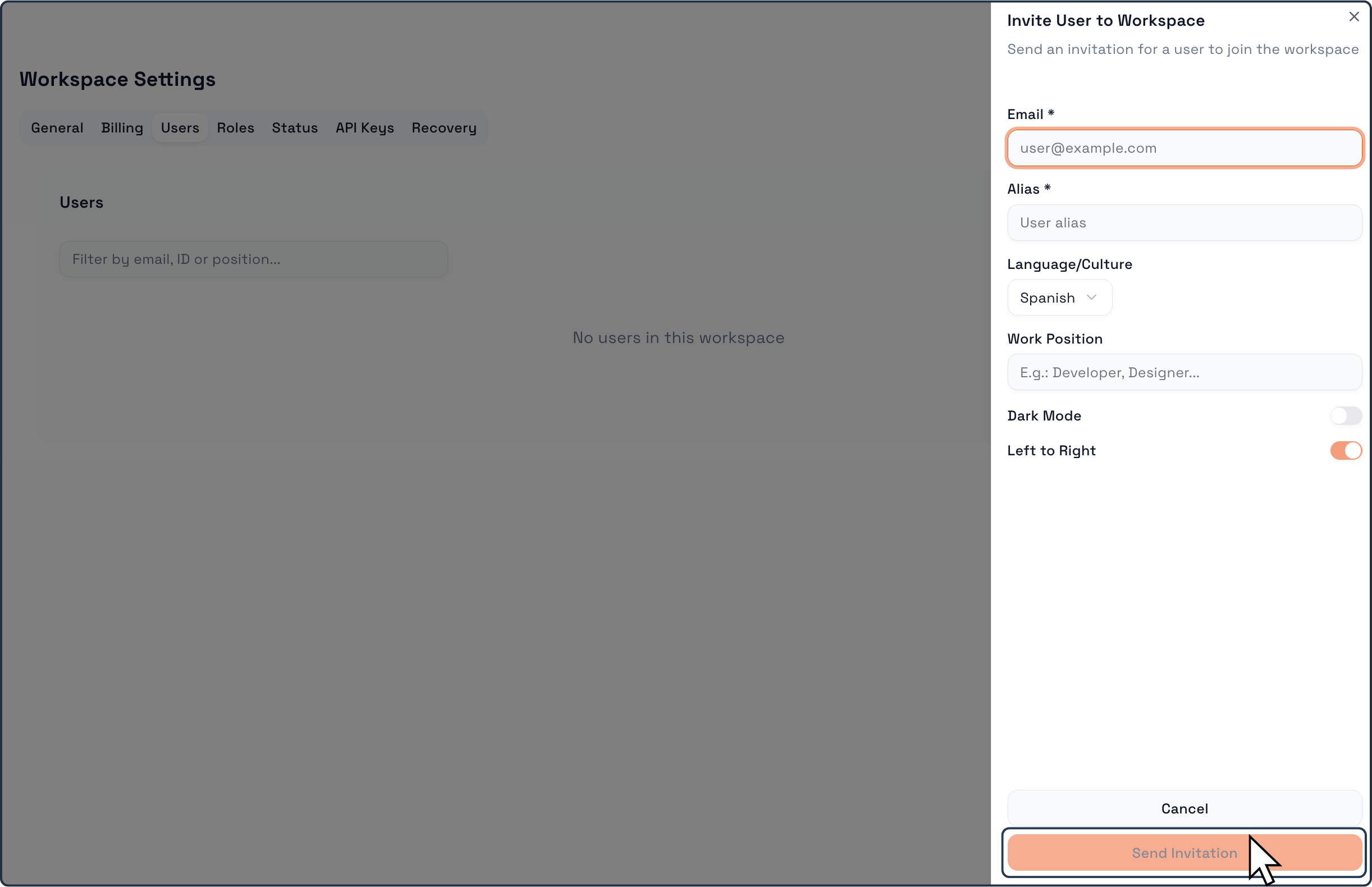
After verifying the information, click Send Invitation. Once sent, the invited user will receive an email invitation to join your Workspace.
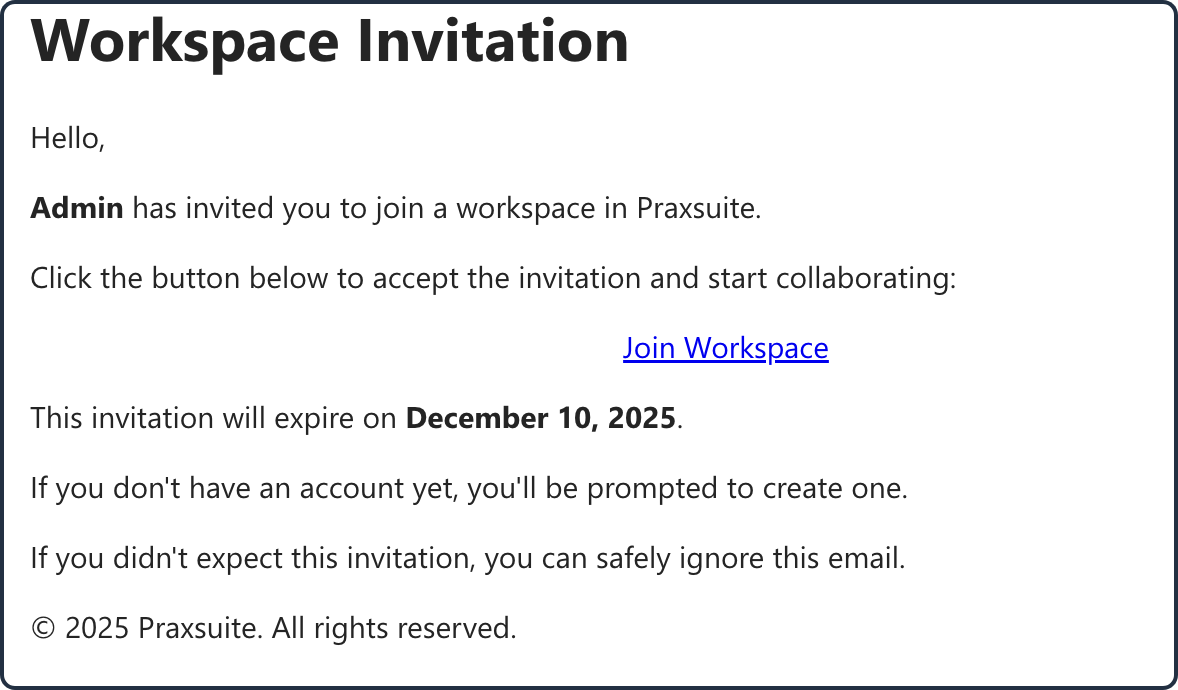
Once this email is received by the Invited user, he or she will have to create their Praxsuite account