
Permissions in Praxsuite
Camila Escobar · June 17, 2026
how permissions work in Praxsuite to control what actions users can perform across tables, forms, dashboards, and other features. Understand permission levels and how they support secure, scalable access management.
Permissions define what types of actions are allowed inside a Workspace. They are the mechanism through which Praxsuite enforces control over features such as Tables, Forms, Dashboards, Automations, and Users.
While roles group users, permissions define authority. Together, they determine how users interact with the system at a high level.
What permissions are
A permission is an authorization that allows a user (through a role) to perform a category of actions over a category of features.
Permissions are:
Global within their feature scope
Feature-based, not record-based
Assigned to roles, not directly to users
Permissions do not apply to individual records, fields, or specific items. They establish broad capability across an entire feature.
Permissions vs roles
It is important to distinguish between roles and permissions:
A role defines who a user is within the organization
A permission defines what that role is allowed to do
Roles without permissions have no authority.
Permissions without roles are not applied to anyone.
Permissions only take effect when they are assigned to a role and that role is assigned to a user.
Permission levels
Each feature category in Praxsuite supports a standard set of permission levels. These levels define increasing degrees of authority.
Create
Allows creating new items within a feature.
Examples:
Create Tables
Create Forms
Create Dashboards
Create Automations
When a user creates an item, they automatically gain read and edit access to that item.
Read
Allows viewing all items within a feature.
This permission provides:
Full visibility
No modification capability
Read access is not granular. If a role has Read permission, it can view every item in that feature category.
Edit
Allows modifying existing items.
This includes:
Changing structure
Editing fields
Updating settings
Modifying behavior
Edit permission applies globally to all items of that feature.
Delete
Allows deleting items or content within a feature.
This is a destructive permission and should be assigned carefully, as it affects all items in the feature category.
Manage
Provides full administrative control over a feature.
Manage is equivalent to:
Create
Read
Edit
Delete
Plus configuration and administrative capabilities
This permission is typically reserved for senior or system-level roles.
How permissions are evaluated
Permissions are evaluated after ownership and before access grants.
When a user attempts an action, Praxsuite checks:
Is the user the Owner?
If yes, permission is granted.
Does any of the user’s roles include the required permission for this feature?
If yes, permission is granted.
If not, the system evaluates Access Grants for that specific action.
Permissions therefore act as the primary gatekeeper for most actions in the system.
Why permissions are not granular
Permissions are intentionally designed to be broad and predictable.
They:
Simplify access management at scale
Avoid complex and fragile permission trees
Make it easy to reason about who can do what
Fine-grained control is handled separately through Access Grants, which apply after permissions are evaluated.
This separation keeps the system both powerful and understandable.
Why permissions matter
Permissions ensure that:
Users can only perform actions appropriate to their role
Critical features are protected from accidental changes
Access rules remain consistent across teams
The system scales without becoming insecure or chaotic
They provide a clear contract between organizational responsibility and system authority.
Key idea
Roles define who users are
Permissions define what those users are allowed to do
Access Grants define where and how that authority applies
Permissions are the backbone of controlled, predictable access in Praxsuite.
What it looks like
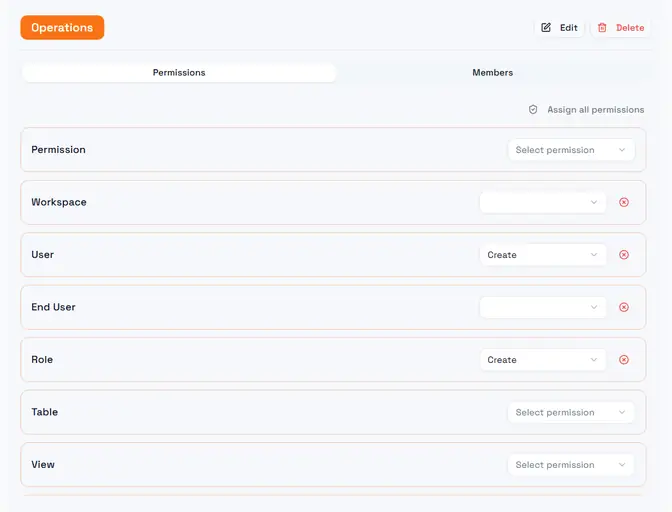
This is where the model above becomes concrete. Roles are listed on the left in their own colour; selecting one opens its permissions on the right.
The important thing to read off this screen is the shape of the list: one row per feature category — Workspace, User, End User, Role, Table, View, and so on down the page — and a single access level chosen per row. That is what "permissions are feature-based, not record-based" means in practice. There is no row here for an individual table or an individual dashboard, because permissions do not reach that far; that is what Access Grants are for.
A row whose selector still reads Select permission has no permission for that category at all — which is not the same as having been denied one. The role simply grants nothing there, and the request falls through to the Access Grants check.
Assign all permissions at the top right fills every row at once. It is a genuine shortcut for building an administrator-shaped role, and a genuine hazard everywhere else: it is far easier to start from nothing and add the two categories a role needs than to start from everything and remember to remove the rest.
The Members tab beside Permissions is the other half — the same role seen as the list of people who hold it.