
Roles & Access
documentation/core/roles-access
Roles & Access
Praxsuite puts data security at the center of its architecture. Because we host business-critical operations, the platform includes multiple layers of protection to ensure that only the right users perform the right actions at the right time. Every time an admin user tries to interact with a feature, Praxsuite performs three levels of security checks, from the broadest authority to the most granular control. These checks determine whether the action is allowed or denied.
Praxsuite puts data security at the center of its architecture.
Because we host business-critical operations, the platform includes multiple layers of protection to ensure that only the right users perform the right actions at the right time.
Every time an admin user tries to interact with a feature, Praxsuite performs three levels of security checks, from the broadest authority to the most granular control.
These checks determine whether the action is allowed or denied.
1. Owner User (Top-Level Access)
The Owner is the highest authority inside a workspace.
If the user is the Owner:
They can do everything, without exception.
They bypass roles.
They bypass permissions.
They bypass access grants.
Why?
Because the Owner is the person who owns, pays for, and is legally/operationally responsible for the workspace. Nothing can be hidden from them.
This is the first and simplest check in the system:
If Owner = Yes → Access Granted
If Owner = No → continue checking roles & grants
2. Roles & Permissions (High-Level Access)
If the user is not the Owner, Praxsuite evaluates their Roles.
A Role is a group of users that share high-level access.
Roles act as entities in the system and receive Permissions, which are broad authorities over entire features.
Roles are not granular.
They define global capability, not specific actions.
Examples:
If a role has permission to create tables, it can create all tables.
If a role has read tables, it can read every table.
If a role has edit forms, it can edit any form.
Roles must be assigned carefully, as they grant wide power.
Users & Roles:
A user can have multiple roles
A role can have multiple users
The highest permission across their roles is what counts
Available Role Permissions
These permissions define global access to each feature category:
• Create
Allows creating items inside a feature.
Example: create tables, forms, dashboards, automations, etc.
If a user creates something, they automatically gain read/edit access to it.
• Read
Allows reading all items inside the feature.
Not granular — full visibility.
• Edit
Allows modifying items: fields, structures, settings, behavior.
• Delete
Allows deleting items or content inside the feature.
• Manage
Full administrative access to the feature.
Equivalent to: Create + Read + Edit + Delete + configure everything.
Roles answer the question:
“Does this user have global permission to do this type of action?”
If Yes → Access Granted
If No → check Access Grants
3. Access Grants (Granular Access Control)
Access Grants are the finest level of security in Praxsuite.
They determine what specific actions an entity can perform on a specific item.
In this layer, Entities include:
Admin Users
Roles
End Users (customers/players)
AI Agents
External or internal system identities
This is where you define exact behaviors:
Examples:
A user can read a table but not edit it
A role can edit a form but cannot delete inputs
An AI Agent can write to a field but cannot read sensitive columns
An EndUser can update their profile, but not see internal tables
Access Grants answer the highly specific question:
“Who can do what, where, and how?”
This is the most important layer to configure carefully — it protects sensitive operations and ensures principle of least privilege.
Combined Security Flow (Explaining the Diagram)
Here is the exact validation sequence Praxsuite uses:
(Your diagram visually represents this flow.)
Is the user the Owner?
If Yes → Access Granted
If No → go to next step
Does the user have a Role with the required Permission?
(Example: trying to edit a table → does any assigned role have "Edit Tables"?)If Yes → Access Granted
If No → go to next step
Does the user (or their role, or agent identity) have an Access Grant for this specific action?
If Yes → Access Granted
If No → Access Denied
The logic is:
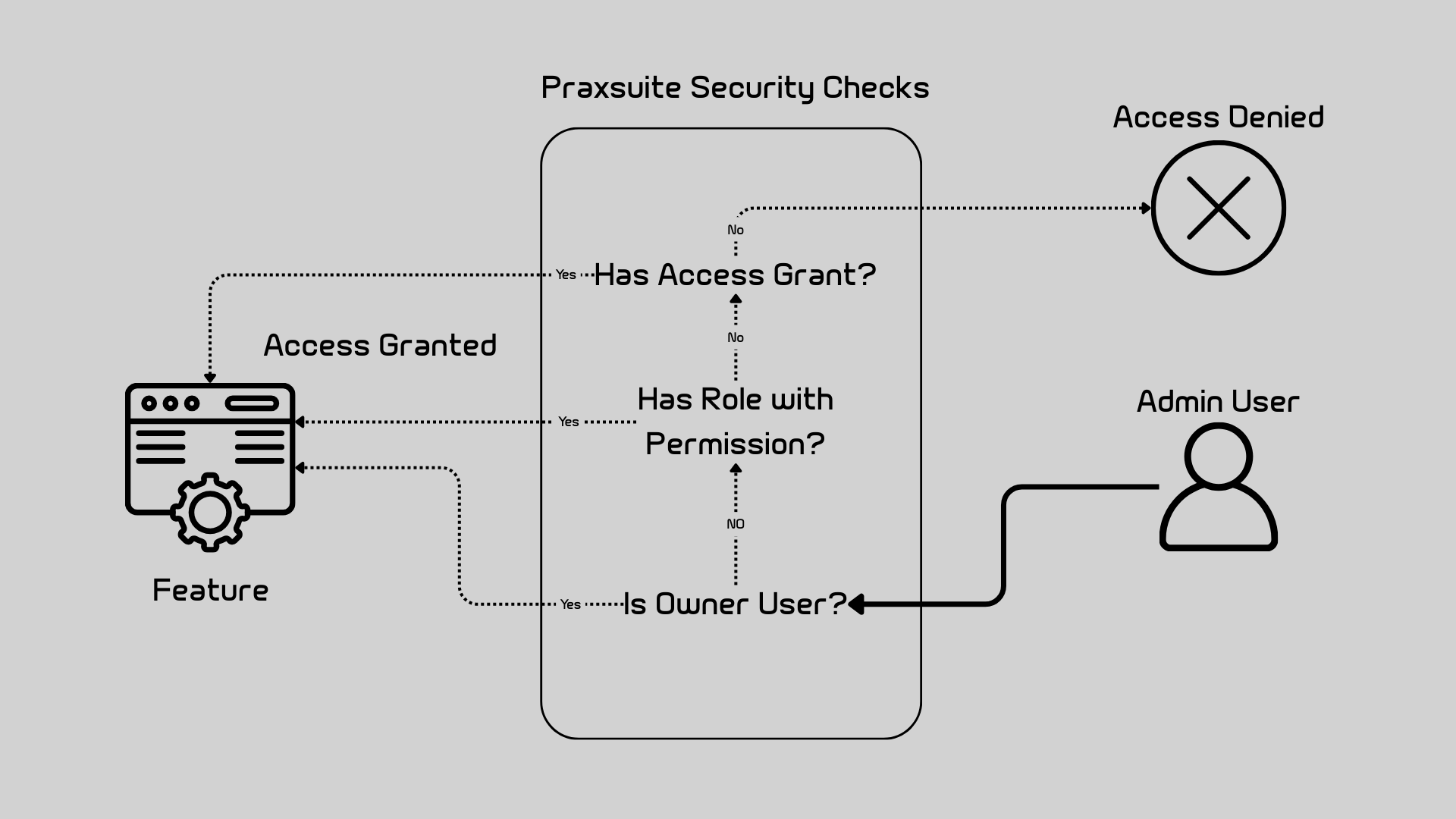
The system needs one valid reason to allow access.
If all three checks fail, the feature returns Access Denied.
This hierarchy ensures:
Owners always have full authority
Roles provide broad, organizational access
Access Grants provide fine-tuned, record-level precision