
Working with Data Types in Tables
Camila Escobar · June 17, 2026
Learn how to create table columns in Praxsuite and select the right data types to structure, validate, and connect information across your Workspace.
In Praxsuite, data types are applied at the column level inside Tables. Every column must have a defined data type, which determines what kind of information can be stored, how it is validated, and how it can be used across the system.
Data types are selected when you create a new column in a Table and can be updated later depending on permissions and usage.
Where Data Types Are Defined
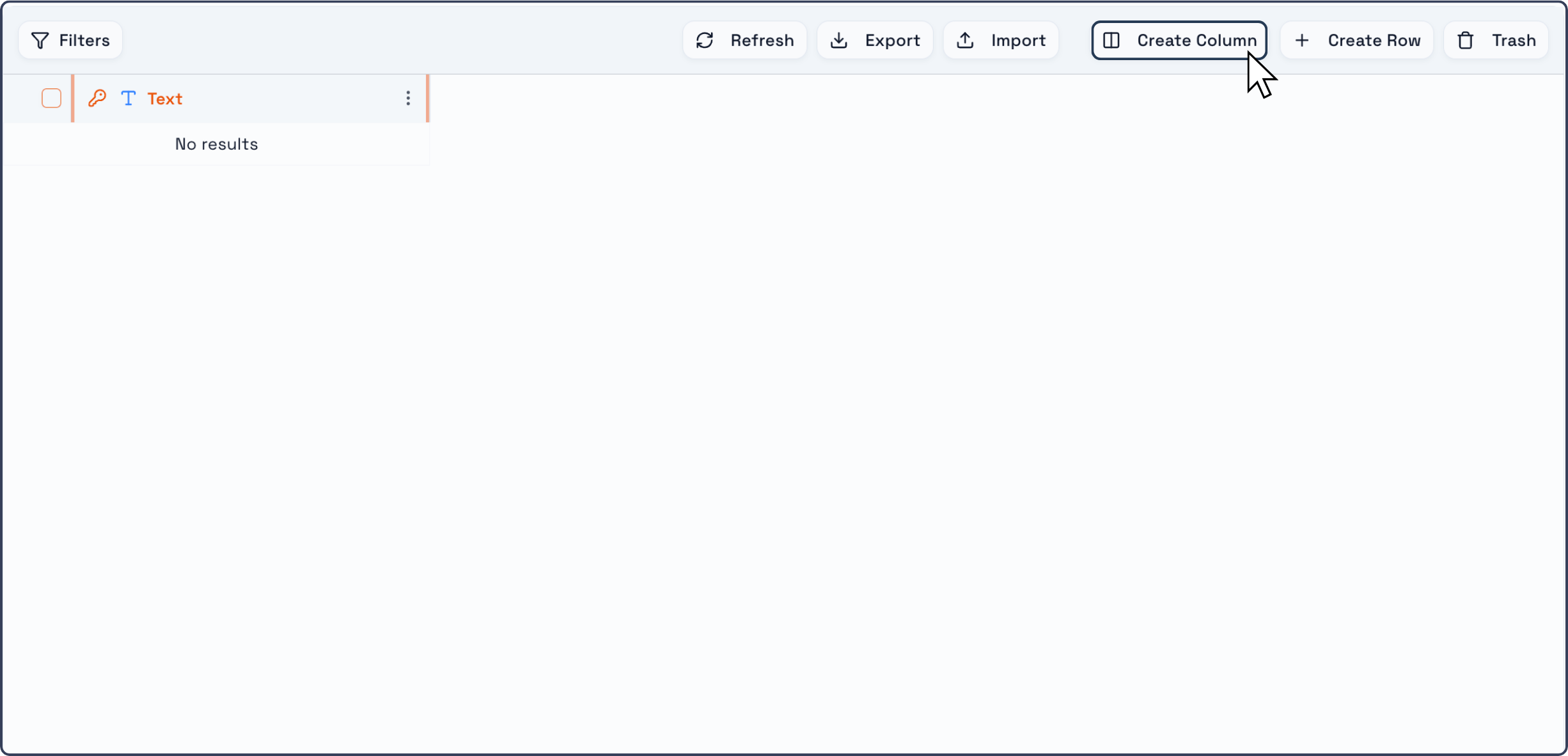
Data types are selected from the Create Column dialog inside any Table.
To access data types:
Open a Table inside your Workspace.
Click the Create Column button located in the Table toolbar.
The Create New Column dialog will appear .
Creating a Column and Selecting a Data Type
When creating a new column, follow these steps:
Enter the Column Name
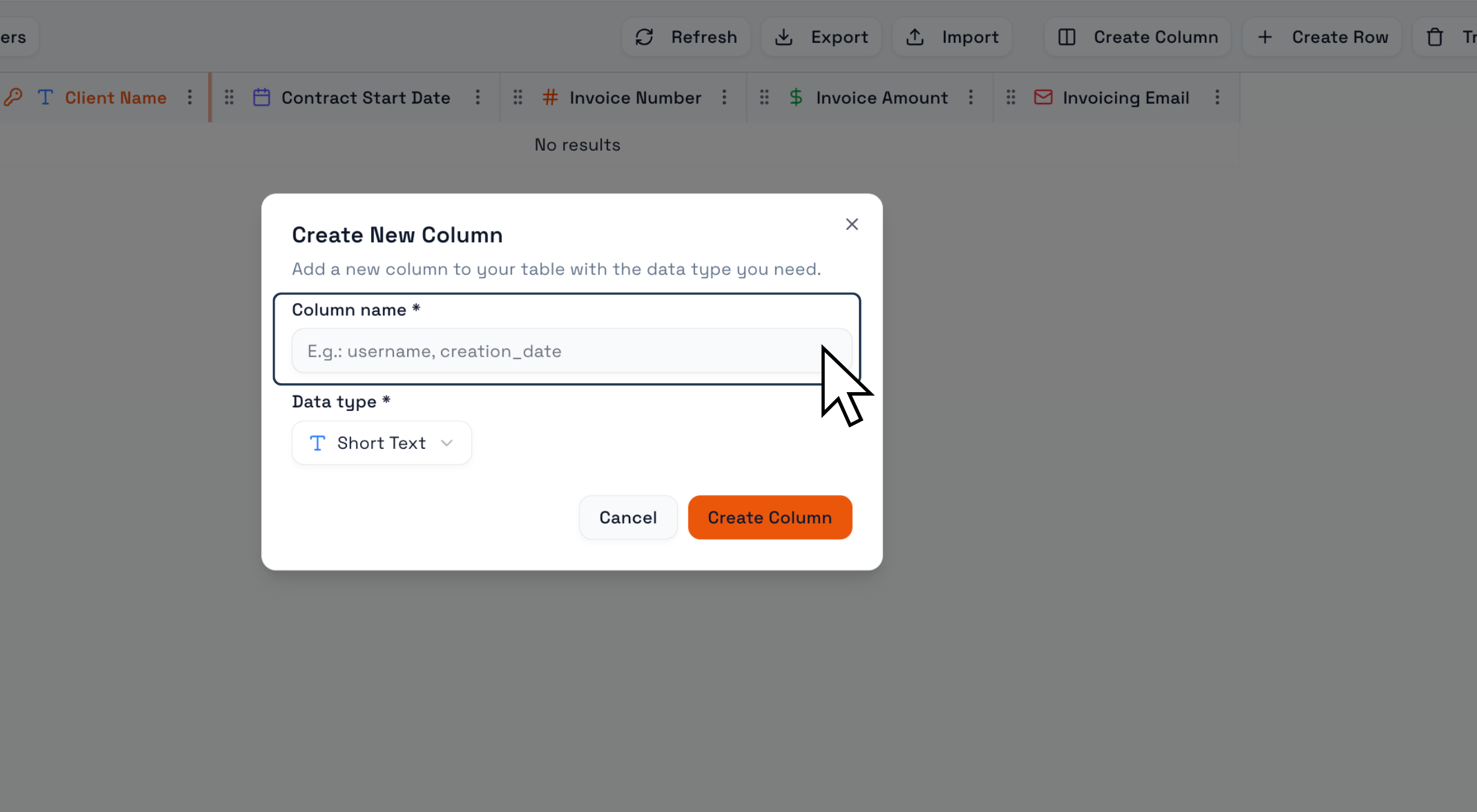
In the Column name field, type the name of the column.
Use clear, descriptive names that reflect the data you intend to store.
Examples:
Client Name
Invoice Amount
Contract Start Date
This step is shown in the first screen of the column creation flow .
Select the Data Type
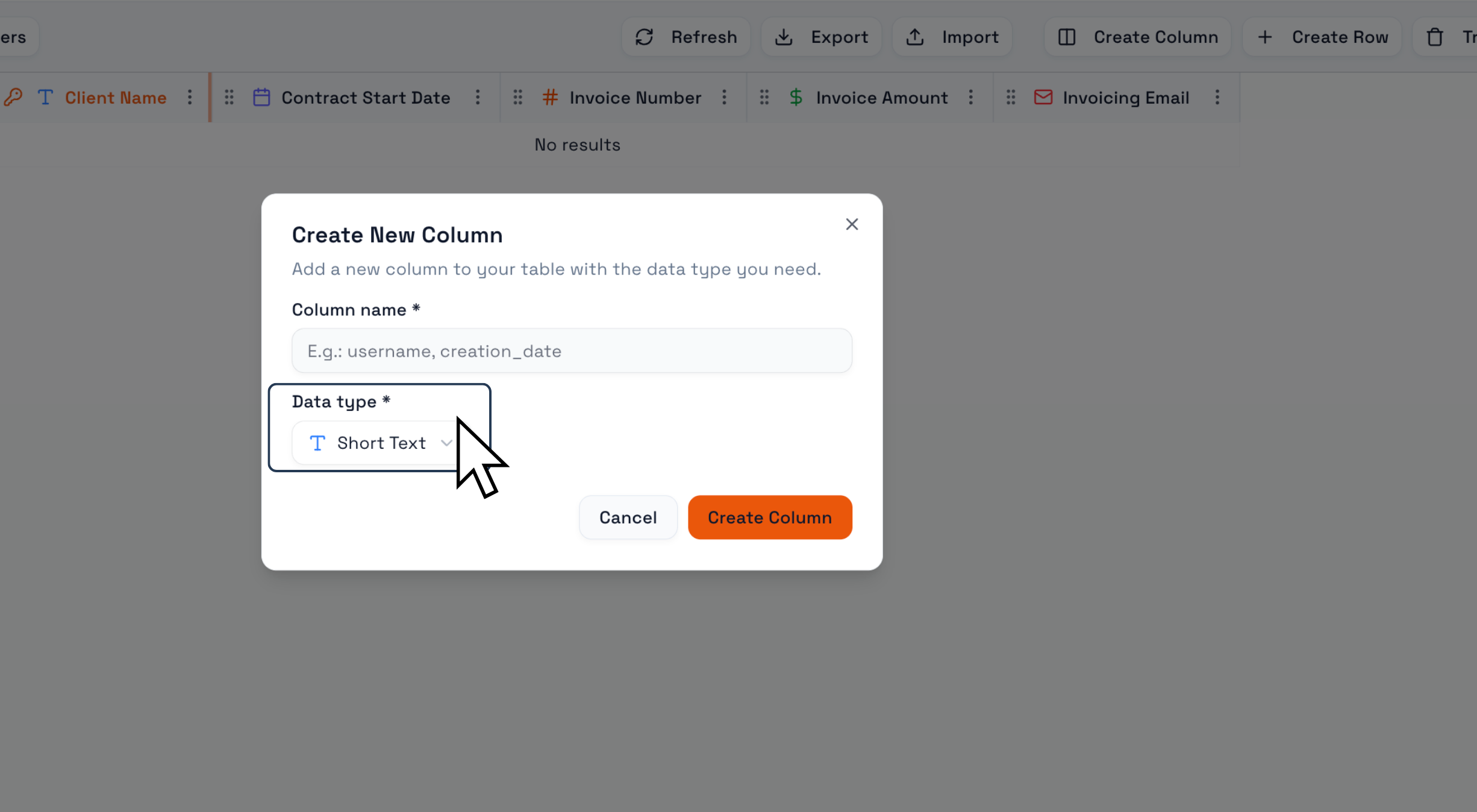
Below the column name, locate the Data type selector.
Click the dropdown menu to view the list of available data types .
The list includes both Primitive and Relational data types, such as:
Short Text
Long Text
Email
Phone
Number
Currency
Date
Status
Files
System User
Table (relation)
And others
Select the data type that best matches the kind of information this column will store.
Create the Column
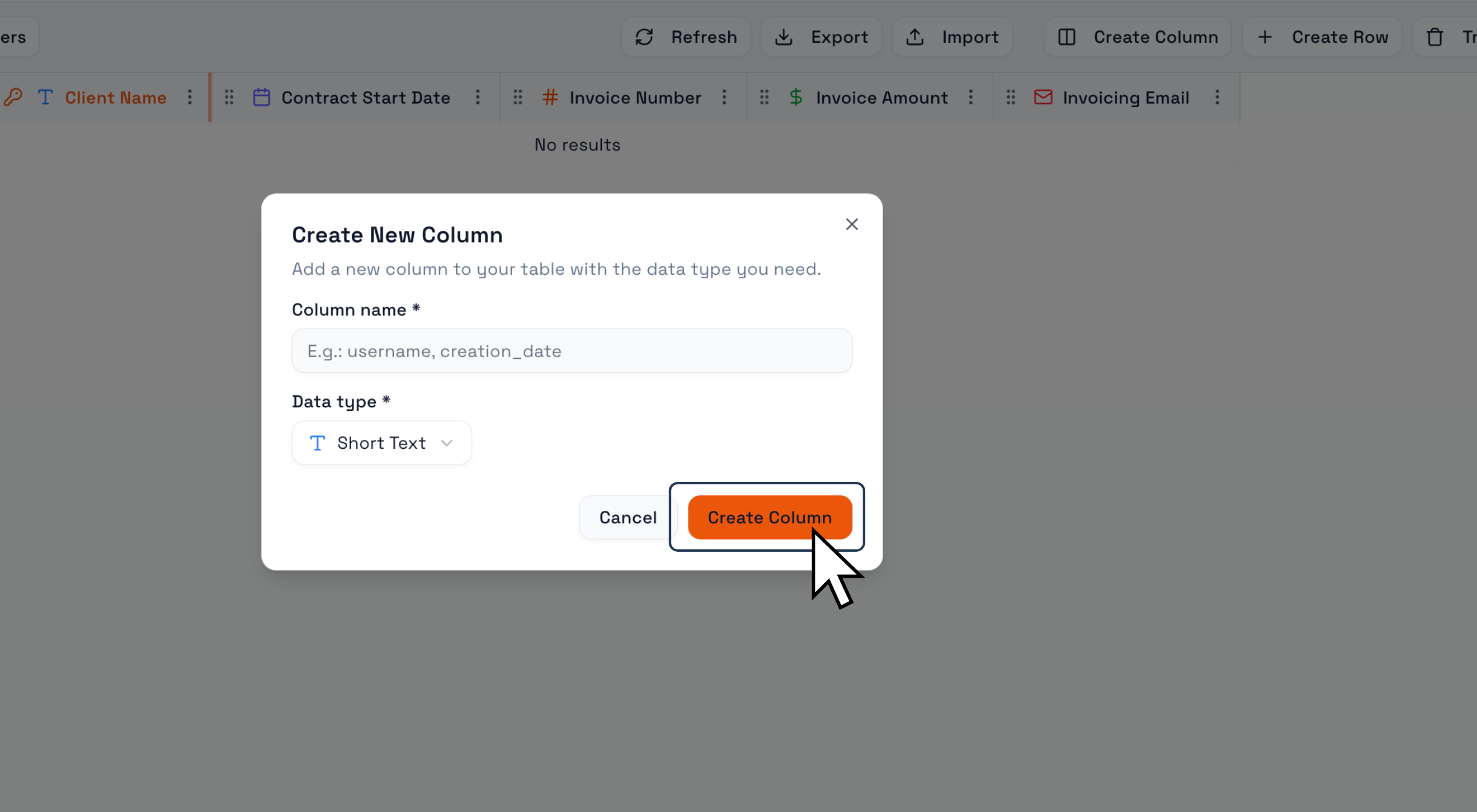
After choosing the column name and data type, click Create Column.
The new column will immediately appear in your Table and be ready to receive data.
Once created, all records in the Table will follow the rules defined by that data type.
How Data Types Affect Your Table
Choosing the correct data type ensures that:
Data entered into the column is validated correctly
Filters, sorting, and dashboards behave as expected
Relationships between Tables work reliably
Forms connected to the Table collect structured and consistent data
For example:
A Date column enables date-based filtering and timelines.
A Currency column ensures monetary values are formatted correctly.
A Relation column allows you to link records across Tables.
Best Practices When Selecting Data Types
Always choose the most specific data type available instead of using generic text.
Use relational data types when information connects to other records, users, or files.
Plan your data types before building large Tables to avoid structural changes later.
Align data types with how the data will be used in Dashboards, Forms, and workflows.