
Settings
Vincent Depassier · August 30, 2026
Gateway Settings
Workspace-level configuration for everything the gateway does on behalf of your end users: whether they must confirm their email, where they land after signing in, what the hosted sign-in pages look like, and what extra fields their accounts carry.
You will find it at API Gateway → Settings.
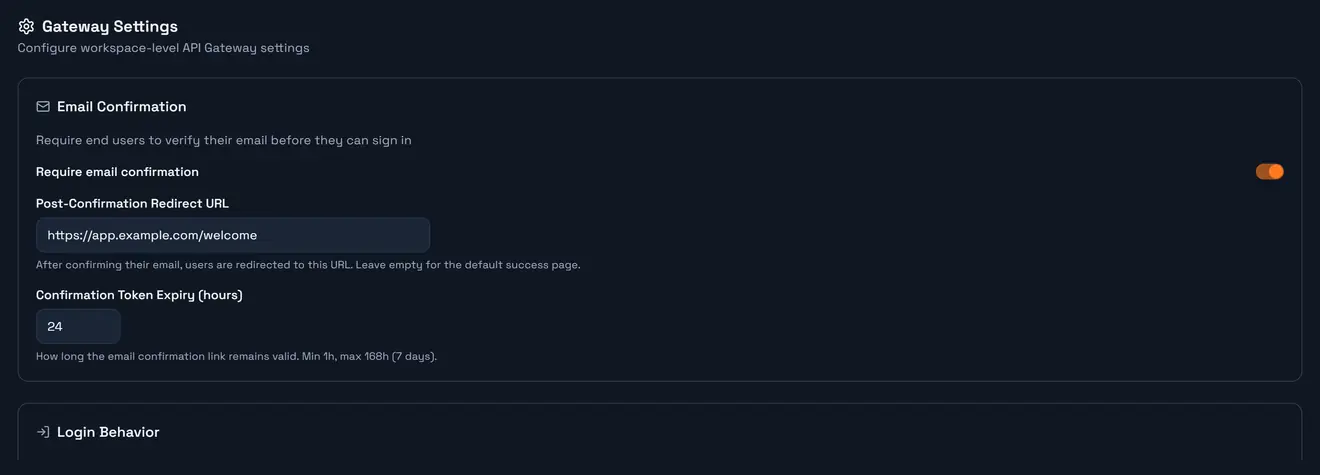
Email confirmation
Setting | Default |
Require email confirmation | off |
Confirmation token expiry | 24 hours (min 1, max 168) |
Post-confirmation redirect URL | none — a default success page is shown |
With confirmation off, an account can sign in the moment it registers and emailVerified simply records whether they ever clicked the link. With it on, the gateway blocks sign-in until they do.
Off is the right default for most products: it removes a step from your funnel, and your app can still gate the parts that matter on emailVerified itself. Turn it on when an unverified account can do something you would rather it could not — spend credit, message other users, appear in a directory.
Confirmation emails need a mail provider configured on the workspace. Without one, turning this on locks out every new account, because the email that unlocks them is never sent.
The post-login redirect, and how identity crosses over
This is the most useful setting on the page and the least obvious.
Set a post-login redirect URL and the gateway sends the user there after a successful sign-in, with a signed token on the query string:
https://app.example.com/dashboard?redirect_token=<signed_jwt>That token is signed with RS256 using a key pair belonging to your workspace. Your app verifies it against the workspace's public key, published as JWKS:
GET https://api.praxsuite.com/api/v1/gateway/{workspaceId}/auth/jwks.jsonimport { createRemoteJWKSet, jwtVerify } from "jose";
const JWKS = createRemoteJWKSet(
new URL(`https://api.praxsuite.com/api/v1/gateway/${WORKSPACE}/auth/jwks.json`)
);
const { payload } = await jwtVerify(redirectToken, JWKS, {
issuer: "praxsuite-gateway",
maxTokenAge: "60s",
});
payload.sub; // the end user's id
payload.email; // their email
payload.workspace; // the workspace id
payload.jti; // treat as single-useThree properties make this worth using instead of passing a session yourself:
Public-key verification. Your app never holds a shared secret. Rotating the key pair does not mean redeploying your app.
Short-lived. Verify with a max age of about 60 seconds — the token exists to cross one redirect, not to be a session.
Single-use by convention. Store seen
jtivalues for ~65 seconds and reject repeats. The token is in a URL, and URLs end up in history, logs and referrers.
This is how you hand a signed-in identity from Praxsuite's hosted sign-in page to your own application without either side trusting the other's storage.
The hosted sign-in pages
Praxsuite serves ready-made register, sign-in and password-reset pages at:
https://portal.praxsuite.com/public/workspace/{workspaceId}/auth/loginIf your product only needs users to authenticate, these already exist and this section is how you make them yours.
Setting | Effect |
Default language | First render — |
Register fields | Which optional fields appear: first name, last name, birthday, username, phone. Defaults to first and last name. |
Social providers | Which buttons appear — Google, Microsoft, Discord, Steam. Empty by default. |
Terms and privacy URLs | Linked from the register page |
Font family and size | Typography, 14–24 px (default 16) |
Every register field you enable is a field somebody has to fill in before they can start. Enable the ones you will actually use.
Social providers here are the buttons on the hosted page; a full OIDC provider (a corporate directory, your own identity server) is configured separately and is described in Authentication.
End-user custom fields
Your end users need attributes Praxsuite does not have opinions about — a company name, a plan tier, a preferred branch. Define them here, and each one gets a key, a display name and a data type.
Values live on each end user's settings object, keyed by the definition's key:
{
  "email": "ana.rojas@example.com",
  "settings": {
    "companyName": "BlueWave",
    "plan": "pro"
  }
}
The definition is the schema and the account holds the values — so adding a field does not require touching existing accounts, and removing one does not lose what was already stored.
Where the public URL comes from
Settings also carries gatewayPublicUrl, the host your workspace's callers should use. Everything in the portal that shows you a URL — the Playground's endpoint bar, the Event Bus connection string, an endpoint's address — reads it from here.
That matters on a dedicated deployment, where the host is not gateway.praxsuite.com. Copy URLs from the portal rather than assembling them by hand and they will be right on every tier.
Next
End Users — the accounts these settings govern.
Authentication — the endpoints behind the hosted pages.