
Building an AI brain with Praxsuite
Praxsuite Team · November 17, 2026
An AI assistant is brilliant inside one conversation and forgets everything when you open the next one. You end up repeating who you are, how you like your answers and where each project stands. This case study builds the fix in a single afternoon: a small AI brain in your Praxsuite workspace, made of two tables, a page of instructions and an AI that reads them before it answers and writes to them when it learns something new.
It is written for someone who is not technical. The example comes from a health professional who works with an AI assistant every day, and the first assignment is the smallest useful piece: your first short-term memory block, a table where the AI keeps the context of your conversations and reads it back before it replies.
What you will have at the end
- A Memory table with short notes from your conversations: what you decided, what you prefer, what is pending.
- A People & Projects table that those notes point at, so the AI knows who or what each note is about.
- An AI connected to your workspace that reads Memory before answering and saves what is new after answering.
- A habit for keeping it clean, and a rule that keeps patient data out of it.
The idea in two minutes
Short-term and long-term memory
Think of how you work with a colleague. During a meeting you hold everything in your head; that is working memory, and for an AI it is the conversation itself. When the conversation ends, it is gone.
What survives is what somebody wrote down. A note from yesterday's call (“move the workshop to Thursday”) is short-term memory: recent, specific, useful for a few weeks. What you know about a person or a project after months (“prefers short summaries”, “the workshop runs every quarter”) is long-term memory: stable, and worth keeping tidy.
Layer | For an AI | In this case study |
|---|---|---|
Working memory | The current conversation | Nothing to build; it resets every time |
Short-term memory | Recent notes it can read back | The Memory table |
Long-term memory | Stable facts about people and projects | The People & Projects table |
What an “AI brain” is
Nothing mysterious. Three parts, and all three are things you can open and read:
- Tables with context: the memory itself, in rows and columns you designed.
- Instructions: a short text that tells the AI when to read the tables and what to write back.
- A connected AI: an assistant that can reach those tables through Praxsuite, with permission to read them and to add rows.
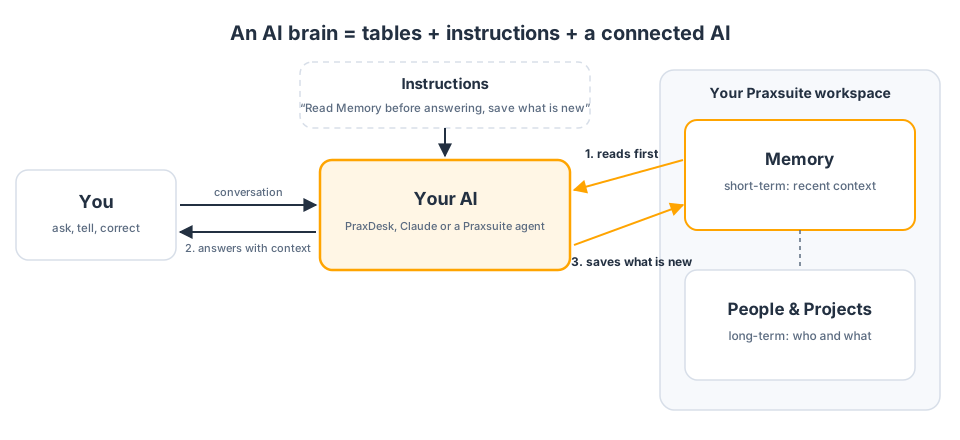
Because the memory is a table, it is yours: you can read it, correct a wrong note, switch one off, and see exactly what the AI knows about you. And because it lives in Praxsuite and not inside one app, any AI you connect to the workspace can use the same memory.
Praxsuite agents also keep a memory of their own, which they fill in automatically (see Agent Knowledge and Memory). That one is useful and works on its own. The brain in this case study is different on purpose: you decide what goes in, and every note is a row you can see.
The design
Two tables and one relation between them. Keep it this small at first; you can add columns later.
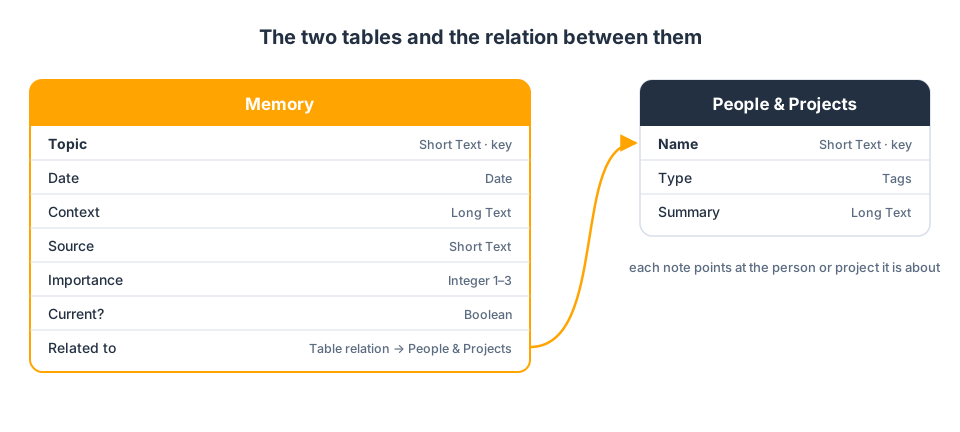
Memory, one row per thing worth remembering:
Column | Datatype | What goes in it |
|---|---|---|
Topic | Short Text (key column) | A title of a few words: “Summary format”, “Workshop date” |
Date | Date | The day the note was written |
Context | Long Text | What was learned, in one to three sentences |
Source | Short Text | Where it came from: “Conversation with the AI”, “My own note” |
Importance | Integer | 1 = nice to know, 2 = useful, 3 = always keep in mind |
Current? | Boolean | Switched off when the note stops being true, instead of deleting it |
Related to | Table relation → People & Projects | The person or project the note is about, if any |
People & Projects, one row per person or project you work with:
Column | Datatype | What goes in it |
|---|---|---|
Name | Short Text (key column) | “Active breaks workshop”, “Patient P-014”, “Clinic team” |
Type | Tags | Person, Project, Patient (coded)… |
Summary | Long Text | What is stable about it, in a short paragraph |
Why these types: a Date column keeps the calendar day exactly as written, with no time-zone shift; Long Text leaves room for a few sentences while the key column stays short; and a Table relation stores a reference, not a copy, so renaming a project updates every note that points at it. The reasons are in Datatypes in Praxsuite.
Step by step
Step 1. Create the People & Projects table
Create this one first, because the Memory table will point at it.
- In your workspace, click the + next to your tables and choose Table.
- Name it People & Projects and set the key column to Name.
- Click Create Element.
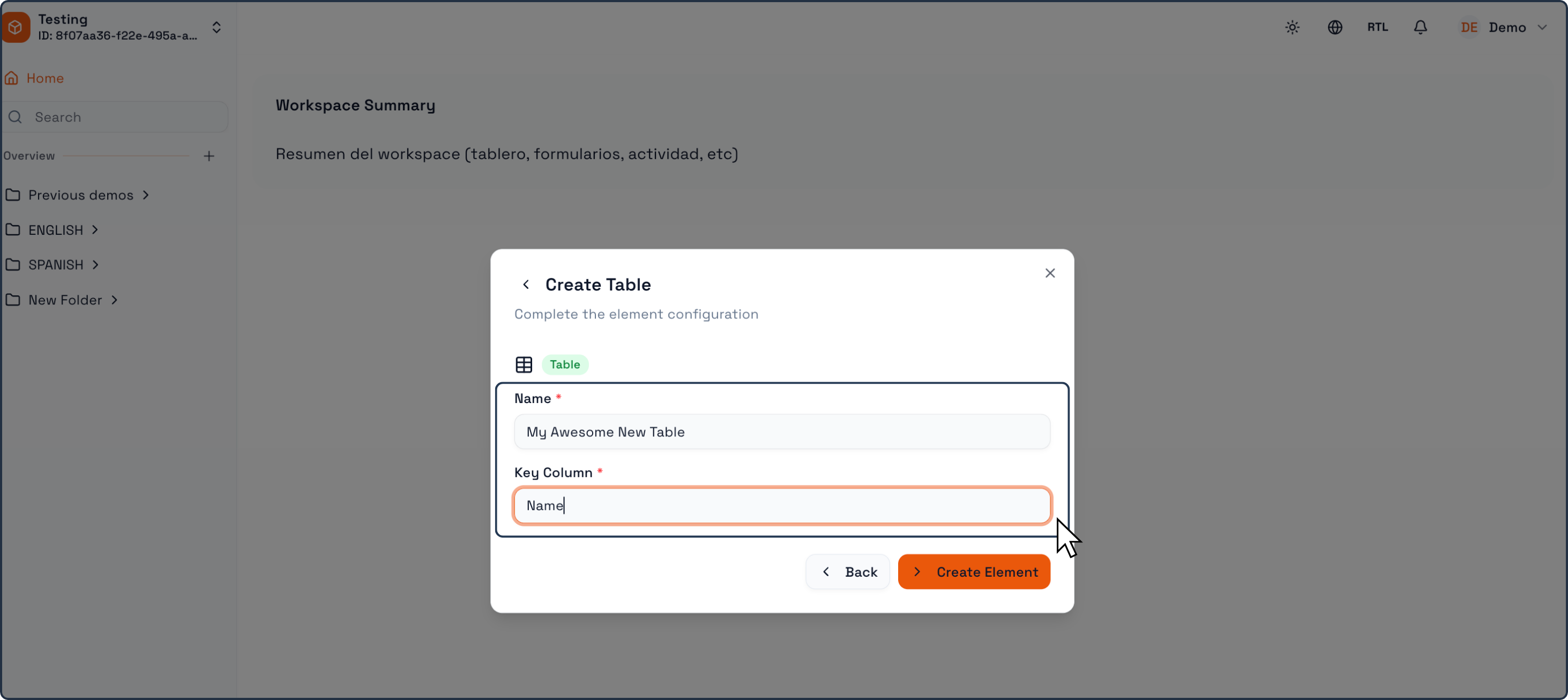
Then add the other two columns with Create Column: Type (Tags) and Summary (Long Text). The full walkthrough, with every screen, is in Creating your First Table.
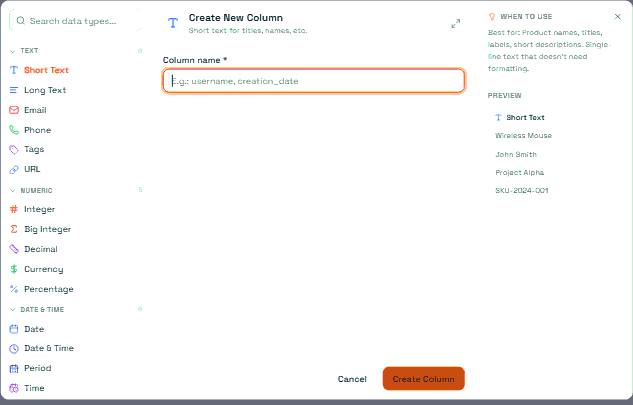
Step 2. Create the Memory table
- Create a second table called Memory, with Topic as the key column.
- Add the columns Date (Date), Context (Long Text), Source (Short Text), Importance (Integer) and Current? (Boolean).
Step 3. Relate Memory to People & Projects
- In Memory, click Create Column and name it Related to.
- Pick the Table datatype, in the Relations group, and choose People & Projects as the target table.
- Pick the cardinality that lets one note point at more than one row, since a note can touch a person and a project at once.
A relation cell holds a list even when it points at one row. That is normal, and it is what lets the AI follow a note to the person or project behind it.
Step 4. Add three rows by hand
Before connecting any AI, write a few notes yourself. It is the quickest way to check the design and it gives the AI something to read on day one. For example:
Topic | Date | Context | Source | Importance | Current? | Related to |
|---|---|---|---|---|---|---|
Summary format | 10 Nov 2026 | I want summaries as bullet points, half a page at most. | My own note | 3 | Yes | — |
Workshop date | 12 Nov 2026 | The workshop moves to Thursday 4 December. The slides for part two are still missing. | Conversation with the AI | 2 | Yes | Active breaks workshop |
P-014 schedule | 14 Nov 2026 | Asked to switch to sessions every two weeks from December. | My own note | 2 | Yes | Patient P-014 |
Notice the last row: the patient is a code, never a name. More on that under Privacy first.
Optional: save a view of Memory called Recent that shows only rows where Current? is on, sorted by Date, newest first. It is what you will open to review the brain each week. See Table Views.
Step 5. Connect an AI
There are two good routes. Pick the one that matches the AI you already use; the tables and the instructions are the same for both.
Route A: a Praxsuite agent, used from PraxDesk
This is the simplest route if you are not technical: everything stays inside Praxsuite and you chat from the PraxDesk desktop app.
- Create an agent in your workspace, for example “My assistant with memory”, and choose its model profile. See Agents Overview and Agent Models and Providers.
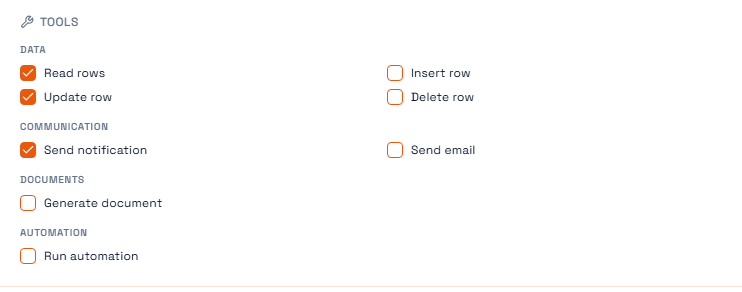
- Grant it only the tools it needs: Read rows, Insert row and Update row, scoped to the Memory and People & Projects tables. No delete, no email. See Agent Access and Tools.
- Give it a role that reaches only those two tables, so it cannot wander into the rest of your workspace (Roles & Access).
- Paste the prompt from Step 6 into its instructions, and set it to Active.
Then open PraxDesk, sign in with your Praxsuite account, choose the workspace and start a new conversation with your agent under In Praxsuite (cloud).
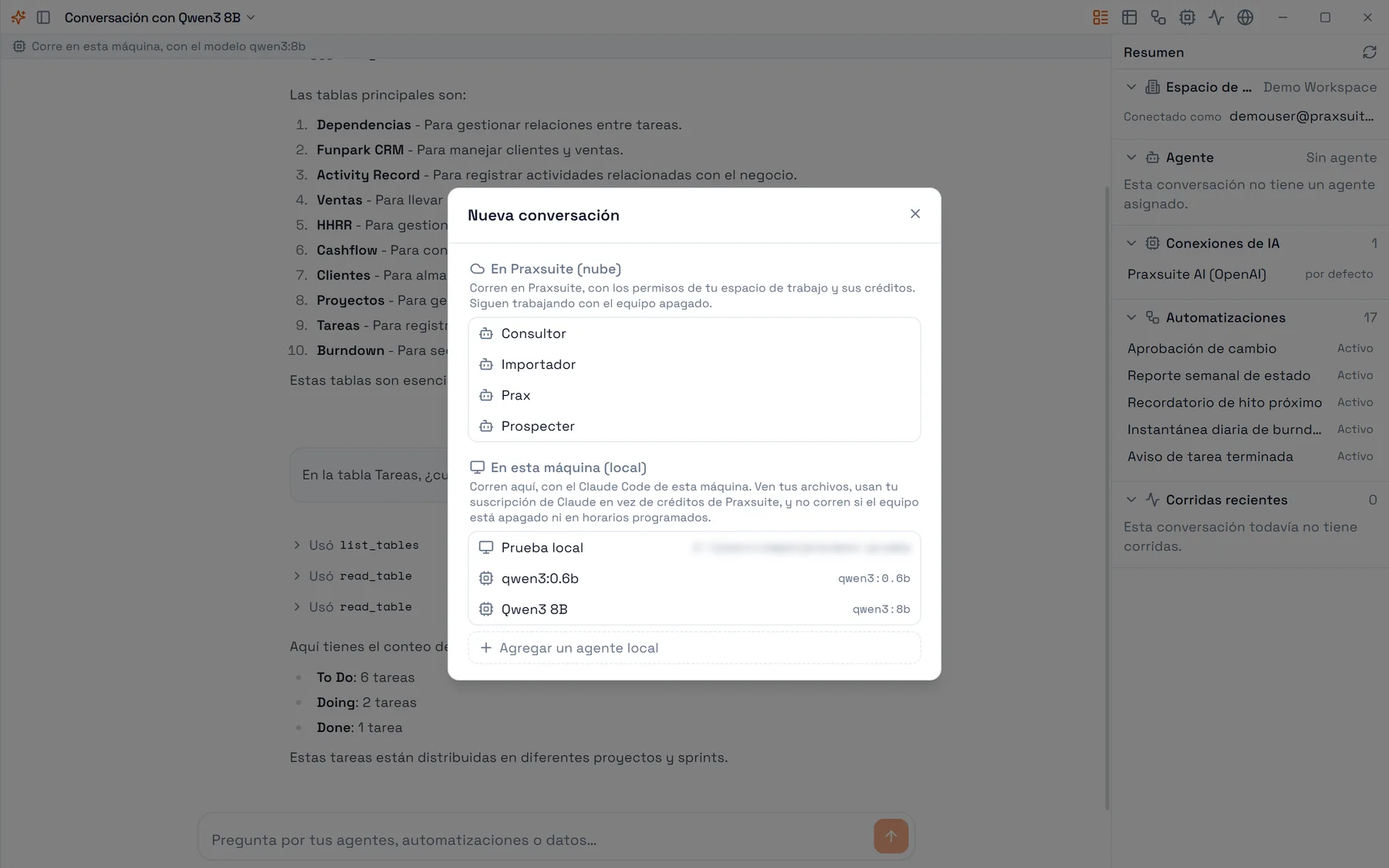
Local models in PraxDesk (Ollama) read, search and summarise well, but today they do not write data to your workspace. To save notes into Memory, talk to a cloud agent.
Route B: Claude, through the Praxsuite MCP server
If you already use Claude (Claude Desktop, Claude Code or Claude.ai), connect it to your workspace with the Praxsuite MCP server and it can read and write the same tables.
- Create a dedicated credential for Claude whose table scopes cover only Memory and People & Projects, at readwrite, with schema introspection switched on so it can see the column names.
- Claude Desktop or Claude Code: an
sk_live_API key, set up as in MCP: Connect any AI client to your workspace. - Claude.ai on the web: an AI connector instead of a key, as in AI Connectors.
- Claude Desktop or Claude Code: an
- Check the connection by asking: “List the tables in my Praxsuite workspace”. Both tables should appear.
- Paste the prompt from Step 6 where Claude keeps standing instructions: the project instructions in a Claude project, or the
CLAUDE.mdfile for Claude Code.
Step 6. The instructions
This is the part that turns two tables into a brain. Copy it as it is, then adjust the wording to the way you talk.
You have a memory in my Praxsuite workspace, in two tables:
- "Memory": short notes from our conversations (Topic, Date, Context,
  Source, Importance, Current?, Related to).
- "People & Projects": the people and projects I work with.

Before you answer:
1. Read the rows of "Memory" where Current? is on, newest first
   (20 at most). If my message is about a person or a project, also
   read its row in "People & Projects".
2. Use that context in your answer without reciting it back to me.
   If a note contradicts what I am telling you now, ask me which one
   is right.

After you answer, if you learned something that will help me in a
future conversation (a preference, a decision, a pending task, a new
date):
3. Add a row to "Memory": a short Topic, today's Date, the Context in
   one to three sentences, Source = "Conversation with the AI",
   Importance from 1 to 3, Current? on, and Related to the person or
   project when there is one.
4. If an older note is no longer true, switch its Current? off instead
   of deleting it.
5. Tell me in one line what you saved.

Never save names, ID numbers, phone numbers or health details that
identify a patient. Use only the patient's code (for example P-014).
If I give you something identifiable, do not save it and tell me.
Three details make it work. It says when to read (before every answer) and when to write (only when something durable was learned), so the table does not fill with noise. It caps the reading at 20 recent notes, so each conversation stays fast and cheap. And it ends with the privacy rule, so the AI enforces it even on a busy day.
Step 7. Test it
- Open a conversation and say something worth remembering: “From now on, I want my weekly summary on Fridays.”
- The AI should answer and tell you it saved a note. Open Memory: the new row is there.
- Close that conversation and open a new one. Ask: “When do I want my weekly summary?”
- The AI should read Memory first and answer “Fridays”. In PraxDesk you can see it happen: every tool the agent used is listed in the conversation, so you can open it and check what it read.
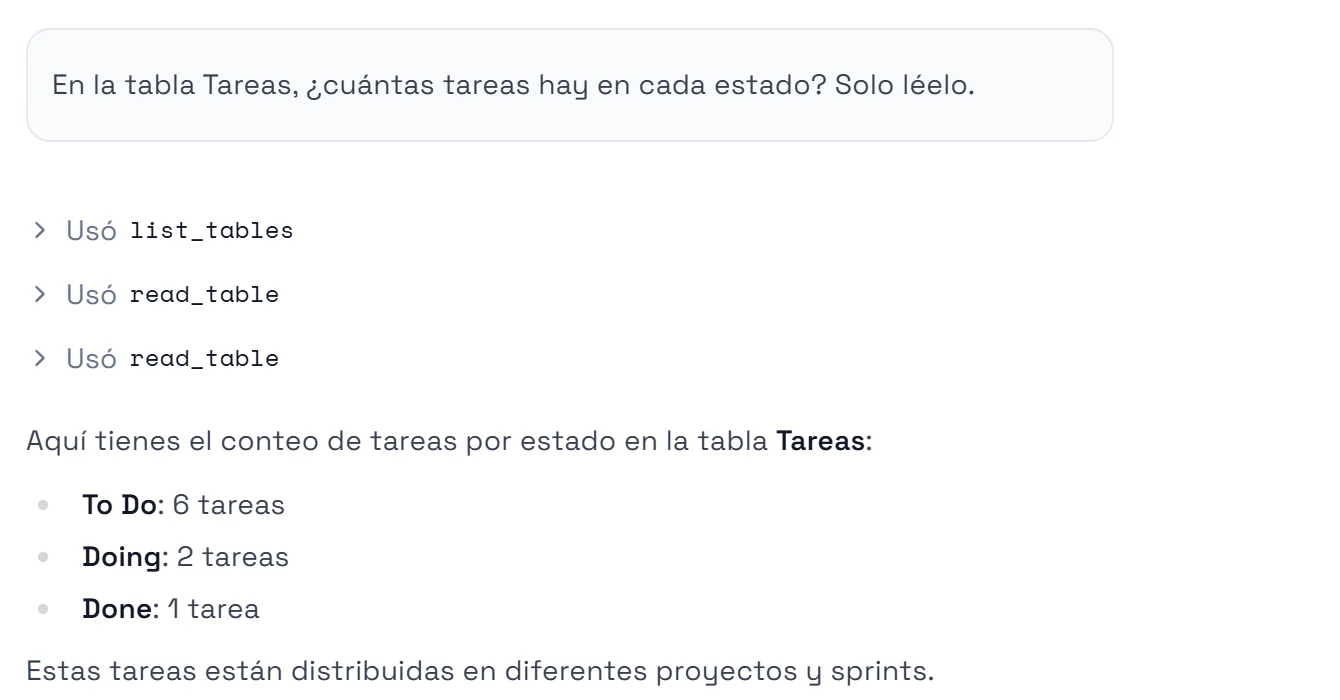
If it does not read the table, check, in this order: that the instructions are saved (in the agent, or in the Claude project), that the agent or key can reach both tables, and that the table names in the prompt match the real ones exactly.
Good practices
Privacy first
- No identifiable patient data in the brain. No names, ID numbers, phone numbers, addresses or clinical details that point to a person. Use a code (P-014) and keep the list that matches codes to people outside Praxsuite and outside any AI.
- Remember that whatever the AI reads is sent to the model that runs it. If a piece of information should not reach an AI provider, it does not belong in these tables. Follow the health-data rules of your country and your institution.
- Give the AI the narrowest access that works: only these two tables, no delete. A saved view is not a permission; hiding a column in a view does not protect it (Permissions in Praxsuite).
- Use a separate credential or agent for this brain, so you can switch it off without touching anything else.
Keep it small and current
- One idea per row, one to three sentences. A note the AI can read at a glance is a note it will use well.
- Review weekly. Open the Recent view, switch off what is no longer true, fix what the AI misunderstood. Five minutes on Friday is enough.
- Switch off, do not delete. Current? keeps the history and lets you undo.
- Promote what lasts. When a note keeps coming back (“prefers short summaries”), move it into the Summary of the person or project in People & Projects and switch the note off. That is short-term memory becoming long-term.
- Watch the cost. Everything the AI reads is context it pays for. That is why the prompt reads 20 current notes and not the whole table.
Want to approve every note?
With a Praxsuite agent, mark the Insert row grant as requires approval. Each time the agent wants to save a note, the run pauses until you approve or reject it. It is slower, and a good way to build trust during the first weeks (Agent Access and Tools).
Where to go next
- Lay out the People & Projects record so that opening a project shows its notes from Memory beside it, with a Related records block (Record Panels).
- Turn on auditing on Memory to see who or what changed each note (Table Auditing).
- Give the agent reference material that never changes, such as your protocols, as knowledge packs instead of memory (Agent Knowledge and Memory).