
Unity SDK Implementation
Mirko Franichevic · August 27, 2026
What Are We Going to Do?
You are going to connect a Unity game to Praxsuite: first authentication, then a small player save table, and finally one server-side Gateway Endpoint. The goal is not to build a full game yet. The goal is to see real data move from Unity to Praxsuite and back in a way you can safely build on.
By the end of this guide you'll know:
What a Praxsuite workspace is, and where Unity fits into it
How to install the Praxsuite SDK (Software Development Kit) package
How to configure the SDK with a Workspace ID
How to sign a player in with
Prax.AuthHow to read and write table rows with
Prax.DataHow to call server-side logic with
Prax.Endpoints
Required level: You should be comfortable creating scripts and GameObjects in Unity. No prior experience with APIs or backends is needed.
What is Praxsuite?
Think of Praxsuite as a cloud backend your game talks to over HTTPS. A Workspace is the large folder that holds your Tables, users, Gateway endpoints, Automations, files and settings. A Table is where rows of data live. An Endpoint is a public door into an Automation, which is server-side logic your player cannot inspect or rewrite.
That split is the important idea for games. Unity is excellent at controls, animation and presentation. Praxsuite is where you put the data and decisions a modified client must not be able to fake.
What is a Gateway? The Gateway is the front door of a workspace. It receives requests, checks credentials, applies scopes and rate limits, then routes the call to auth, data, files or an Automation.
Prerequisites
Requirement | Description |
Unity 2021.3 or newer | The SDK package declares Unity 2021.3 as the minimum version |
Praxsuite SDK package | Installed as |
A Praxsuite workspace | Create one in the portal before starting |
A | Columns: |
A player role | Scoped to |
A test end-user | Email and password you can use from Play mode |
Important: `SELF` and `{{claim:sub}}` do different jobs. The row filter scopes reads and updates. The default stamps ownership on insert. Configure only one and the first save usually works in a confusing way: it writes, then disappears from the player's own view.
How to Get Your Credentials
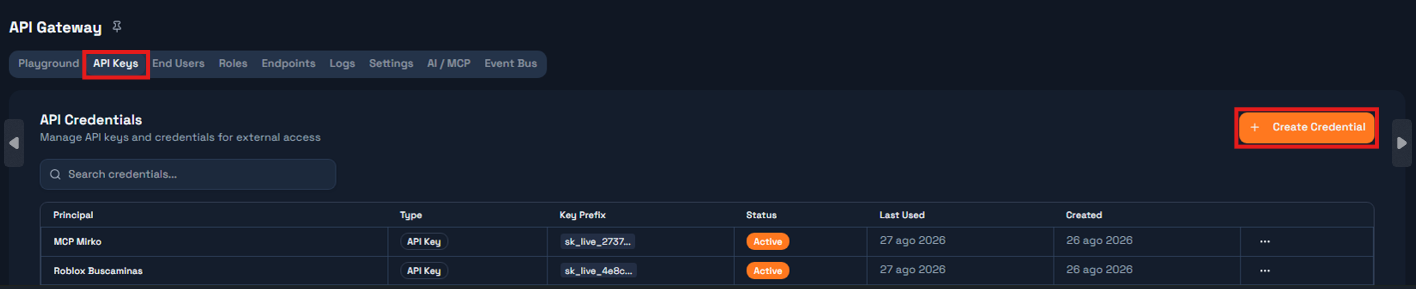
Unity needs the workspace location, not a secret. The SDK can fetch the publishable key from /auth/config, so the one value you must paste is the Workspace ID.
Your Workspace ID
Open your workspace in the portal and copy the UUID (Universally Unique Identifier) after /workspace/:
https://portal.praxsuite.com/workspace/ffd80539-a1e2-4a9e-8b33-f716bf690281
                                       this part is the Workspace ID
Your Key: publishable vs secret
Praxsuite has two key families. They are not interchangeable.
Key | Prefix | Where it may live |
Publishable |
| Client code. It identifies the workspace and can be fetched publicly |
Secret |
| Trusted server only. Never inside a Unity player build |
For this SDK, start by leaving the publishable key empty. The settings asset has an optional field for it, but auto-discovery keeps one less value in your Unity project.
Golden rule: Never ship a secret key in a Unity client. The SDK build guard scans player builds and fails when it finds a real `sklive` value under `Assets/` or `ProjectSettings`.
Step 1 - Install the SDK
Repository: https://github.com/TesseractSoftwares/Praxsuite-SDK-Unity
Open Unity Package Manager and choose Add package from git URL. Paste:
https://github.com/TesseractSoftwares/Praxsuite-SDK-Unity.gitUnity records the dependency in Packages/manifest.json:
{
  "dependencies": {
    "com.tesseractsoftwares.praxsuite": "https://github.com/TesseractSoftwares/Praxsuite-SDK-Unity.git"
  }
}
After Unity resolves packages, a script under Assets/ can compile with this using statement:
using Praxsuite;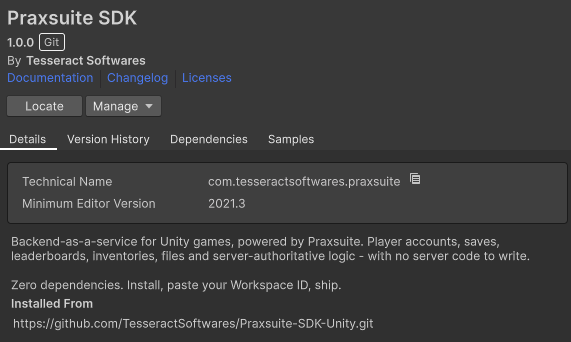
Step 2 - Create the Client
In most projects you do not manually construct a client. You create a settings asset and the static Prax entry point reads it on first use.
In Unity, click Praxsuite -> Create Settings Asset. This creates:
Assets/
  Resources/
    PraxsuiteSettings.asset
Open Project Settings -> Praxsuite and paste your Workspace ID. Leave Publishable Key empty unless you deliberately need a specific publishable key.
At startup, warm the SDK behind a loading screen:
using Praxsuite;
using UnityEngine;

public class PraxBoot : MonoBehaviour
{
    private async void Start()
    {
        var workspace = await Prax.InitializeAsync();
        Debug.Log("Connected to " + workspace.WorkspaceName);
    }
}
If the Workspace ID or host is wrong, this fails early instead of failing later during login.
Why a settings asset instead of a hard-coded client?
A settings asset is visible in the Inspector, included in builds through Resources, and checked by the SDK build guard. Hard-coded values hide in scripts and are easier to copy into the wrong scene or build target.
Step 3 - Sign a User In
Praxsuite authentication returns a player session. That session includes a JSON Web Token (JWT), and the SDK attaches it to data and endpoint calls automatically.
Create a script with serialized test credentials:
using Praxsuite;
using UnityEngine;

public class PraxLoginProbe : MonoBehaviour
{
    [SerializeField] private string email = "player@example.com";
    [SerializeField] private string password = "";

    private async void Start()
    {
        try
        {
            var result = await Prax.Auth.LoginAsync(email, password);

            if (result.RequiresEmailConfirmation)
            {
                Debug.LogWarning("Confirm your email address before signing in.");
                return;
            }

            Debug.Log("Signed in as " + Prax.Auth.CurrentUser.DisplayName);
        }
        catch (PraxException ex) when (ex.IsAuthFailure)
        {
            Debug.LogWarning("Wrong email or password.");
        }
    }
}
Run the scene. The Console should print the player display name, or a clear warning if the credentials are wrong.
Why does the SDK not trust a player id parameter?
A parameter comes from the client, and the player controls the client. The trusted identity is the JWT subject claim that Praxsuite issued after login. That is why row filters and Automations should read the caller from the session, not from a text field.
Step 4 - Read and Write Data
Create a PlayerSaves Table in Praxsuite with:
Column | Type | Notes |
| Enduser | Has default value template |
| Number | Player progress |
| Number | Player currency for this simple test |
Now load the player's row. Notice there is no where Owner = me in Unity. The role scope applies that on the server.
using System.Collections.Generic;
using System.Threading.Tasks;
using Praxsuite;
using UnityEngine;

public class PraxSaveProbe : MonoBehaviour
{
    private const string SaveTable = "PlayerSaves";

    public async Task<PraxRow> LoadOrCreateSaveAsync()
    {
        var existing = await Prax.Data.From(SaveTable).FirstAsync();
        if (existing != null)
            return existing;

        var created = await Prax.Data.InsertAsync(SaveTable, new Dictionary<string, object>
        {
            { "Level", 1 },
            { "Coins", 0 }
        });

        return created.Row;
    }

    public async Task SaveAsync(string rowId, int level, int coins)
    {
        await Prax.Data.UpdateByIdAsync(SaveTable, rowId, new Dictionary<string, object>
        {
            { "Level", level },
            { "Coins", coins }
        });

        Debug.Log("Saved level " + level + " with " + coins + " coins.");
    }
}
Read values with typed getters:
var save = await LoadOrCreateSaveAsync();
Debug.Log("Level " + save.GetInt("Level") + ", coins " + save.GetInt("Coins"));
The Owner column is missing from the insert on purpose. Praxsuite fills it from the verified session.
Step 5 - Call a Gateway Endpoint
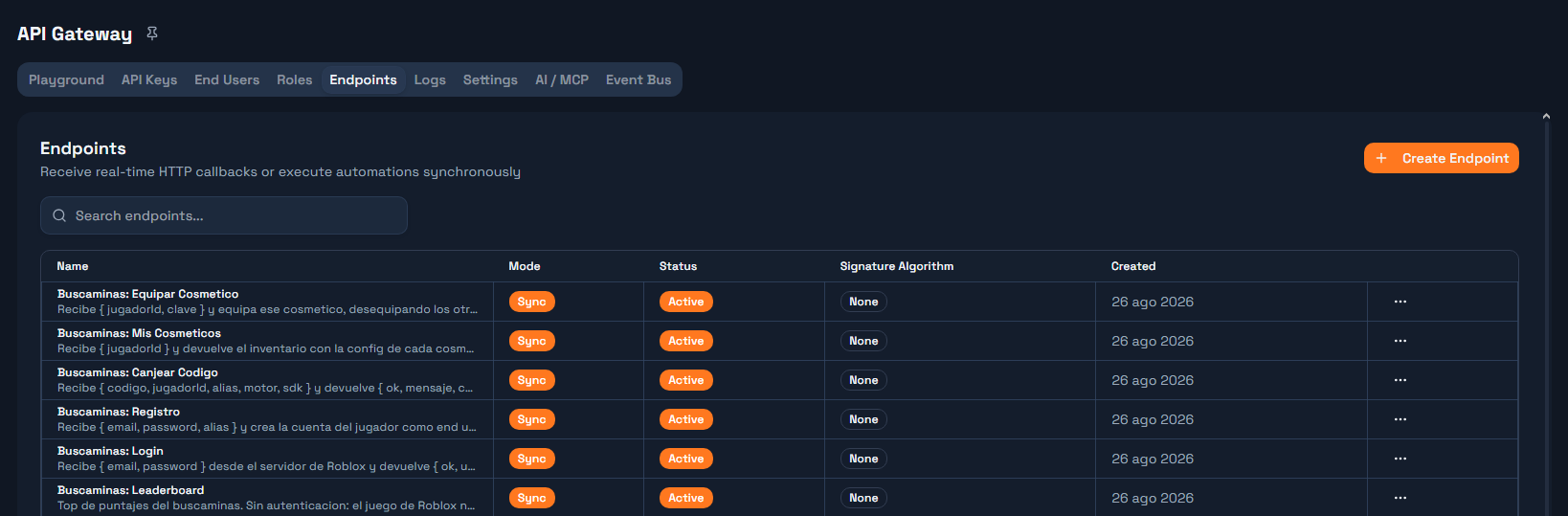
Direct table writes are fine for a player's own harmless save fields. Anything valuable should go through an Endpoint because an Automation can validate it server-side.
Create a Sync endpoint named claim-daily-reward whose Automation decides whether the player may receive a reward, then call it from Unity:
using System.Collections.Generic;
using Praxsuite;
using UnityEngine;

public class PraxRewardProbe : MonoBehaviour
{
    public async void ClaimDailyReward()
    {
        try
        {
            var response = await Prax.Endpoints.CallAsync("claim-daily-reward",
                new Dictionary<string, object>
                {
                    { "clientTime", System.DateTimeOffset.UtcNow.ToString("O") }
                });

            var row = PraxRowReader.ReadRow(response);
            Debug.Log("Reward accepted: " + row.GetBool("accepted", false));
        }
        catch (PraxException ex)
        {
            Debug.LogWarning("Reward failed: " + ex.Message);
        }
    }
}
The client sends context. The Automation decides. That is the habit you want before building currency, inventories, ranked scores or competitive logic.
Complete Example
This single MonoBehaviour signs in, loads or creates a save, increments it, and calls an endpoint. It assumes the settings asset exists and the portal setup from the previous sections is complete.
using System.Collections.Generic;
using System.Threading.Tasks;
using Praxsuite;
using UnityEngine;

public class PraxImplementationExample : MonoBehaviour
{
    [SerializeField] private string email = "player@example.com";
    [SerializeField] private string password = "";

    private const string SaveTable = "PlayerSaves";

    private async void Start()
    {
        try
        {
            var workspace = await Prax.InitializeAsync();
            Debug.Log("Connected to " + workspace.WorkspaceName);

            if (!Prax.Auth.IsSignedIn)
            {
                var login = await Prax.Auth.LoginAsync(email, password);
                if (!login.IsSignedIn || login.RequiresEmailConfirmation)
                {
                    Debug.LogWarning("The player is not ready to play.");
                    return;
                }
            }

            var save = await LoadOrCreateSaveAsync();
            var nextLevel = save.GetInt("Level") + 1;
            var nextCoins = save.GetInt("Coins") + 25;

            await Prax.Data.UpdateByIdAsync(SaveTable, save.Id, new Dictionary<string, object>
            {
                { "Level", nextLevel },
                { "Coins", nextCoins }
            });

            var reward = await Prax.Endpoints.CallAsync("claim-daily-reward");
            Debug.Log("Endpoint returned " + reward.Count + " fields.");
        }
        catch (PraxException ex)
        {
            Debug.LogWarning(ex.ToString());
        }
    }

    private static async Task<PraxRow> LoadOrCreateSaveAsync()
    {
        var save = await Prax.Data.From(SaveTable).FirstAsync();
        if (save != null)
            return save;

        var created = await Prax.Data.InsertAsync(SaveTable, new Dictionary<string, object>
        {
            { "Level", 1 },
            { "Coins", 0 }
        });

        return created.Row;
    }
}
Press Play. A successful run connects, signs in, creates or reads the player's save, updates it, and reaches the endpoint.
Common Errors and How to Avoid Them
Error | Cause | Solution |
| No settings asset exists, or | Create |
| The copied value includes spaces, URL text or another non-UUID value | Copy only the UUID after |
|
| Check the endpoint slug or id before calling |
| You used | Use |
| You tried an unscoped delete | Delete by id or add filters deliberately |
| You called a session-only auth method before login | Gate account actions behind |
|
| Enable aggregation/count access or use |
Production Tips
Ship only a publishable key, or leave it empty and let the SDK fetch it from
/auth/config.Keep
VerboseLoggingoff in release builds because bodies can include player data.Use
Prax.Endpointsfor rewards, purchases, score submission and anything a modified client would want to fake.Use
UpdateByIdAsyncor filteredUpdateAsync; unscoped writes are refused for a reason.Test a real build so the Praxsuite build guard can block secret keys and insecure remote hosts.
Prefer
CancellationTokenfor UI flows that can close before a request returns.
Next Steps
Import the SDK Quick Start sample from Package Manager and compare it with your script.
Add a real login panel instead of serialized test credentials.
Build a small leaderboard using the SDK sample pattern.
Move currency rewards behind a Sync endpoint before adding inventory.
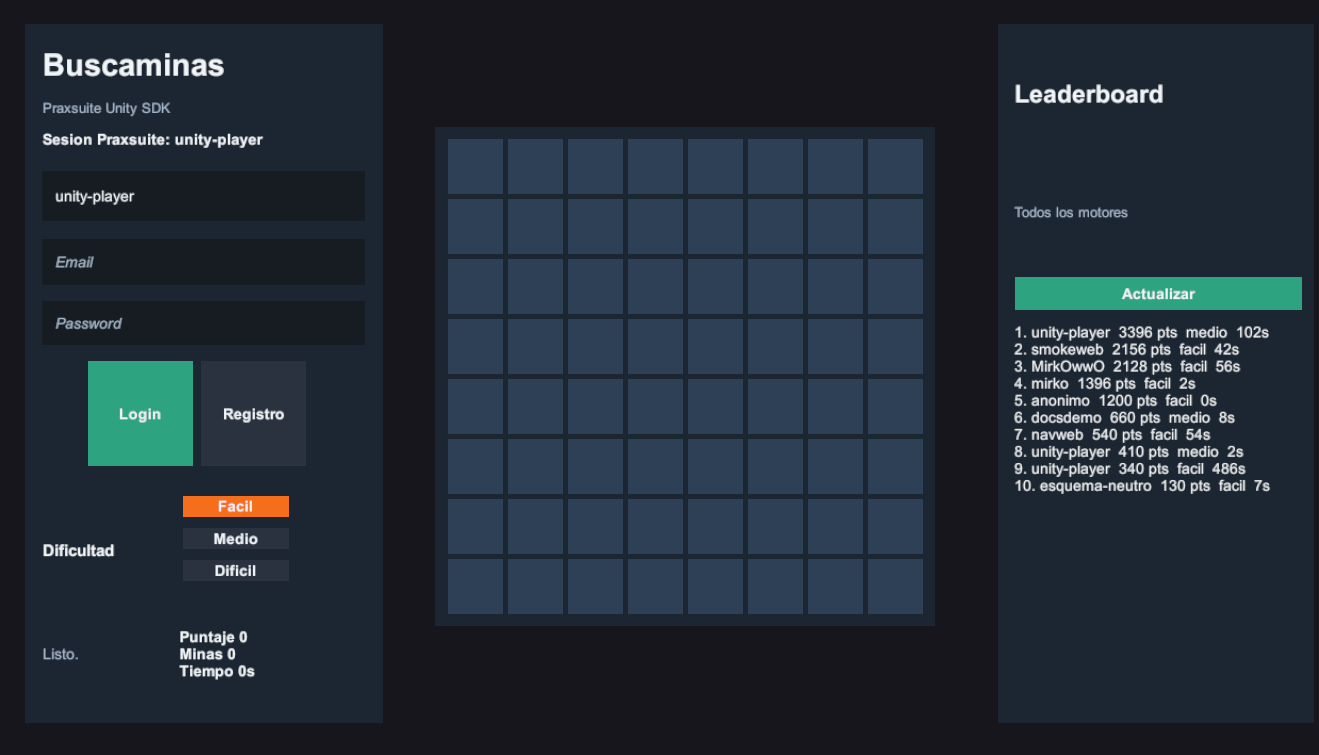
Continue with the Unity Minesweeper Use Case once this first integration is working.
You now have Unity talking to Praxsuite through auth, data and server-side logic. That is the foundation the full game will stand on.