
Notification Rules
Vincent Depassier · September 3, 2026
Praxsuite does not notify anyone by default. Nothing arrives until somebody writes a rule, and a rule says exactly three things:
When this happens — to this thing — tell these people, by these channels.
You write them in Notifications → Rules.
What can trigger a rule
A fixed list of events. You pick one per rule; you cannot invent your own.
Data
Topic | Fires when |
Row Created | A new row is added to a table |
Row Updated | A row is modified |
Row Deleted | A row is removed |
Column Created / Updated / Deleted | A table's structure changes |
Table Created / Deleted | A table appears or disappears |
Status
Topic | Fires when |
Status Changed | A Status column changes to anything |
Status Set To | A Status column changes to one specific value |
Forms
Topic | Fires when |
Form Submitted | An end user submits a form |
Form Viewed | An end user opens a form |
There is also a User Logged In topic in the list. It does not currently work — nothing in the platform raises that event, so a rule built on it will never fire. Ignore it until this page says otherwise.
Scoping: which table, which form
By default a rule listens to its event across the whole workspace. "Row Created" with no scope notifies on every new row in every table, which is almost never what anyone wants for more than a day.
Pick an object — a specific table, a specific form — and the rule only fires for that one.
Scope every rule you intend to keep. An unscoped rule on a busy workspace is how people learn to ignore notifications entirely, and once they have learned that, the useful ones stop working too.
Status rules, which are the useful ones
The two status topics take extra settings, and they are what most workspaces actually want.
Status Changed needs a table and a column. It fires on any transition of that column.
Status Set To needs a table, a column, and a target value. It fires only when the column lands on that value — the difference between "somebody touched this ticket" and "a ticket reached Blocked".
The value comparison ignores capitalisation, so Blocked and blocked both match.
The notification itself is written for a human: it names the record, the column, and both sides of the transition — changed «Status» from "In Review" → "Blocked" — with the status colours preserved, so a glance is enough.
Reach for Status Set To first. It is the one that produces notifications people keep reading, because it only speaks when something actually needs attention.
Recipients and channels
A rule has a list of recipients, and each recipient chooses their own channels:
Channel | Where it lands |
In-app | The notification inbox, plus a live toast if they are online |
Their workspace email address |
Both can be on. Both can be off — which is a valid way to keep a recipient on the rule while silencing them, though deleting the rule is usually clearer.
Two things to know before you rely on email:
Email is sent through your workspace's own mailing setup. A workspace with no mailbox connected creates the notification and delivers it in-app, and the email silently does not arrive. Connect a mailbox in Settings → Mailing Engine first.
There is no per-user mute. Recipients cannot opt themselves out of a rule; only whoever manages rules can change the list.
You will be notified of your own actions
If you put yourself on a "Row Created" rule, creating a row notifies you about it. The rule does not skip the person who caused the event.
That is occasionally useful as a receipt, and usually just noise. Leave yourself off rules that fire on work you do yourself.
Active and inactive
Every rule has an on/off switch that is separate from deleting it.
Turn a rule off while you are doing a bulk import, a migration, or anything else that would fire it a thousand times, and turn it back on afterwards. Deleting and rebuilding it loses the recipient list for no reason.
How to think about the whole thing
Notifications are built on the workspace's activity record — the same trail that answers "who changed this". A rule is a standing subscription to part of that trail.
Two consequences worth internalising:
If an action is not recorded, no rule can notify on it. That is why the topic list is fixed and short rather than open-ended.
The notification carries what the record carries: who acted, what they touched, and when. It does not carry the whole row.
Practical guidance
Start with one Status Set To rule on the one transition your team actually cares about. Add more only when someone asks.
Scope everything to a table or a form. Workspace-wide rules are for demos.
Use email sparingly — for the handful of events that should interrupt someone's day, not for a running commentary.
Turn rules off before bulk operations, not after the inbox has a thousand entries.
Review rules when people say they get too many notifications. The complaint is almost always one unscoped rule, not the feature.
Next
Your Notification Inbox — where the in-app half arrives.
How to Create a Notification Alert — the original step-by-step walkthrough.
What Are Activity Logs in Praxsuite? — the record notifications are built on.
What it looks like
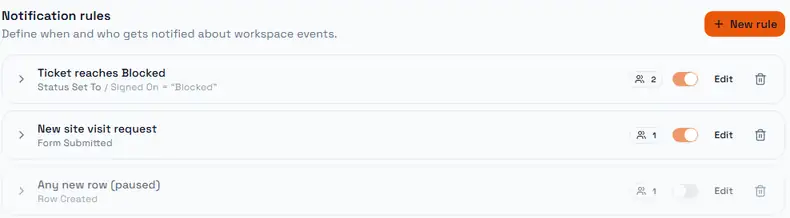
Three rules, in the shape this page recommends. The first is a Status Set To rule scoped to one table and one column, firing only on "Blocked". The second is scoped to a single form. The third is the pattern to avoid — an unscoped Row Created rule — and it has been switched off rather than deleted, which is exactly what the on/off toggle is for.
The badge next to each switch is the recipient count. Expanding a rule lists them with their channels.