
Your Notification Inbox
Vincent Depassier · September 3, 2026
Everything a rule sends you in-app lands in one place: Notifications → Inbox.
It is deliberately small. There is no folder structure, no rules engine on the receiving side, no snooze. A notification is unread, read, or gone.
The bell
The bell in the workspace header carries a count of what you have not read yet, and it is the reason most people never open the inbox on purpose — they click the bell.
While you have the workspace open, new notifications arrive without a refresh: a short toast appears, the count goes up, and the item is already in the inbox when you get there.
Sound
New notifications can play a short chime. The toggle lives on the bell, and it is remembered per browser — turning it off on your laptop does not turn it off on your phone, and clearing your browser data turns it back on.
Browsers refuse to play audio until you have interacted with the page, so the first notification after a fresh page load may arrive silently even with sound on. That is the browser, not a setting.
Reading the list
Each entry shows a title, a body written for a person rather than a log line, and when it arrived. Unread entries carry a dot and heavier text.
A coloured stripe on the left marks urgency: red for critical, amber for a warning, nothing for ordinary items. Most notifications are ordinary; the stripe is there so the rare ones are findable at a glance.
Status notifications additionally render the status colours themselves, so a transition into Blocked looks like Blocked.
Clicking an entry takes you to the thing it is about — the row, the form submission, the table. This is the whole point of the inbox: it is a queue of places to go, not a list of things to read.
What you can do
Action | Effect |
Mark as read | Clears the unread dot and lowers the bell count |
Dismiss | Removes it from your inbox |
Mark all as read | Everything currently listed |
Dismiss all | Empties the inbox |
Filter: All / Unread | The only filter there is |
Everything here is per person. One notification sent to five recipients is five independent copies: you dismissing yours does not touch anyone else's, and does not affect whether the rule keeps firing.
Dismiss is not a mute. It removes one notification. If the same rule keeps producing them, the fix is in Notifications → Rules, not here.
If a rule lists you with the email channel, you also get an email — same title, same body, with a link back into the workspace.
The email is a copy, not a replacement: the in-app notification still appears if that channel is also on, and reading the email does not mark the in-app one as read. They are independent deliveries of the same event.
Email is sent through the workspace's own mailing setup. If your workspace has no mailbox connected, the in-app half still works and the email half quietly does not.
When you expected a notification and got nothing
Work down this list; the answer is almost always in the first three.
Is there a rule at all? Notifications are never automatic. Check Notifications → Rules.
Are you on it? Recipients are named individually. Being in the workspace is not enough.
Is your channel on? Each recipient has their own In-app / Email switches, and both can be off.
Is the rule active? Rules have an on/off switch separate from deletion.
Does the rule's scope match? A rule scoped to one table says nothing about another.
For Status Set To — did the value actually match? The rule fires on one target value, not on every change of that column.
Is it the User Logged In topic? That one never fires. See the rules page.
If email specifically is missing while the in-app notification arrived, the workspace has no mailbox connected.
Practical guidance
Treat the inbox as a to-do queue, not a feed. Dismiss what you have acted on; whatever is left is what still needs you.
If you dismiss without reading, the rule is wrong. Say so to whoever owns it instead of quietly clearing the list every morning.
Keep email for the interrupting few. In-app is free attention; email is somebody's inbox.
The bell count is the honest number. If it lives in the hundreds, the problem is upstream, in the rules.
Next
Notification Rules — where the notifications come from, and how to stop the wrong ones.
How to Create a Notification Alert — the original step-by-step walkthrough.
What it looks like
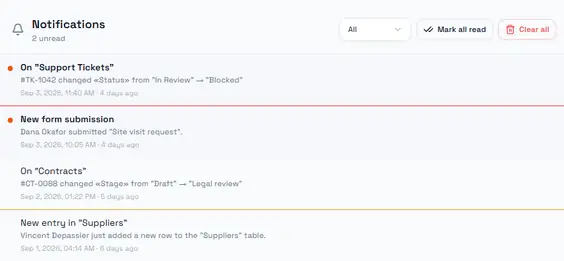
Four notifications, and every element this page described.
The header carries the unread count — 2 unread — next to the All / Unread filter and the two bulk actions. Clear all is the button this page calls "dismiss all"; it empties your inbox and nobody else's.
The two top entries are unread: filled dot, heavier title. The stripe down the left is severity — red on the first (a ticket that reached Blocked), amber on the third, nothing on the ordinary ones.
Notice the bodies. #TK-1042 changed «Status» from "In Review" → "Blocked" names the record, the column and both sides of the transition, which is why the inbox works as a queue of places to go rather than a list of things to decode.