
The Playground
Vincent Depassier · August 30, 2026
PraxQL — The Playground
The Playground is a query console built into the portal. You write a PraxQL body, press Execute, and see the rows come back — without writing a line of client code, minting a key, or leaving the browser.
It is the fastest way to answer the three questions every integration starts with: what tables can this key see, does my query parse, and does it return what I expect?
You will find it at API Gateway → Playground.
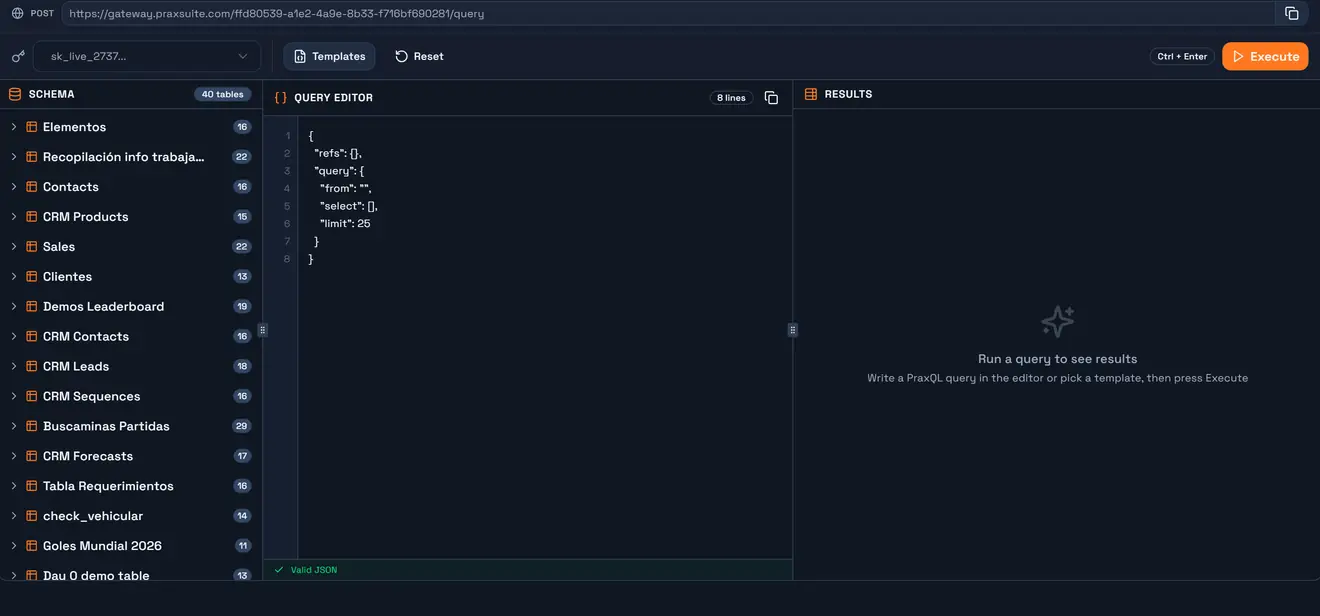
Anatomy
Five regions, top to bottom and left to right.
The endpoint bar. The exact URL your app will POST to — https://gateway.praxsuite.com/{workspaceId}/query. It is not decoration: this is the same endpoint the Playground itself uses, and the copy button next to it is how you move from experimenting to integrating. On a dedicated deployment the host differs, which is why you copy it from here rather than typing it.
The credential selector. Every active key in the workspace, shown by name and secret prefix. This choice is the whole point of the Playground — see the next section.
Templates and Reset. Five starting points built from your actual schema: Simple Select, With Filters, Nested Relations, Aggregation, Insert Row. Reset returns the editor to an empty skeleton.
The schema panel. Every table the selected credential can reach, with its column count. Expand one and you get the columns with their data types and which is the key.
The editor and results. JSON in, rows out. The editor validates as you type — the strip underneath reads Valid JSON or names the syntax error. Ctrl + Enter executes.
How the Playground reaches your tables
This is the part worth understanding properly, because it explains both what the Playground proves and what it cannot.
The Playground does not authenticate with an API key. It is a portal screen, so it runs on your own login, and it requires read permission on the API Gateway feature plus permission to read credentials. A person who cannot see the API Gateway section cannot open it.
It executes as the credential you selected. When you press Execute, the server loads that credential's table scopes and runs your query through the same parser and the same executor as a real gateway call. Every layer applies: table scopes, column permissions, row filters, masking rules, and the scope's own row and depth limits.
So the Playground answers a specific and useful question: "what would this key get?" Switch the selector to a different key and run the same query, and the difference in the results is the difference in their permissions. That is the cheapest way there is to verify a scope before shipping it.
   your portal login  ──▶  Playground  ──▶  runs as: the selected credential
                                              │
                                              │  same scopes, same filters,
                                              │  same masking, same limits
                                              ▼
                                        your workspace data
The four ways it differs from a real call
Every one of these is deliberate, and each one has bitten somebody.
1. The schema panel shows more than `/schema` would. For workspace admins the Playground ignores the AllowSchemaIntrospection flag and lists every scoped table, because an admin testing a query needs to see what they are testing against. Your app calling GET /schema with the same key may get an empty list — that flag is off by default on a new scope. A table visible here is not proof your integration can enumerate it.
2. Nothing reaches the Logs tab. Playground runs are not written to the query log and do not count against your API quota. That is convenient, and it is also the trap: if you are debugging by watching Logs, a Playground run will never appear there. To produce a log entry you have to call the endpoint for real.
3. Mutations are real writes. There is no sandbox and no dry run. An insert inserts, a delete deletes. The Insert Row template exists to show the shape, not to be run against a table you care about.
4. `{{claim:sub}}` resolves to *you*. In a real call, claim placeholders and column default templates resolve from the end user's token. In the Playground there is no end user, so the platform substitutes your own portal user id — which is what keeps CREATEDBY honest, but means a per-user row filter driven by sub will not behave the way it will in production. Test those against a real end-user session.
Building a query without typing GUIDs
The schema panel is not just a reference; it writes into the editor.
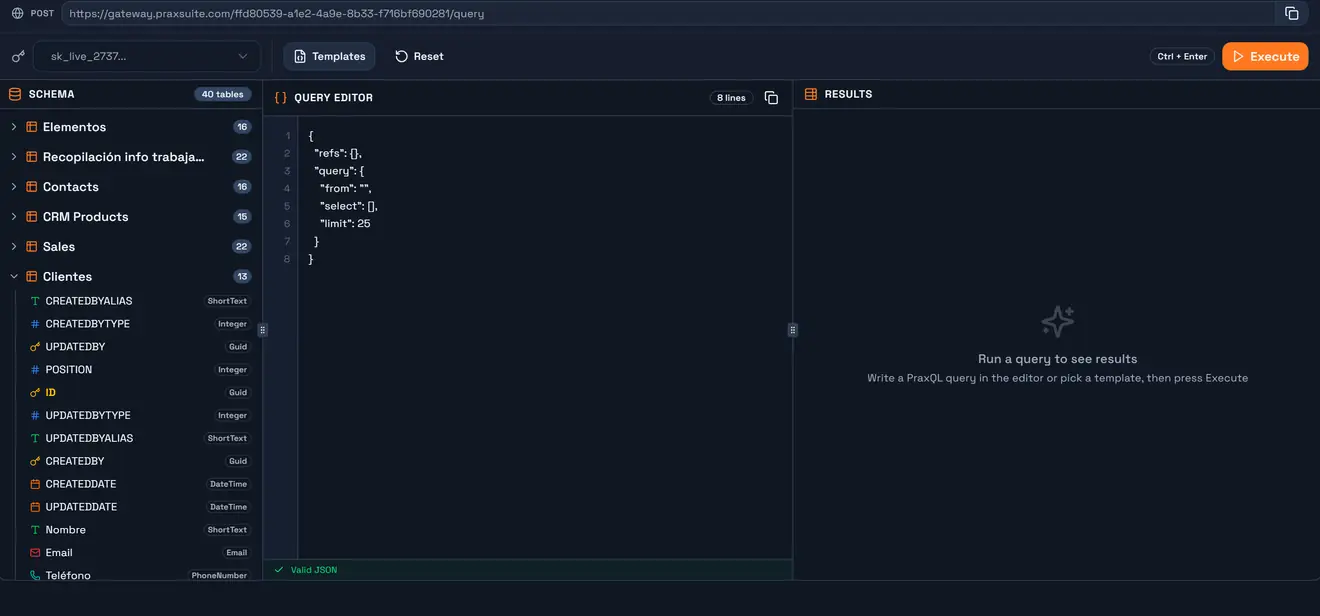
Hover a table row and a small lightning icon appears. Click it and the table's GUID is added to
refs, and set asfromiffromis still empty.Click a column and its name is appended to
select.The badge on each table is its column count; the icon and the label on the right of each column are its data type.
Both actions edit the JSON in place, so they need the editor to hold valid JSON — fix a syntax error first or the insert is refused with a toast.
One catch worth knowing. The lightning button uses the table name as the alias, and an alias must start with a letter or underscore and contain only letters, digits and underscores. For a table whose name has a space —
CRM Products— the generatedrefskey is rejected with400 INVALID_REFS. Rename the alias to something likeProducts(and updatefromto match) and it runs. The GUID it inserted is still the one you want.
A run, end to end
{
  "refs": {
    "Clientes": "1f60b6bd-eb33-4c55-bc3a-d7fbc127e717"
  },
  "query": {
    "from": "Clientes",
    "select": ["Nombre", "Email", "Teléfono"],
    "orderBy": [{ "field": "Nombre", "dir": "asc" }],
    "limit": 25
  },
  "includeTotalCount": true
}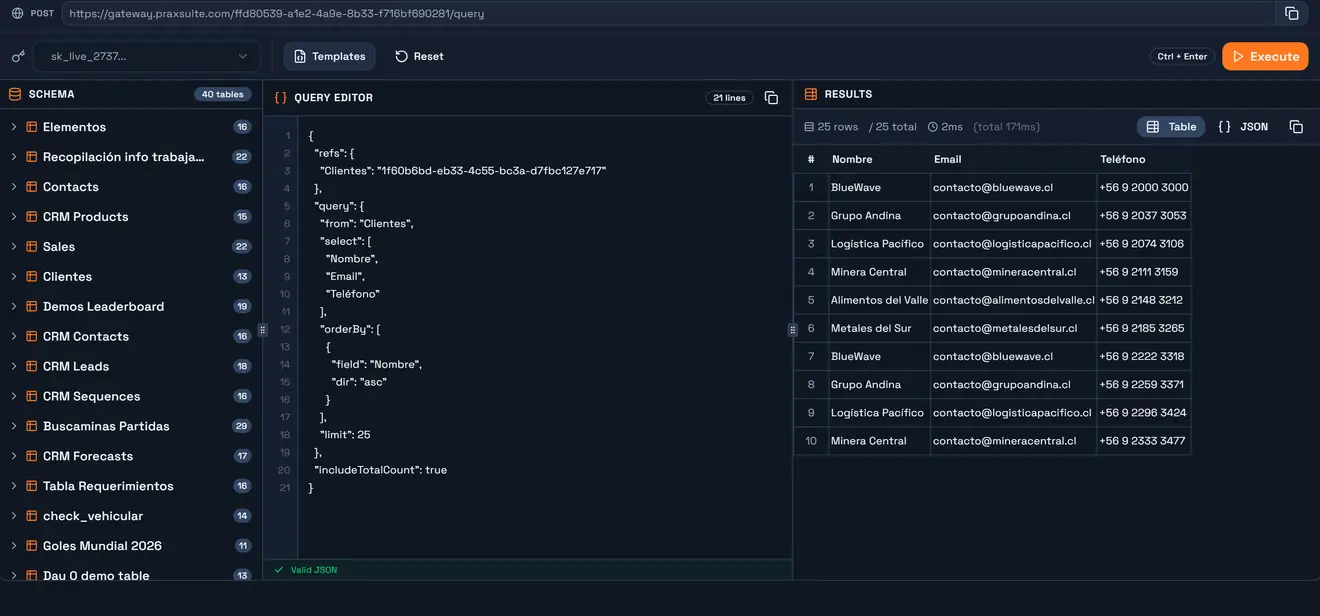
The header above the results is the meta block, and it is worth reading rather than skipping:
What it shows | Why it matters |
| how many came back |
| only present because |
| time spent executing the query |
| the whole round trip, authentication and transport included |
The gap between those last two numbers is the useful one: a query that executes in 2 ms inside a 171 ms round trip is not a query you need to optimise.
If you get fewer rows than you asked for, that is the scope talking. A new table scope caps results at 200 rows and relations at depth 2, well under the platform ceilings of 1,000 and 5. The effective limit is always in meta.limit.
Switch the results to JSON to see exactly the payload your app will parse — including the shape of Status columns, which come back as an object rather than a bare name.
From the Playground to your code
The body you just ran is the body you send. Nothing needs translating:
curl -X POST https://gateway.praxsuite.com/{workspaceId}/query \
  -H "Authorization: Bearer sk_live_xxxxx" \
  -H "Content-Type: application/json" \
  -d '{"refs":{"Clientes":"..."},"query":{"from":"Clientes","limit":25}}'
Copy the URL from the endpoint bar, copy the query with the button above the editor, and use a key with the same scopes as the credential you selected. If it worked here, it works there — with the four differences above accounted for.
When the Playground is the wrong tool
Load testing. Runs are not metered here, so nothing you measure reflects quota or rate limits.
Anything involving an end user's identity. No end user is signed in, so
valueFromClaimfilters and{{claim:…}}values do not resolve the way they will in production.Verifying that a key cannot introspect. The panel deliberately over-shows. Check
AllowSchemaIntrospectionon the scope instead.
For everything else — proving a scope, shaping a query, checking what a filter actually returns — it is the first place to go.
Next
PraxQL Overview — the request format the editor expects.
Security Model — the layers the Playground is running your query through.